
Elementor WooCommerce Block Error: How to Fix It Fast
Table of Contents
- Introduction
- How Elementor and WooCommerce Blocks Work Together
- Common Errors Users Face
- Root Causes of Elementor WooCommerce Block Errors
- Step-by-Step Troubleshooting Guide
- How to Prevent Future Elementor WooCommerce Block Issues
- Conclusion
Introduction
One well-liked WordPress page builder is Elementor. The best plugin for creating online stores is WooCommerce. Together, they help users build powerful eCommerce sites without coding. Many store owners use Elementor to design WooCommerce product pages, checkout areas, and shop layouts.
However, this combination does not always work perfectly. Users often report issues when trying to use WooCommerce blocks inside Elementor. This can lead to errors, crashes, and broken layouts. In short, the Elementor WooCommerce block not working is now a common issue.
For some users, Elementor freezes when editing WooCommerce pages. Others face problems when using the cart or checkout blocks. These blocks either fail to load or create errors. In worst cases, WooCommerce block crashes Elementor entirely.
If you’ve faced any of these problems, you’re not alone. This guide will help you make sense of what’s happening. It will also show you how to fix it.
How Elementor and WooCommerce Blocks Work Together
The WordPress block editor (Gutenberg) is used to create WooCommerce blocks. These blocks help users add shop features like:
- Product grids
- Cart and checkout pages
- Filters and category lists
Elementor, on the other hand, is a visual drag-and-drop editor. It uses its own system to render content. While Elementor supports WooCommerce, it doesn’t fully support all Gutenberg blocks.
This leads to a compatibility issue between Elementor and WooCommerce blocks. When you try to add a block like “Cart” or “Checkout” into an Elementor page, it may not render. Sometimes, it causes the editor to crash.
Other common symptoms include:
- Elementor not editing WooCommerce block content
- Checkout page layout breaking inside Elementor
- Cart block not loading at all
These issues happen mostly when using:
- The default WooCommerce block-based pages
- New full-site editing features from WordPress
- Outdated or poorly coded themes and plugins
Understanding this helps you avoid problems before they occur.
Common Errors Users Face
Elementor Freezing or Crashing with WooCommerce Blocks
One of the most reported issues is Elementor crashing. When a user attempts to edit a page using a WooCommerce block, this frequently occurs. Elementor may freeze or return an error message. In some cases, the screen goes blank or fails to load.
This usually points to a WooCommerce block crashing Elementor. It may happen when blocks like Cart, Checkout, or Products are added. The editor becomes unresponsive and users can’t save their changes.
Many store owners face this when building:
- Custom checkout pages
- Product archive layouts
- Cart pages with dynamic elements
WooCommerce Blocks Not Rendering in Elementor
Sometimes, the page loads, but the WooCommerce block does not appear. The block space either remains empty or displays an endless loading spinner.
This is another sign of a compatibility issue. It means Elementor blocks are not rendering WooCommerce content correctly. This can break your page design and confuse your visitors.
Here are common symptoms:
- Blocks like “Cart” or “Checkout” don’t display anything
- Styles are missing or layout looks broken
- Preview mode shows errors or missing content
This often occurs with full-site editing themes or block-based templates.
Cart and Checkout Blocks Not Loading Properly
Another frequent issue is the Elementor cart block not loading. Users try to add the WooCommerce Cart block, but it never appears. The page stays blank or shows an error message.
The same thing happens with the Checkout block. This can cause serious problems for online stores. If the checkout page doesn’t work, users can’t complete their purchase.
These two blocks are crucial for conversions. If they break, it affects both user experience and sales.
Shop Page Errors in Elementor
Some users report issues while editing the main shop page. The Elementor shop page shows errors when a WooCommerce block is added. The editor may display a warning or simply crash.
This can be caused by:
- Plugin conflicts
- Outdated WooCommerce templates
- Theme or style issues
You can find and correct these mistakes more quickly if you understand them.
Root Causes of Elementor WooCommerce Block Errors
When Elementor and WooCommerce don’t work well together, users often feel stuck. Blocks fail to load, the editor crashes, or parts of the page don’t appear. These are frustrating problems. But they usually come from specific, fixable causes.
Let’s examine the most frequent causes of Elementor WooCommerce block issues.
- Plugin Conflicts Are Very Common
WordPress sites often run many plugins at once. Each plugin adds its own code to the site. Sometimes, two plugins conflict and cause problems. This is especially true for page builders like Elementor and large plugins like WooCommerce.
When a conflict happens, you might see:
- Elementor is not editing the WooCommerce block content
- Blocks are disappearing or showing empty spaces
- The editor freezes when you try to load a page
The likelihood of these issues increases if you use:
- WooCommerce-related extensions
- Performance boosters or caching plugins
- Custom Elementor add-ons
One plugin might block another from working properly. This is a very common cause of the Elementor WooCommerce block not working.
- Incompatible or Outdated Themes
Themes can also create issues with Elementor and WooCommerce blocks. Some themes override WooCommerce templates or add custom styling. If a theme is not updated, or not built for block-based layouts, it can break things.
A theme conflict may lead to:
- Layout problems with WooCommerce blocks
- Elementor shop page error when editing
- Styling that doesn’t match your settings
Using a WooCommerce-compatible theme is important. If your theme doesn’t fully support Gutenberg or Elementor, you may face block rendering errors.
- Version Mismatches Between Plugins
Sometimes, you update Elementor but not WooCommerce. Alternatively, you may update WooCommerce, but Elementor Pro continues to use an outdated version. This mismatch can create unexpected bugs.
These bugs include:
- Cart and checkout blocks not loading
- Blocks showing old data or broken layouts
- Elementor crashing when loading WooCommerce pages
Keeping all plugins updated reduces these risks.
- Full-Site Editing (FSE) Conflicts
WordPress now supports Full-Site Editing (FSE). This uses block themes to design every part of your site. While WooCommerce blocks are built for FSE, Elementor still uses its own layout system.
The problem? These two systems can’t always work together.
You may face:
- Elementor blocks not rendering WooCommerce content
- Checkout or cart pages failing to display
- Error messages when editing shop-related templates
This happens more often with newer WordPress themes built for FSE.
- Caching, Optimization, and JavaScript Errors
Speed optimization plugins are great for performance. But they can sometimes break how blocks load. Scripts are combined, compressed, or delayed. This may stop WooCommerce blocks from working in Elementor.


Typical signs include:
- Blocks not appearing
- Loading spinners that never stop
- Pages breaking in preview mode
Disable optimization plugins to test. Clear all cache and refresh the editor.
Step-by-Step Troubleshooting Guide
When Elementor fails to work with WooCommerce blocks, the site becomes hard to manage. Pages stop loading. Blocks go missing. Cart and checkout pages break. But don’t panic, there are easy ways to resolve a lot of these problems.
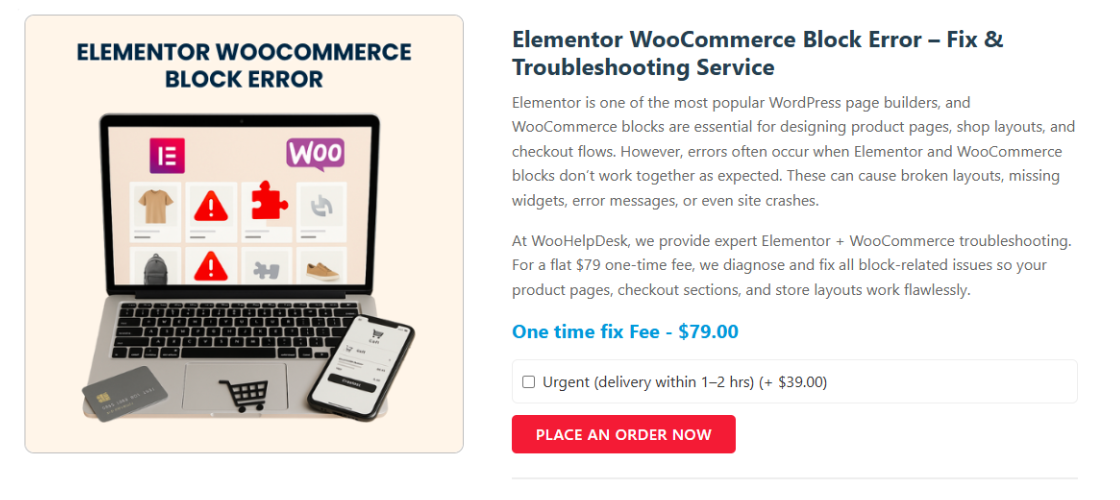
Here’s a detailed troubleshooting guide to help you resolve the most common errors.
- Update All Plugins and WordPress
Start by updating everything. Outdated plugins are often the root cause. If Elementor or WooCommerce is running on an old version, blocks may stop working.
Follow these steps:
- Elementor and Elementor Pro should be updated.
- Update WooCommerce to the latest version
- Update your WordPress core and theme
Once everything is up to date, check if the problem is gone.
- Clear Cache and Disable Optimization Plugins
Cache can break how content loads in Elementor. Optimization plugins may compress scripts or delay loading. Blocks may not appear as a result.
Try this:
- Empty the cache on your browser and website.
- Disable optimization plugins like WP Rocket or LiteSpeed Cache
- Test the block once more after refreshing the page.
This step often fixes the Elementor cart block not loading issue.
- Test in Elementor Safe Mode
Elementor has a built-in Safe Mode. It loads the editor without interference from other plugins or themes.
How to use Safe Mode:
- Go to Elementor → Tools → Safe Mode
- Enable Safe Mode
- Try editing the WooCommerce page again
If the blocks load now, another plugin is likely causing the conflict.
- Switch to a Default Theme Temporarily
Your theme may be the reason blocks aren’t working. Use a default WordPress theme instead, such as Twenty Twenty-Four.
Then check if:
- The checkout block loads properly
- Elementor stops crashing
- Blocks render correctly
If everything works, your theme is causi
- Use Shortcodes as a Backup
If nothing else works, you can use shortcodes. WooCommerce provides shortcodes that work inside Elementor.
Examples:
- [woocommerce_cart] for cart page
- [woocommerce_checkout] for checkout
- [products] for product listings
These are stable and often more compatible than blocks.
- Deactivate and Reactivate Plugins One by One
To locate the plugin that is in conflict:
- Deactivate every plugin except WooCommerce and Elementor.
- Verify that the blocks begin to function.
- Reactivate each plugin individually, then test each one.
This process helps identify which plugin breaks Elementor.
How to Prevent Future Elementor WooCommerce Block Issues
Once you’ve fixed the issue, you’ll want to prevent it from coming back. Prevention saves time and avoids site downtime. Here are a few simple ways to keep things running smoothly.
Keep Everything Updated Regularly
Many errors start when plugins go out of sync. New features in Elementor or WooCommerce may break older versions.
Make it a habit to:
- Every week, check for updates.
- Update themes and plugins together.
- First, test the modifications on a staging site.
This helps prevent new conflicts and keeps your site secure.
Choose Compatible Themes and Plugins
Some themes and plugins don’t fully support WooCommerce blocks. Make sure you select tools that are listed as compatible with both WooCommerce and Elementor.
Before installing any plugin or theme:
- Read user reviews
- Check the changelog for WooCommerce or Elementor support
- Don’t use plugins that haven’t been updated in several months.
This reduces the chance of a WooCommerce block creating errors in Elementor.
Avoid Heavy Customization Without Testing
Custom CSS or layout changes can break WooCommerce blocks. Always test changes before applying them on live pages.
Use a staging site to:
- Try custom styling
- Install new plugins
- Make layout edits
This allows you to catch problems early.
Alternative Solutions If Blocks Still Don’t Work
If you still face problems, you can use alternatives:
- Use Elementor Pro’s built-in WooCommerce widgets
- Use WooCommerce shortcodes instead of blocks
- Try third-party addons like Crocoblock or ShopEngine
These tools offer stable options if blocks won’t load or render.
Conclusion
The Elementor WooCommerce block problem is frustrating—but fixable. Most errors come from plugin conflicts, outdated versions, or theme issues. You can correct the mistakes and prevent them in the future by following the instructions in this guide.
Still facing trouble? WooHelpDesk is here to help. Reach out for expert support, and keep your store running smoothly.
Let me know if you’d like to turn this full 5-part content into a downloadable guide or publish-ready blog post for https://www.woohelpdesk.com.



