
WooCommerce Shop Page Layout Broken? Here’s How to Fix It Step-by-Step
Table of Contents
- Understanding the Problem — What’s Going Wrong?
- What Happens When the WooCommerce Shop Page Layout Is Broken?
- Common Layout Problems That Store Owners Report
- Why Does This Matter?
- Diagnosing the Cause — Why Is the Layout Breaking?
- Quick Pre-Fix Checklist
- Fixing the WooCommerce Shop Page Layout Step-by-Step
- Fixing WooCommerce Layout Issues with Astra and Other Popular Themes
- Preventing Future WooCommerce Layout Breaks
- Conclusion
Understanding the Problem — What’s Going Wrong?
Is your WooCommerce shop page layout messed up or not displaying right? You’re not alone. Many WooCommerce users run into this issue after updates, theme changes, or plugin installations. A broken layout not only looks bad but also affects sales. Your customers won’t trust a messy-looking store. Let’s explore what’s going on and how to identify the issue.
What Happens When the WooCommerce Shop Page Layout Is Broken?
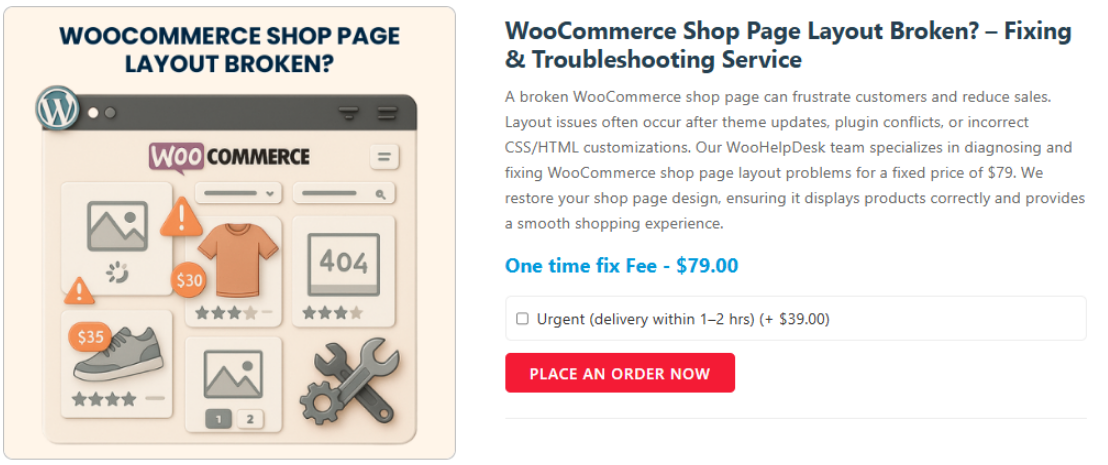
A broken shop page can take many forms. Some are easy to spot. Others might need a closer look. Here are common signs to watch for:
- Products are not aligned in a neat grid.
- Product images or prices appear out of place.
- The number of products per row is off.
- Some styles or colors are missing.
- The shop looks different than before.
If you’re facing any of these, your WooCommerce shop grid layout is broken. The layout is not working as expected. This can confuse customers and reduce conversions.
Sometimes, the WooCommerce shop page does not display correctly at all. It may show empty spaces or repeat product items. That’s a big red flag.
Common Layout Problems That Store Owners Report
Many store owners report issues like these after making site changes:
- Installing or updating a new plugin.
- Changing to a different WordPress theme.
- Editing the page with a builder like Elementor.
- Customizing the layout without using a child theme.
These changes can cause the WooCommerce shop page layout to not align correctly. You may also see a complete shift in how products appear on the page.
Sometimes, it’s not just a misalignment. The entire shop page layout is not working in WooCommerce. That means your CSS styles are not loading correctly. This makes the layout look plain, broken, or unfinished.
Why Does This Matter?
Your shop page is the heart of your online store. If it doesn’t work well, users will leave fast. A clean and professional layout builds trust and keeps people shopping.
A broken layout leads to:
- Lower time spent on your site.
- High bounce rates.
- Missed sales opportunities.
- A poor brand image.
Diagnosing the Cause — Why Is the Layout Breaking?
Before fixing anything, you need to understand why the layout broke. WooCommerce shop page layout issues can happen for many reasons. Sometimes, it’s a plugin conflict. Other times, it’s your theme or a builder like Elementor. Below, we’ll go over the common causes of layout problems.
Plugin Conflicts Can Break Your Layout
Plugins help add features to your site. But some don’t play well together. If your layout broke after installing or updating a plugin, that plugin may be the reason.
Signs of plugin conflicts:
- Layout worked fine before installing a plugin.
- Layout broke after a plugin update.
- Parts of the shop page are missing or not styled.
This is called a WooCommerce layout broken after plugin update. To confirm this, you’ll need to test plugins one by one.
Theme Compatibility Issues
Not all WordPress themes are built for WooCommerce. Some themes override WooCommerce styles. Others have outdated templates that cause layout issues.
If you changed themes recently, and now the WooCommerce layout is broken after a theme update, the theme might be the problem. Even a theme update can reset layout settings.
CSS Fails to Load
Sometimes, your styles (CSS) don’t load properly. This makes the page look unstyled or broken.
You might see:
- Plain text without layout styling.
- Images not sized correctly.
- No product grid.
This is a classic CSS broken in WooCommerce shop page problem. It often happens when custom CSS or theme styles fail to load.
Page Builder Conflicts (Especially Elementor)
Using page builders like Elementor can cause layout issues. Especially if you try to edit the shop page directly using Elementor.
Common symptoms include:
- Product blocks look strange or empty.
- Layout changes are not saving.
- Custom templates don’t match WooCommerce styles.
This issue shows as WooCommerce shop page broken with Elementor.
Astra Theme and Other Popular Theme Conflicts
The Astra theme is popular, but layout conflicts happen if you don’t set it up right.
Look out for:
- Shop page with shifted layout.
- Wrong number of product columns.
- Overwritten WooCommerce templates.
This may be a WooCommerce layout issue with Astra theme.
Template or Layout Overrides
Sometimes developers override WooCommerce templates in the theme folder. If these files are outdated or coded wrong, they cause layout problems.
This leads to WooCommerce shop layout override issues. It can happen after a WooCommerce update if the override files are not updated too.
Quick Pre-Fix Checklist
Before jumping into solutions, do these simple checks:
- Backup your website (use UpdraftPlus or similar).
- Switch to a default theme like Storefront.
- Deactivate all plugins except WooCommerce.
- Clear browser and site cache.
These steps help you isolate the issue without causing more damage.
Fixing the WooCommerce Shop Page Layout Step-by-Step
Now that you know the possible causes, let’s fix the layout step-by-step. This part will walk you through the most effective methods to fix your broken WooCommerce shop page. Follow each section carefully to restore your store layout.
- Fix CSS and Styling Issues
Broken or missing CSS can ruin your entire shop layout. If your store looks plain or out of shape, CSS is likely the issue.
Here’s how to fix it:
- Open your shop page in a browser.
- Right-click and choose “Inspect” to view elements.
- Check if your theme’s CSS or WooCommerce styles are loading.
If not, here are quick fixes:
- Re-save your permalinks (go to Settings > Permalinks, then click “Save”).
- Disable any caching plugin temporarily.
- Make sure no custom code is blocking styles.
If the CSS is broken in the WooCommerce shop page, these steps usually help.


- Theme Compatibility Fixes
Themes control how your site looks. If your WooCommerce layout is broken after a theme update, it may not support the latest WooCommerce version.
Try this:
- Switch to the default Storefront theme temporarily.
- Check if the shop layout looks normal.
If it does, the issue is your theme. Now you have two choices:
- Update the theme if a new version is available.
- Contact the theme developer for a compatibility fix.
Avoid themes that don’t mention WooCommerce support.
- Plugin Conflict Resolution
If the layout broke after installing or updating a plugin, this could be the cause.
Steps to find the issue:
- Deactivate all plugins except WooCommerce.
- Check the shop page layout.
- Reactivate plugins one by one and refresh after each.
If the layout breaks again, you’ve found the conflict.
This is common with layout builders or product filter plugins. A WooCommerce layout broken after plugin update is a top cause.
- Fixing Page Builder Conflicts (Elementor)
Using Elementor with WooCommerce? Be careful. Editing the shop page directly with Elementor often causes layout issues.
To fix it:
- Avoid editing the default WooCommerce shop page with Elementor.
- Use WooCommerce widgets like “Products” inside Elementor sections.
- If needed, rebuild the shop layout using a custom Elementor template.
This resolves most WooCommerce shop page broken with Elementor issues.
- Grid Layout & Product Alignment Fix
Is your shop showing one product per row? Or things not lining up?
You may have WooCommerce shop grid layout broken issues.
Solutions:
- Go to Appearance > Customize > WooCommerce > Product Catalog.
- Set the correct number of products per row and columns.
- Save and clear your cache.
If needed, add custom CSS to adjust spacing or margins.
Sometimes, the WooCommerce shop page layout is not aligning correctly due to leftover styling from old themes or plugins.
- Template Override or Custom Code Fix
Do you use a child theme or custom code? Outdated template overrides can break your layout.
Here’s what to do:
- Go to WooCommerce > Status > Templates.
- Look for any “outdated” warning messages.
- Replace or update these template files.
This fixes WooCommerce shop layout override issues caused by old or mismatched templates.
Avoid editing WooCommerce core files directly. Use child themes and keep them updated.
Fixing WooCommerce Layout Issues with Astra and Other Popular Themes
The Astra theme is one of the most used WooCommerce themes. It works well most of the time. But if not set up correctly, the layout can break or shift.
Fix WooCommerce layout issue with Astra theme:
- Go to Appearance > Customize > WooCommerce > Product Catalog.
- Check your grid settings (rows and columns).
- Reset layout settings if the page looks unbalanced.
- Avoid editing Astra’s core theme files.
- Use a child theme for custom tweaks.
If your WooCommerce layout is broken after a theme update, you may need to re-save theme settings. Sometimes Astra or other themes reset shop layouts after updates.
For other themes like OceanWP or Flatsome, follow similar steps:
- Re-check shop page settings under the Customizer.
- Restore template parts or layouts if missing.
- Disable “Shop Layout Override” features from the theme if available.
Broken layouts often happen due to outdated template files. Always update your theme and check for WooCommerce compatibility notes.
Preventing Future WooCommerce Layout Breaks
Once fixed, your layout can break again if you’re not careful. Here’s how to prevent that:
- Use a Staging Site for Updates
Never update your live store directly. Set up a staging version of your site. Test updates there first.
- Only Use WooCommerce-Compatible Themes and Plugins
Pick themes and plugins that officially support WooCommerce. Look for updates and changelogs before installing.
- Use a Child Theme for Customization
Never edit theme files directly. Always use a child theme for custom CSS or template changes. This keeps your layout safe during updates.
- Clear Cache and Optimize Regularly
Caching issues often cause layouts to appear broken. After making changes:
- Clear browser cache.
- Clear site cache using your caching plugin.
- Purge CDN cache if you use services like Cloudflare.
- Use Visual Testing Tools
Tools like Ghost Inspector, VRT, or WP Boom help monitor layout changes. They notify you if something shifts visually on your site.
Conclusion
A broken shop layout can be frustrating. But as you’ve seen, it’s usually fixable. Most issues come from:
- Plugin conflicts
- Theme updates
- Styling errors
- Page builder mistakes
- Outdated override templates
Fixing these one step at a time gets your store back on track.
If your WooCommerce shop page layout is not working, don’t panic. Follow the guide, and your layout will be back to normal soon.
Still stuck? Let the experts handle it. At WooHelpDesk.com, we specialize in WooCommerce layout and design fixes. Contact us for fast help and support.
Your online store deserves to look great and work smoothly. Let’s keep it that way.



