Does WooCommerce Have a Built-In POS System: Everything Store Owners Need to Know
Table of Contents
- Introduction
- What Is a POS System in WooCommerce?
- What Are the Uses of a POS System in WooCommerce?
- Benefits of Using a POS System in WooCommerce
- Does WooCommerce Have a Built-In POS System?
- How to Use a POS System in WooCommerce Using a POS Plugin
- Features to Check Before Choosing a WooCommerce POS Solution
- Conclusion
Introduction
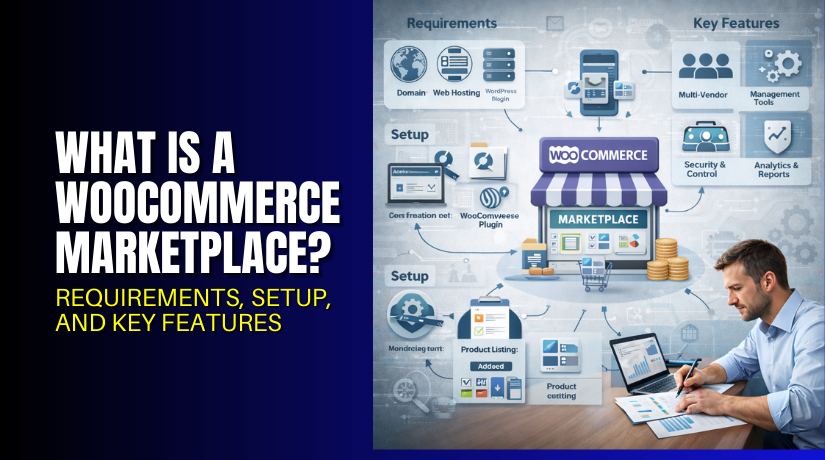
Running a store is not only about online orders today. Many store owners also sell in shops, events, and pop-ups. A WooCommerce POS system helps you sell in-person with speed. It also keeps your online store data clean and updated. You avoid manual bills, paper notes, and stock guessing daily. You also reduce mistakes during busy hours and fast checkout lines. A solid WooCommerce point of sale setup saves time every day. It helps your staff bill faster and serve more customers.
It also keeps products, prices, and taxes in one place. Many store owners ask about a WooCommerce built-in POS feature. They want an easy way to sell without extra tools. This guide explains what POS means for WooCommerce stores clearly.
It also explains how POS works with your current store setup. You will learn how a POS connects with products and orders. You will also learn how POS checkout differs from website checkout. If you want the Best POS for WooCommerce, start with basics first. The right base helps you choose a POS tool confidently.
What Is a POS System in WooCommerce?
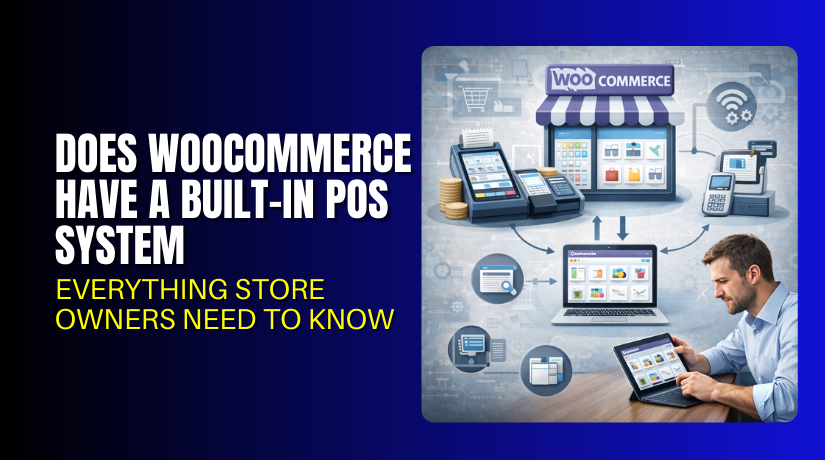
A POS system is a tool for in-person store billing. POS stands for point of sale at your counter. In WooCommerce, POS means selling in-person using your store data. It uses your WooCommerce products, prices, taxes, and stock details. A POS screen lets you add items to a cart quickly. It then creates an order and marks payment status instantly. This is the main idea of WooCommerce retail POS for store owners. It keeps online and offline selling under one store system. A POS also helps with receipts and simple customer details.
In most cases, you use a WooCommerce POS plugin to do this. The plugin adds a POS dashboard to your WordPress setup. That is the common method of WooCommerce POS integration today. The POS dashboard pulls product data from your WooCommerce catalog. It also pushes new orders back into WooCommerce order history. This keeps your sales record complete and easy to track.
Some tools also support barcode scanning for faster billing. Many store owners also ask about WooCommerce offline POS support. Offline mode means billing works even with weak internet. The POS saves orders and syncs them when the internet returns. Not every POS tool supports this feature in the same way. You should always check offline behavior before choosing a solution.
What Are the Uses of a POS System in WooCommerce?
Take walk-in orders and create bills instantly
A WooCommerce POS system lets you sell to walk-in customers fast. You add items to the cart and confirm the order quickly. The POS creates a WooCommerce order in your store dashboard. This keeps every sale saved with proper order details.
Scan barcodes and find products in seconds
A WooCommerce point of sale screen supports quick product search. Many setups allow barcode scanning for faster item selection. This helps when your store has many products and variations. It also reduces billing mistakes during busy counter hours.
Accept cash and card payments at the counter
POS helps you record payment type during checkout clearly. You can take cash and mark the order as paid instantly. Some setups also support card payments through supported gateways. This makes your in-store billing workflow smoother and reliable.
Keep stock updated after every in-store sale
Inventory control is a key use of WooCommerce POS integration. When you sell an item in-store, stock can reduce right away. This keeps your online store stock accurate for shoppers. It also helps prevent overselling and wrong stock alerts.
Use the same product catalog for online and retail sales
A POS system uses your WooCommerce product list for billing. You do not need to create products again for store sales. Prices, SKUs, and variations stay the same in one place. This makes a WooCommerce retail POS setup easy to manage.
Save customer details for faster repeat billing
Many POS tools let you select an existing customer quickly. You can also add a new customer during billing easily. This keeps customer orders linked under one profile in WooCommerce. It helps you track purchase history and support requests later.
Process refunds, returns, and exchanges from the counter
A POS system can support refunds based on your store rules. You can locate the order and start refund steps quickly. Some POS tools also support exchanges with new billing steps. This keeps store service fast and customers feel more confident.
Handle basic staff billing with controlled access
Most POS tools support cashier or staff logins for billing. You can limit what staff can change in store settings. This reduces risks and keeps orders consistent each day. It also helps track who made which sale at the counter.
Support selling at events and pop-ups more easily
A POS setup helps when you sell outside your main store. You can sell from a tablet or laptop at events. Some tools offer WooCommerce offline POS for weak internet. Orders can sync later when the connection returns.
Benefits of Using a POS System in WooCommerce
One inventory for online and in-store sales
A POS keeps stock in one place across sales channels. Online buyers and walk-in buyers share the same stock count. This reduces confusion and avoids overselling during high demand. It is a major benefit of a WooCommerce POS system.
Faster checkout and fewer billing mistakes
POS checkout is built for speed and simple steps. Staff can add items, apply discounts, and finish billing quickly. Barcode support reduces wrong product selection problems often. This improves daily billing accuracy for store owners.
Better customer experience at your retail counter
Customers prefer quick billing and clear receipts at checkout. POS helps deliver faster service and less waiting time. It also helps handle returns and exchanges with less delay. This builds trust and improves repeat store visits.
Cleaner order tracking and easier store reporting
Every POS sale becomes a WooCommerce order in your system. You can check sales data without mixing separate tools. This makes it easier to review daily performance and trends. It also supports better planning for stock and offers.
Simple staff control using roles and permissions
A WooCommerce POS plugin can support staff accounts for billing. You can control who can refund or edit orders. This helps reduce wrong changes by mistake or misuse. It also keeps store billing work more organized.
Easy selling for pop-ups, events, and busy seasons


POS helps you sell anywhere with your store product list. You can run faster billing during sales and festival rush. If supported, WooCommerce offline POS helps in low network areas. That keeps sales running without losing orders.
A smoother system when you choose the right POS tool
Choosing the Best POS for WooCommerce reduces daily store stress. You get one workflow for products, stock, and orders. You also get fewer support issues and better customer service. A good POS setup helps your store scale over time.
Does WooCommerce Have a Built-In POS System?
Many store owners search for a WooCommerce built-in POS feature. They want a ready POS screen inside WooCommerce by default. The clear answer is no, WooCommerce does not include that.
WooCommerce core is made for online selling and checkout. It does not ship with a counter billing screen or register. You cannot open WooCommerce and start in-store billing instantly. For a real WooCommerce POS system, you need an added solution.
Most store owners use a WooCommerce POS plugin for this purpose. That plugin gives you the POS screen and checkout flow. It also helps connect in-store orders to WooCommerce properly.
How to Use a POS System in WooCommerce Using a POS Plugin
Step 1: Choose a POS plugin that fits your store workflow
- Start by listing your daily billing needs and store size. Think about products, variations, and how many staff sell daily.
- If you sell in events, check WooCommerce offline POS support. Also check if the plugin supports your payment flow and taxes.
- This first step helps you pick the Best POS for WooCommerce.
Step 2: Install and activate the POS plugin in WordPress
- Go to Plugins in your WordPress dashboard and add the plugin.
- Activate it and open the new POS menu in admin.
- Most tools create a POS screen inside WordPress after setup. This is how WooCommerce POS integration starts in real use.
- Keep your WordPress and WooCommerce updated before you install.
Step 3: Set up products, SKUs, and barcode fields properly
- Make sure every product has a clear SKU for billing speed.
- Add barcodes if you plan to use a barcode scanner in-store.
- Confirm variations are correct for size, color, and other options. A clean catalog makes your WooCommerce POS system faster and safer.
- It also reduces wrong item selection during busy billing.
Step 4: Configure taxes, discounts, and receipt settings carefully
- Check your WooCommerce tax rules and verify store tax behavior.
- Confirm whether tax should be included or added at checkout.
- Review discount options like coupons and manual discounts in POS.
- Set receipt logo, store name, and footer details if supported. This makes your WooCommerce point of sale checkout look professional.
Step 5: Create cashier roles and set permissions for staff
- Create staff accounts with limited access for POS billing work. Allow billing actions but restrict settings and plugin changes.
- Set refund limits if your plugin supports that control option.
- This keeps your billing process secure and well managed. It also helps track who billed each order in-store.
Step 6: Test checkout, refunds, and inventory sync before going live
- Run test orders using a few product types and variations.
- Test cash payments and any card payment flow you plan.
- Do a test refund and check how it shows in WooCommerce.
- Confirm stock reduces after a POS sale without delay. Testing avoids major issues after launch in your store.
Step 7: Go live and review daily sales for the first week
- Start using POS during normal store hours and monitor results.
- Check if orders appear correctly in WooCommerce order lists.
- Confirm stock stays correct after multiple fast sales.
- Review reports to ensure POS sales count in totals properly.
- Fix small issues early to keep the system stable long term.
Features to Check Before Choosing a WooCommerce POS Solution
Inventory sync that stays accurate during fast selling
Your POS must update stock after each completed in-store order. Check if stock sync is instant and works with backorders. Ask how the plugin handles conflicts during fast sales days. Strong stock sync is key for any WooCommerce retail POS setup.
Full support for variations, add-ons, and complex products
Many WooCommerce stores sell products with size and color options. Your POS should handle variations without wrong pricing issues. If you use add-ons or bundles, confirm they work in POS. This avoids cart errors during billing and customer complaints.
Barcode scanning and label printing support for faster billing
Barcode scanning saves time and reduces product selection mistakes. Check if the plugin supports USB or Bluetooth barcode scanners. If you print labels, confirm barcode fields work for label tools. This feature matters more when your catalog is large.
Payment method support that matches your counter needs
POS should support cash and mark orders paid instantly. If you accept card payments, check supported gateways and devices. Some stores also need split payments and tips support. Payment support shapes how smooth the checkout feels daily.
Tax handling that matches your store location rules
POS must follow your WooCommerce tax rules in real billing. Check how it handles tax-inclusive pricing and rounding rules. Confirm it supports your local tax style and product tax classes. Tax errors can create serious issues in daily reporting.
Discount and coupon handling that works like your online store
Your POS should support coupons if you use them online. It should also allow manual discounts for in-store offers. Check if it supports percentage and fixed discounts properly. Discount accuracy helps protect profit and keeps customers happy.
Refunds, returns, and exchanges workflow that is simple
Retail stores often handle refunds and returns at the counter. Check if POS can find past orders quickly for returns. Confirm refunds sync back to WooCommerce order status correctly. A simple return flow improves trust and saves staff time.
Offline mode that still protects orders and stock values
If your store internet drops, billing should not stop completely. A true WooCommerce offline POS mode saves orders locally first. It should sync safely when the internet returns without duplicates. Offline handling is vital for events and weak network areas.
Staff roles, cashier logs, and simple control options
POS should support cashier logins with role-based permissions. Check if it records which staff created each order clearly. Some tools also show shift totals for each cashier daily. Staff tracking improves control and reduces billing misuse.
Receipt printing and email receipts with branding options
Customers expect receipts after payment at the counter. Check if the POS supports thermal printers and print formats. Also check email receipt support for customers who prefer digital. Branded receipts help your store look more trusted and professional.
Conclusion
WooCommerce does not include a built-in POS screen by default. But a good POS plugin can solve in-store selling needs. A stable WooCommerce POS system keeps orders and stock aligned. Choose a plugin that matches your products and daily billing flow. If you want expert help, WooHelpDesk can guide you fully. We can help with POS selection, setup, testing, and sync fixes. Reach out to WooHelpDesk and make your POS work smoothly.