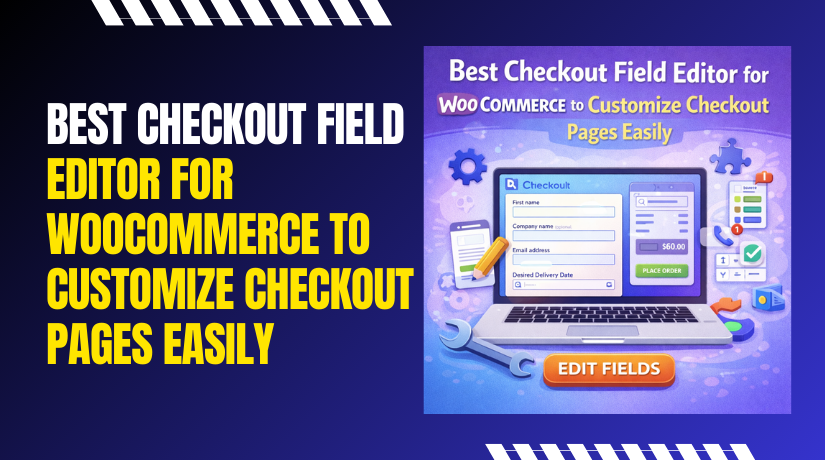
Best Checkout Field Editor for WooCommerce to Customize Checkout Pages Easily
Table of Contents
- Introduction
- What Is a WooCommerce Checkout Field Editor?
- Why You Might Need A Checkout Field Editor For Better Results
- Before You Install Any Checkout Plugin, Use This Simple Checklist
- Types of Checkout Field Editors for WooCommerce Checkout Customization
- List Of Best Checkout Field Editor for WooCommerce (Updated)
- How to Choose the Best Checkout Field Editor for WooCommerce
- Conclusion
Introduction
Checkout is where most sales get won or lost. A long checkout can push buyers away fast. Many stores need extra details from real customers. Some stores also need fewer fields for faster orders. That is why a best checkout field editor for WooCommerce matters. It helps you control what shoppers see at checkout. It also helps you collect only useful information. In this guide, you will learn how these plugins work. You will also learn what “best” means for your store goals. This post focuses on clear steps and real use cases. It also supports clean WooCommerce checkout customization without coding stress.
What Is a WooCommerce Checkout Field Editor?
A WooCommerce checkout field editor is a plugin for editing checkout fields. It lets you add, remove, and reorder checkout inputs easily. You can rename labels to make them more clear. You can change placeholders to guide buyers better. You can also set fields as required or optional. Many tools act like a WooCommerce checkout page editor for field layouts. Some also work as a WooCommerce checkout form editor with extra field types.
You can customize WooCommerce checkout fields in billing and shipping sections. You can also update the additional fields area when needed. Most plugins save values inside the WooCommerce order. The data shows in the admin order screen for quick review. Many tools also display fields in order of emails for clarity. This makes WooCommerce checkout customization more useful for support teams.
Why You Might Need A Checkout Field Editor For Better Results
A long checkout can reduce orders very quickly. Extra fields create stress for busy buyers. A WooCommerce checkout field editor lets you remove clutter fast. You can also add only the fields you need. This supports smooth WooCommerce checkout customization without code. When checkout feels simple, buyers complete purchases more often. This helps you keep a clean and high converting checkout flow.
Remove Unwanted Fields To Make Checkout Faster
Many stores do not need every default WooCommerce field. Removing extra fields reduces typing and scrolling. That improves the mobile checkout experience a lot. A WooCommerce checkout page editor helps you hide or delete fields. You can also rename labels to reduce confusion. This is a simple way to customize WooCommerce checkout fields and improve conversions with fewer steps.
Add Business Fields For B2B Orders And Invoices
B2B buyers often need invoice ready business details. They may require company name, GST, VAT, or PO number. A WooCommerce checkout form editor lets you add these fields easily. You can also mark them as required for business customers. This improves order accuracy and billing speed. It also makes WooCommerce checkout customization more useful for accounting and support.
Collect Delivery Details To Reduce Shipping Problems
Wrong address details cause delays and unhappy customers. Buyers may forget landmarks, floor, or delivery notes. With a WooCommerce checkout field editor, you can add delivery instructions. You can also add apartment, gate code, or preferred time. These fields reduce follow ups and failed deliveries. This is a practical way to customize WooCommerce checkout fields for smoother shipping and tracking.
Use Conditional Fields To Keep Checkout Clean
Not every customer needs every field at checkout. Conditional fields show only when needed. For example, show GST only for certain countries. Show pickup details only when pickup is selected. This keeps checkout short and focused. A strong best checkout field editor for WooCommerce supports rules like payment, shipping, and cart items. This improves WooCommerce checkout customization without making checkout longer.
Basic Field Controls That Every Plugin Must Offer
Start by checking core field editing features first. The plugin should add, remove, and hide fields easily. It should let you rename labels and update placeholders. It should also support drag and drop field ordering. These features define a reliable WooCommerce checkout field editor. Without these basics, checkout editing becomes slow and confusing. Strong basics make WooCommerce checkout customization smooth and stable.
Field Types And Layout Support For Real Store Needs
Different stores need different checkout field types. Text, textarea, dropdown, and checkbox are common. Radio buttons help for simple choices and options. Date fields help for delivery and booking needs. Some stores need file upload fields for documents. A flexible WooCommerce checkout page editor supports more field types. This makes it easier to customize WooCommerce checkout fields for your workflow.
Before You Install Any Checkout Plugin, Use This Simple Checklist
Backup And Staging Test
Checkout changes can affect sales if something breaks. Always take a full backup before installing a plugin. If possible, test on staging before going live. This prevents checkout downtime during busy hours. After testing, apply changes on the live store carefully. This protects your revenue and customer trust. It also keeps your WooCommerce checkout field editor setup stable and predictable.
Confirm Your Checkout Type Before Choosing The Plugin
WooCommerce stores may use classic checkout or Blocks checkout. Some editors work only with classic checkout fields. Some support Blocks but with limited features. Check your checkout type in WooCommerce settings first. Then pick a WooCommerce checkout page editor that matches. This avoids missing fields and broken layouts. Correct matching makes WooCommerce checkout customization smoother and easier to manage.
Verify Order Saving, Emails, And Export Support
Before choosing any editor, confirm it saves values to orders. Check if fields can show in customer emails. Also check admin visibility for packing and support work. If you export orders, confirm it exports custom fields too. This avoids manual copying later. A strong WooCommerce checkout field editor supports these needs. This makes customized WooCommerce checkout fields work fully end to end.
Review Updates, Support, And Performance Before Final Choice
Checkout must load fast to keep buyers engaged. Choose a plugin that does not slow down checkout. Check how often it gets updates for WooCommerce changes. Look for active support and clear setup guides. Avoid plugins with long gaps between updates. A solid best checkout field editor for WooCommerce stays maintained. This keeps WooCommerce checkout customization safe and reliable over time.
Types of Checkout Field Editors for WooCommerce Checkout Customization
- A) Basic Checkout Field Editors For Simple Stores And Quick Changes
Basic editors focus on simple field control without extra complexity. They help you add, remove, rename, and reorder fields quickly. These tools work well for stores with standard products and simple shipping. They are ideal when you only want faster checkout with fewer fields. A WooCommerce checkout field editor in this group is usually easy to learn. It supports clean WooCommerce checkout customization without heavy settings.
- B) Advanced Checkout Field Editors With Conditional Rules And Validation
Advanced editors offer more control for growing stores and B2B setups. They support conditional logic to show fields only when needed. Rules can depend on country, shipping method, product, or cart value. They also support validation for clean phone and tax details. This helps you customize WooCommerce checkout fields without cluttering the checkout. A strong WooCommerce checkout form editor in this group improves accuracy and reduces support work.
- C) WooCommerce Checkout Builders That Also Edit Fields And Layout
Checkout builders focus on layout design plus field control. They often support multi step checkout and better section layout. These tools help when you want full WooCommerce checkout customization. They may include templates, columns, and conversion focused layouts. Many act like a complete WooCommerce checkout page editor. This type is best when you want checkout redesign, not only field editing. Always check compatibility with your theme and checkout type.
List Of Best Checkout Field Editor for WooCommerce (Updated)
#1 WooCommerce Checkout Manager Plugin
This plugin is popular for stores that want strong checkout field options. It helps you customize WooCommerce checkout fields with simple controls. You can edit billing and shipping fields and add extra fields. Many store owners use it for delivery notes and business details. It supports practical WooCommerce checkout customization without needing code. It works best when you want solid features and a familiar setup.
Features
- Add new checkout fields in billing and shipping sections
- Edit labels, placeholders, and field positions with ease
- Support common field types like text, select, and checkbox
- Save field values to orders for admin access later
- Field display options for better checkout clarity
Pros
- Easy setup for most beginners and small stores
- Good control for common checkout field changes
- Helps reduce checkout friction with fewer unnecessary fields
- Useful for collecting delivery notes and business details
- Works well for many classic checkout store setups
Cons
- Advanced conditional rules may feel limited for some needs
- Some features may require paid version for full control
- Styling may depend on theme and need small adjustments
- Blocks checkout support may vary by store setup
- Too many fields can still slow checkout if overused
Download Link: Checkout Field Manager
#2 ThemeHigh Checkout Field Editor For WooCommerce
ThemeHigh is known for structured checkout field management features. It supports powerful rules for showing fields when needed. It is helpful for B2B, shipping based fields, and country based needs. Many store owners use it as a WooCommerce checkout page editor style tool. It supports deeper WooCommerce checkout customization for stores with many conditions. It is a strong choice when you want control and clean data.
Features
- Conditional logic to show fields only when required
- Many field types including select, radio, and checkbox
- Validation options for cleaner customer input data
- Edit default fields and add custom fields quickly
- Save custom fields to orders for admin viewing
Pros
- Strong conditional rules for complex checkout needs
- Good option for B2B and multi location shipping cases
- Helps keep checkout clean with smart field visibility
- User friendly interface for managing many checkout fields
- Supports better order accuracy with validation options
Cons


- Advanced setup can take time for first time users
- Some key features may require a paid plan
- Layout styling can depend on your theme structure
- Blocks checkout support may not be full in all cases
- Too many rules can make setup harder to maintain
Download Link: ThemeHigh
#3 Checkout Fields Manager From WooCommerce
This is an official WooCommerce extension for checkout field changes. It fits well for store owners who prefer official tools. It usually follows WooCommerce update cycles more closely. It supports stable field saving inside WooCommerce orders. It helps you customize WooCommerce checkout fields in a controlled way. This is ideal when you want official support and fewer compatibility worries.
Features
- Add custom fields to checkout with controlled settings
- Manage field labels, required rules, and placement options
- Save field data into orders for processing and support
- Works closely with WooCommerce order management screens
- Designed for stable use with WooCommerce updates
Pros
- Official extension approach feels more reliable for many stores
- Clean integration with order data and admin workflows
- Good for stores that want fewer plugin conflicts
- Useful for basic field additions and edits
- Fits well when you prefer WooCommerce ecosystem tools
Cons
- May feel limited compared to advanced rule based plugins
- Pricing can be higher than some alternative plugins
- Conditional logic options may not match all complex needs
- Styling control may be less flexible in some themes
- Feature depth can depend on extension version and setup
Download Link: Checkout Fields Manager
#4 Checkout Field Editor for WooCommerce
This WooCommerce extension focuses on editing checkout fields directly. It supports field updates without needing custom code. You can remove fields that do not match your store flow. You can also update labels and positions to reduce confusion. Many users treat it like a simple WooCommerce checkout page editor. It is useful for clean WooCommerce checkout customization in classic checkout setups.
Features
- Reorder fields for better checkout layout and speed
- Remove fields you do not need for your products
- Rename labels and placeholders for clear buyer guidance
- Control required settings for important checkout fields
- Save field changes reliably for order processing
Pros
- Simple tool for quick checkout field changes
- Helps reduce checkout steps for faster conversions
- Works well for many classic WooCommerce checkout setups
- Good choice for stores needing basic field control
- Supports clearer checkout labels for fewer buyer mistakes
Cons
- Advanced conditional logic may not be a core strength
- May need extra plugins for deeper checkout redesign needs
- Styling control can depend on your theme layout
- Blocks checkout support may not be complete for all stores
- Less useful if you need many complex field rules
Download Link: Checkout Field Editor
#5 YITH WooCommerce Checkout Manager
YITH offers a checkout manager that many store owners use. It focuses on making field editing simple and manageable. It supports adding custom fields and editing default ones. It can help collect extra details for deliveries and special orders. Many users choose it for stable WooCommerce checkout customization. It is a good option if you already use other YITH plugins.
Features
- Add custom checkout fields for extra customer details
- Edit default checkout fields like labels and order
- Support different field types for better buyer inut
- Save field values to orders for admin team usage
- Manage checkout form structure with clear settings
Pros
- Good for stores that want clean and simple field edits
- Helpful for collecting delivery notes and order details
- Works well if you use other YITH WooCommerce tools
- Improves checkout clarity with better labels and order
- Supports better admin order handling with saved field data
Cons
- Some features may require premium plan for full use
- Conditional logic may not cover every advanced store case
- Styling and layout can depend on theme compatibility
- Blocks checkout support may differ by WooCommerce setup
- Too many added fields can harm checkout speed
Download Link: YITH
How to Choose the Best Checkout Field Editor for WooCommerce
Start by deciding what you want to fix at checkout. Some stores need fewer fields for faster orders. Some stores need more fields for better delivery details. A clear goal helps you choose the best checkout field editor for WooCommerce. It also keeps your WooCommerce checkout customization focused and simple.
Pick A Basic Editor If You Only Need Simple Field Changes
Choose a basic WooCommerce checkout field editor for quick edits. It is best for hiding, removing, and reordering default fields. It also works well for renaming labels and placeholders. This option suits simple stores with standard products and shipping. It helps you customize WooCommerce checkout fields without complex rules.
Pick An Advanced Editor If You Need Conditional Logic And Validation
Choose an advanced WooCommerce checkout form editor for smart rules. It helps you show fields only when they matter. You can trigger fields by country, shipping, payment, or cart items. You can also add validation for phone, email, and tax IDs. This improves WooCommerce checkout customization and reduces wrong order details.
Choose An Official WooCommerce Extension For Stable Long Term Use
If you prefer official tools, choose a WooCommerce extension. It usually follows WooCommerce updates and standards closely. It can reduce conflict risk with core checkout features. This matters when your store uses many payment and shipping tools. An official WooCommerce checkout page editor style tool is great for stability. It supports safer WooCommerce checkout customization over time.
Choose A Builder Style Plugin If You Want Layout Control Too
If you want redesign, choose a checkout builder type plugin. These tools focus on layout, steps, and section structure. They help you create a cleaner checkout flow for mobile users. Many also include templates and multi step checkout options. This works like a full WooCommerce checkout page editor solution. It fits stores needing deep WooCommerce checkout customization.
Confirm Your Checkout Type Before Final Plugin Selection
Check whether you use classic checkout or Blocks checkout. Many editors work best with classic checkout fields. Blocks checkout may need special compatibility support. If the plugin does not support your checkout type, fields may fail. Always confirm this before buying or installing anything. This protects your WooCommerce checkout customization from breaking later.
Test The Plugin On Staging Before Applying Changes Live
Checkout changes can impact sales if something goes wrong. Always test your WooCommerce checkout field editor on staging first. Add a test product and place a full test order. Confirm fields save correctly into the order data. Also confirm emails show fields if you enable that option. This keeps your checkout safe and reliable.
Keep Checkout Short And Collect Only Needed Information
More fields can reduce conversions and slow checkout speed. Ask only what you truly need for delivery and billing. Use conditional fields instead of adding many fixed fields. Keep labels clear and simple for fast buyer understanding. This improves trust and reduces support questions later. Smart WooCommerce checkout customization always stays minimal.
Conclusion
There is no single plugin that fits every store perfectly. The best checkout field editor for WooCommerce matches your checkout goal. It also matches your checkout type and store setup. Use a basic tool for quick edits and cleaner checkout. Use an advanced tool for rules, validation, and B2B needs. Test changes carefully and keep checkout short. This is the best way to customize WooCommerce checkout fields with confidence.
WooHelpDesk delivers professional WordPress and WooCommerce support, providing expert fixes, performance optimization, security hardening, and reliable guidance for growth.