Beaver Builder Not Saving Changes? Try These Fixes That Actually Work
Table of Contents
- Introduction Problem Overview
- Why Beaver Builder Fails to Save: Core Issues Explained
- Step-by-Step Fixes for Beaver Builder Not Saving Changes
- How to Prevent Beaver Builder Saving Issues Going Forward
- Conclusion
Introduction Problem Overview
Beaver Builder is a popular page builder for WordPress. It helps users create custom pages without coding. But sometimes, it stops working as expected. Many users report a common issue — their changes are not saving.
Nothing occurs even if you click “Save” or “Publish.” Other times, the page seems to update, but the changes don’t show. It often causes confusion, especially while you’re focused on making updates.
Some users also see the “saving” spinner keep spinning. Others notice that even after saving, their updates don’t appear on the frontend. These issues may cause you to become frustrated and slow down your work.
The good news? These problems are resolvable. Most of them are caused by small errors — caching, plugin conflicts, or server settings.
We’ll guide you through each of the functional fixes in this post. You’ll learn why the problem happens and how to solve it step by step. These methods will benefit you regardless of your level of experience.
Why Beaver Builder Fails to Save: Core Issues Explained
You might not notice the root problem when edits don’t save properly. You might believe that the plugin itself is malfunctioning. But in reality, it’s often caused by things around it. These include your browser, server, other plugins, or even WordPress settings.
Before applying any fixes, it’s important to understand the real reason behind the issue. The most frequent reasons of this annoying issue are listed below.
- Caching Problems
By saving a temporary version of your pages, caching helps your website load faster. However, this can occasionally get in the way. When you make changes in Beaver Builder, you expect to see them right away. However, caching can show you an older version instead.
This problem can happen in several ways:
- Your browser cache may still show an outdated page version.
- WP Rocket and W3 Total Cache are two examples of WordPress caching plugins that might not update correctly.
- Your web hosting or CDN service, like Cloudflare, may store a cached page copy.
As a result, it looks like Beaver Builder didn’t save your changes — even though it did. One of the most frequent and most disregarded causes is this one.
- JavaScript Errors
Beaver Builder uses JavaScript to control many of its features, including saving. If something interrupts the JavaScript code, the save function might stop working. Even if you click the “Save” button, nothing will happen.
These JavaScript problems can come from:
- Conflicting code from other plugins or themes
- Old scripts running in the background
- Browser extensions that block scripts
In some cases, you may see a spinning “saving” icon that never goes away. Other times, the changes seem to apply, but they don’t actually save.
- Plugin Conflicts
WordPress websites often run many plugins at once. While most work well together, some can conflict with Beaver Builder. These conflicts are not always obvious.
Plugins that commonly cause issues include:
- Security plugins that block certain actions or scripts
- Speed optimization plugins that minify or delay JavaScript
- SEO plugins that change how pages are loaded
Even if these plugins are useful, they can interfere with how Beaver Builder saves your work. In some cases, they stop the save button from working. In others, they break the layout or hide the updates.
- Server-Side Issues
Beaver Builder’s functionality is also impacted by the server hosting your website. Important processes may be blocked if the server is not configured properly.
Some common server-related issues include:
- Low PHP memory limits, which can stop scripts from running
- Short max execution time, which interrupts long save actions
- ModSecurity rules or firewalls that block AJAX requests needed for saving
These issues usually happen quietly in the background. Your changes won’t be saved even if you don’t see an error message.
- Database or User Role Limitations
Beaver Builder stores your content in the WordPress database. If the database has issues, your changes may not be recorded. This can happen due to database table errors or permission problems.
Also, your WordPress user account must have the right role to make edits. If you’re not an Administrator or Editor, some changes may be blocked.
These limitations are more common on websites with multiple users or restricted access settings. Even if everything looks fine, you might not have permission to save certain edits.
Step-by-Step Fixes for Beaver Builder Not Saving Changes
Now that you know what causes Beaver Builder not to save changes, it’s time to fix it. We’ll go over every potential problem in this section and demonstrate how to fix it. These are real-world fixes that have worked for many WordPress users.
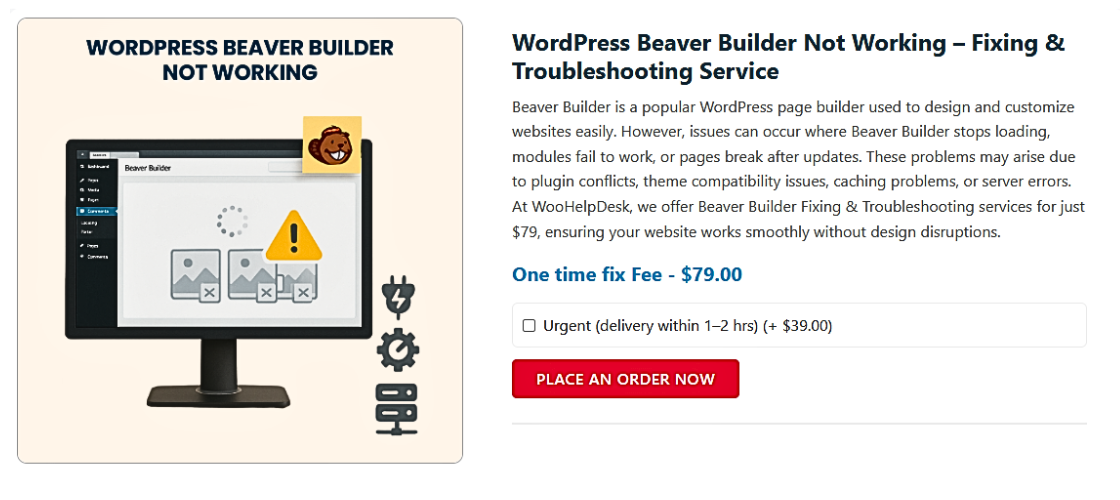
It’s not necessary to be a developer. Just be sure to thoroughly follow the steps. Test after every fix and begin from the top.
- Clear All Caches
Caching is a major reason for Beaver Builder issues. Even after saving, your updates may not appear. That’s usually because a cached version of the page is still loading.
Try these steps to resolve the issue:
- Empty the cache in your browser. Open a private window or clear cache in settings.
- Purge cache in your WordPress plugin. Use WP Rocket, W3 Total Cache, or similar tools to clear it.
- Clear server or host-level cache. Hosts like SiteGround, Bluehost, and GoDaddy offer this in their dashboards.
- Clear the cache on your CDN, particularly if you’re using Cloudflare.
After clearing all caches, reload the page and check your changes.
- Disable Conflicting Plugins
Beaver Builder might not save changes if another plugin is causing a conflict. JavaScript issues or blocked scripts can break the save function.
To check:
- Go to your WordPress dashboard.
- All plugins except Beaver Builder should be disabled.
- Test if saving works.
If it does, then one of the disabled plugins is the issue. Enable them one by one. After each activation, test Beaver Builder. When it breaks again, you’ve found the problem.
Common conflict sources:
- Wordfence and iThemes Security are examples of security plugins
- Optimization plugins like Autoptimize or Asset CleanUp
- SEO plugins like Rank Math or Yoast
If the conflict plugin is essential, try adjusting its settings instead of removing it.
- Check for JavaScript Errors
If the Save or Publish button does nothing, JavaScript errors might be the cause.
Follow these steps:
- Open the page in Chrome.
- Right-click and choose Inspect.
- Go to the Console tab.
- Reload the page and try saving.
There is a problem with the scripts if you notice red error messages. Most likely, another plugin or theme is causing it. Ad blockers and other browser extensions can occasionally cause problems as well.
You can try:
- Disable your browser add-ons and recheck the issue.
- To eliminate theme conflicts, switch to a default theme, such as Twenty Twenty-Four.
- Increase PHP Memory and Execution Time
Sometimes Beaver Builder can’t complete the save process because your server resources are too low. Increasing PHP memory and max execution time can help.
You can add these lines to your wp-config.php file:
define(‘WP_MEMORY_LIMIT’, ‘256M’);
set_time_limit(300);
Get in touch with your hosting company if you’re not sure how to accomplish this. It will be updated for you by most hosts.


Also, check your hosting control panel or use a plugin like WP Health Check to see current limits.
- Turn Off ModSecurity or Server Firewalls
Some servers use a security tool called ModSecurity. While it protects your site, it can block Beaver Builder’s saving requests.
If you suspect this is the issue:
- Contact your web hosting support.
- Ask if ModSecurity is active and blocking AJAX or POST requests.
- Request them to whitelist Beaver Builder’s scripts or temporarily disable ModSecurity.
Also, some managed hosts like Kinsta, WP Engine, and Hostinger have custom firewalls. You can’t access them directly, so support must help.
- Fix Revision Saving Issues
Beaver Builder lets you go back to older revisions. But if revisions aren’t saving, you may lose work.
Here’s what to check:
- Make sure revisions are enabled in WordPress.
- Check if your database is full or locked.
- Use a plugin like WP-Optimize to clean and repair the database.
You can also go to Settings > Writing and see if post revisions are disabled via custom code or plugins.
If nothing is saved in the revisions history, check your hosting or database access settings.
- Handle the Infinite Saving Spinner
Sometimes Beaver Builder gets stuck on the saving spinner. The button says “Saving,” but nothing happens.
Here’s how to fix it:
- Log out of WordPress and log back in.
- Try editing the page in a private browser window.
- Disable browser extensions and try again.
- Clear all caches again (browser, plugin, CDN).
- Verify that your browser is free of console errors.
If the spinner continues, test on a different device or browser. If it functions there, the problem is probably with the browser.
- Test with a Default Theme
Occasionally, your WordPress theme is the source of the problem. If the theme uses custom layouts, scripts, or styles, it may interfere with Beaver Builder.
To test:
- Go to Appearance > Themes
- Turn on the default theme, Twenty Twenty-Four, or any other.
- Try editing and saving a page.
If it works, then your original theme is the problem. You can get in touch with the theme creator or think about moving to a theme that works with Beaver Builder.
- Reinstall Beaver Builder
If nothing else works, the plugin itself may be corrupted. Reinstalling Beaver Builder can fix any missing or broken files.
Follow these steps:
- Go to Plugins > Installed Plugins
- Deactivate and delete Beaver Builder (don’t worry, your pages are safe).
- Reinstall the plugin from the source.
- Activate it and try saving a new page.
Make a backup of your website before removing any plugins.
- Use a Staging Environment to Debug Safely
If your live site is getting too many issues, use a staging site. One-click staging environments are available from several hosts. You can test modifications without impacting your live site thanks to this.
Steps to take:
- Clone your website using your host’s staging tool
- Perform all the troubleshooting steps in staging
- Once fixed, copy the changes back to the live site
This is safer, especially for large or active websites.
How to Prevent Beaver Builder Saving Issues Going Forward
Resolving the issue is one thing, but preventing it from happening again is much better. Many Beaver Builder users face the same issues over and over. This can be avoided by adhering to a few basic best practices.
Let’s look at easy ways to stop these saving errors from happening again.
- Keep Everything Updated
Old plugins or WordPress versions often cause bugs and conflicts. Updates fix these issues and improve compatibility.
Make sure to:
- Use Beaver Builder’s most recent version at all times.
- Regularly update the core of WordPress.
- Update your theme and all other plugins.
You can turn on automatic updates, or check them weekly.
- Avoid Using Multiple Page Builders
Using more than one page builder can lead to serious problems. They may add conflicting scripts or overwrite layout settings.
If you use Beaver Builder, avoid installing:
- Elementor
- WPBakery
- Divi
Stick with one builder to keep your pages stable and save functions working.
- Clear Cache Often
Even if your site is working well, caching can still cause trouble later. Always clear caches after making changes.
This includes:
- Browser cache
- WordPress cache plugin
- Hosting cache
- CDN (like Cloudflare)
Set a habit of clearing cache after big edits or plugin updates.
- Work on a Staging Site First
Never use your live site to test significant changes. You can build and test safely with a staging site.
Most hosts offer 1-click staging features. Use it to:
- Test out new themes or plugins.
- Experiment with layout modifications
- Debug problems before going live
- Use Compatible Themes and Plugins
Some themes don’t work well with Beaver Builder. Make sure a new theme or plugin is compatible before installing it.
You can also look at:
- Reviews from other Beaver Builder users
- Official compatibility lists
- WooHelpDesk’s plugin recommendations
Conclusion
Facing issues like Beaver Builder not saving changes can quickly become stressful. You expect your edits to work, but instead, you’re stuck with buttons that don’t respond, revisions that disappear, or changes that never show up. It slows down your workflow and loses time in addition to being annoying.
You don’t have to figure things out on your own if you’ve done everything and the issue persists. The WooHelpDesk.com staff is prepared to help. We specialize in WordPress and page builder troubleshooting and provide fast, expert support tailored to your site.
Don’t guess and obtain the assistance you require right now. Whether it’s a one-time fix or ongoing support, WooHelpDesk is here to make sure your site runs smoothly — and your builder saves every change you make.
Get expert help now at WooHelpDesk.com – because your time matters.