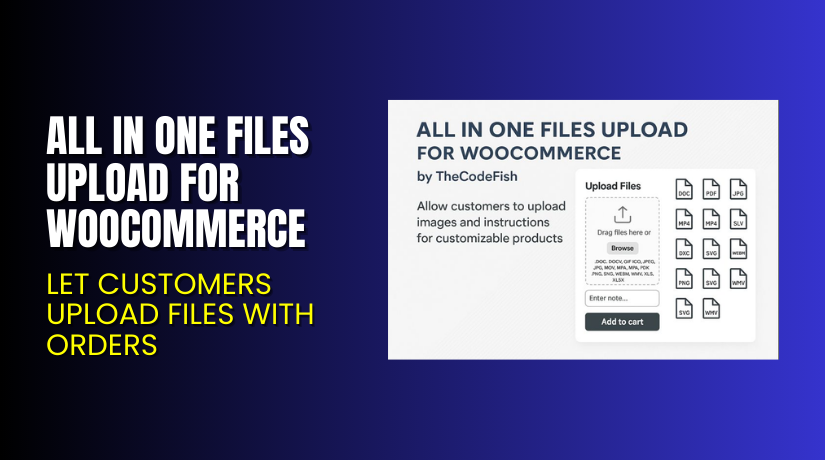
All in One Files Upload for WooCommerce – Let Customers Upload Files with Orders
Table of Contents
- Introduction
- What is All in One Files Upload for WooCommerce?
- Key Features of All in One Files Upload for WooCommerce
- How to Install and Configure All in One Files Upload?
- Pricing & Plans
- My Experience with the Plugin
- Who Should Use This Plugin?
- Final Verdict
- FAQ
Introduction
Running a WooCommerce store that sells custom products comes with unique challenges. You often need specific details from your customers to fulfill orders. Whether it’s a photo, document, or design file — customers need a way to share that with you.
Without an easy upload method, customers may abandon the purchase. You may end up chasing files manually through email, which wastes time.
That’s where All in One Files Upload for WooCommerce comes in. This plugin lets your customers upload any file directly on the product page. It works with images, videos, audio, and even documents like PDF, Word, or Excel files.
In this guide, you’ll learn everything about this plugin — from its features and setup process to pros, cons, and pricing.
Need help installing or configuring it? Try our Installation & Troubleshooting Services.
What is All in One Files Upload for WooCommerce?
All in One Files Upload for WooCommerce is a powerful plugin developed by TheCodeFish. It allows customers to upload files while purchasing a product. This is especially useful for stores offering personalized or made-to-order products.
You can set:
- Which file types can be uploaded
- Maximum file size
- Optional or required uploads
- Upload notes for special instructions
It supports the following file formats:
- Documents: DOC, DOCX, XLS, XLSX, PDF
- Images: JPG, PNG, GIF, SVG, ICO
- Audio: MP3
- Video: MP4, WMV, WEBM, MOV
Customers can also leave notes alongside the uploaded files. You can even charge an extra fee for uploads if needed.
Official Website: thecodefish.com
Plugin Documentation: View Docs
Support Page: Contact Support
Key Features of All in One Files Upload for WooCommerce
| Feature | Description | Why It Matters |
| File Upload on Product Page | Let users upload files before checkout. | Ideal for custom t-shirts, prints, and documents. |
| Support for Notes | Add instructions with uploaded files. | Helps clarify order requests. |
| Set File Restrictions | Limit file type, size, and dimensions. | Prevents incorrect or heavy uploads. |
| Charge Upload Fees | Add a fee for each file uploaded. | Adds revenue for custom handling. |
| Cart and Checkout Display | Show uploaded files and notes during checkout. | Ensures order accuracy. |
| Backend File Management | Admins can view and download files. | Simplifies order fulfillment. |
| Custom Labels & Tooltips | Customize button text and help messages. | Matches your store style. |
| Theme & Builder Compatibility | Works with popular themes and builders. | No design conflicts. |
How to Install and Configure All in One Files Upload?
Here’s how you can install the plugin:
- Download the plugin from WooCommerce Marketplace.
- Go to WordPress Dashboard → Plugins → Add New → Upload Plugin.
- Install and activate the plugin.
- Go to WooCommerce → Settings → Upload Files.
- Enable file uploads and set rules for file types and size.
- Configure tooltips, labels, pricing, and note options.
- Edit individual product settings under “Product Data” to enable uploads.
Front-end users will now see the upload field on product pages. You can show file preview, enable notes, or add a tooltip explaining what kind of file they should upload.
Want expert help with this process? Use our Installation & Troubleshooting Services.
Pricing & Plans
| Plan | Price (USD) | Includes |
| 1-Year Plan | $49/year | Full features + updates + support |
| Monthly | $4.09/month (billed annually) | All features included |
The plan includes:
- Plugin updates
- Premium support
- 30-day money-back guarantee
There’s no free version available. However, the low annual price gives access to all advanced features.
Buy All in One Files Upload for WooCommerce
Want to let customers upload files with orders?
Get this plugin using our affiliate link and start accepting custom orders today:
✅ Buy All in One Files Upload Plugin Now
Your purchase helps the developer and supports us in writing more tutorials.
My Experience with the Plugin
We tested the plugin on a live WooCommerce store selling customized merchandise. Here’s what we found:


Pros:
- Quick to install and configure
- Upload feature works with most file types
- Flexible settings for file limits and pricing
- Compatible with page builders like Elementor and Divi
- Works well with themes like Flatsome and Porto
Cons:
- Limited design customization for upload field
- No file preview thumbnails for videos or audio
- Some users reported bugs with file saving in older versions
Despite some mixed reviews, the plugin performed well after setup. The support team was responsive and resolved issues quickly.
Who Should Use This Plugin?
This plugin is perfect for:
- Stores selling personalized gifts or photo products
- Print-on-demand businesses that need customer images
- Stores offering custom document processing
- Agencies building WooCommerce stores for custom services
- Digital download stores needing customer input
If your business relies on custom files from customers, this plugin saves time and improves accuracy.
Useful Resources
Here are the official resources you’ll need:
Final Verdict
If your WooCommerce store sells personalized or custom-made products, All in One Files Upload for WooCommerce is a must-have. It allows customers to submit the exact files and instructions you need to complete orders.
It supports images, documents, audio, and video uploads. You can even charge an extra fee for file handling. The plugin is easy to use and supports most themes and page builders.
Despite a few negative reviews, the plugin performs well when set up correctly.
Use the link below to get started: Buy the Plugin Here
Need setup help? Hire our WooCommerce Services Team.
FAQ
Q1. What types of files can customers upload?
They can upload images, documents, videos, and audio files in standard formats.
Q2. Can I charge a fee for file uploads?
Yes, you can set upload pricing per product or file type.
Q3. Where do uploaded files appear?
Files are visible in the cart, checkout, and admin order pages.
Q4. Is this plugin compatible with page builders?
Yes. It works with Elementor, Divi, WPBakery, and most modern themes.
Q5. Do I need coding to set it up?
No. Everything is managed through a settings panel in your dashboard.



