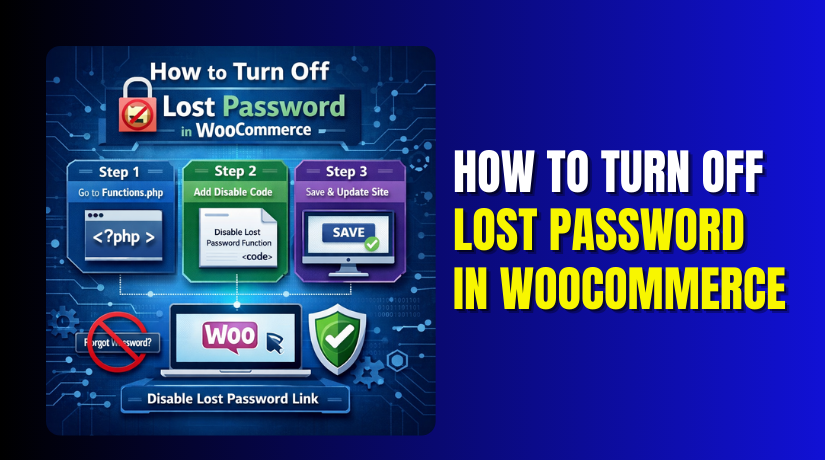
How to Turn Off Lost Password in WooCommerce (Step-by-Step Guide)
Table of Contents
- Introduction
- Common Reasons Store Owners Disable Lost Password for Better Account Control
- Before You Disable It: Important Things to Know for a Safe Change
- How to Turn Off Lost Password in WooCommerce in the Right Way
- Testing Checklist After Disabling Lost Password
- Troubleshooting (Common Problems)
- Conclusion
Introduction
The WooCommerce login form includes a password recovery option. It appears as the “Lost your password?” link for users. When a customer forgets their password, they can request a reset email. This is helpful for most online stores and memberships. But many store owners want more control over logins. That is why they choose to turn off lost password in WooCommerce.
Some store owners only want admin-managed accounts and access. Others want to reduce spam and reset abuse on login pages. In these cases, you may want to Disable lost password WooCommerce safely. You can hide the link or block the reset flow completely. The right option depends on how your store handles accounts. This guide starts with the basics and planning steps. It will help you avoid customer lockouts and support problems. It will also help you choose the safest method for your store.
Common Reasons Store Owners Disable Lost Password for Better Account Control
B2B and Wholesale Stores Often Use Admin Managed Accounts
Many B2B stores create accounts manually for each buyer. They share login details after approval and verification. A password reset link can break this controlled workflow quickly. Buyers may reset passwords without telling the account manager. This creates access issues and support tickets later. That is why many owners Disable lost password WooCommerce here. It helps keep account access stable and easier to manage. Many also remove forgot password WooCommerce to prevent confusion.
Membership and Private Stores Want Strict Access Rules
Some stores allow access only to approved members or teams. They may offer hidden pricing and private products for users. A reset link can allow unwanted access attempts and abuse. When users can request resets freely, it increases security risk. So owners prefer to Turn off lost password in WooCommerce. They keep access controlled through admin support and rules.
Stores Using OTP or SSO Do Not Need Password Resets
Some sites use OTP login through phone or email codes. Others use SSO login from Google or company accounts. In these setups, customers do not use normal passwords. A reset link becomes useless and creates confusion for users. So owners Hide lost password link WooCommerce for a cleaner flow. This is also part of WooCommerce login page customization. It keeps the login page simple and clear.
Reset Requests Can Be Misused by Spammers and Bots
Bots can send many reset requests in a short time. This can flood user inboxes with reset emails and warnings. It also increases load on the site and mail system. Many owners WooCommerce disable reset password to reduce abuse. They also WooCommerce remove reset password option to stop spam. This is common for stores facing daily login attacks.
Internal Portals Should Not Allow Public Password Reset Access
Some WooCommerce setups are used for staff and vendors only. These sites are not meant for public customer signups. A reset link can create confusion and unwanted support requests. Owners prefer controlled access through admin or IT support. That is why they Disable lost password WooCommerce in such portals. This also improves overall control and safety.
Before You Disable It: Important Things to Know for a Safe Change
Customers May Get Locked Out Without a Backup Recovery Option
Many users forget passwords during checkout or login attempts. If reset is disabled, they cannot regain access fast. This can cause lost orders and higher drop-off rates. Always plan a recovery option before you disable it. A support page or contact form works very well.
Support Requests Will Increase If You Do Not Guide Users
When users cannot reset, they will contact support quickly. If you do not provide instructions, tickets can grow daily. Add a clear message near the login form for guidance. This reduces stress for users and reduces support workload.
Hiding the Link Is Not the Same as Disabling Reset
Hiding the link only removes it from the login form. Users may still access reset pages using direct URLs. That is why hiding alone is not always enough. For full control, you must block the reset flow too. This is the safest way to WooCommerce remove reset password option.
WordPress Manages Reset Flow Even If WooCommerce Shows the Link
WooCommerce displays the lost password link in My Account pages. But WordPress handles the full reset process in the background. So you must plan changes carefully for both systems. This helps you avoid broken login behavior and errors. Later parts will cover endpoint blocking in detail.
Disabling Reset Is Risky for Open Public Stores
Public stores depend on easy customer login and return visits. If users cannot reset, they may stop buying again. This can reduce repeat sales and trust in your store. Disable resets only if you have a strong reason. B2B, private, and internal portals are best cases.
Always Test Changes on My Account and Checkout Pages
WooCommerce login appears in multiple places across the store. It appears on My Account and sometimes during checkout. You must test both places after any change. Also test in private browser mode to avoid cache issues. This ensures your change is stable and safe.
How to Turn Off Lost Password in WooCommerce in the Right Way
Turning off the lost password option needs a clear plan. You can hide the link or block the reset flow. Hiding removes the link from the login screen only. Blocking stops the reset process even with direct URLs. Many stores use both methods for better control. This guide starts with the easiest step first, which is hiding. This method supports WooCommerce login page customization without breaking logins. It also helps you Hide lost password link WooCommerce safely. If you want stricter control later, block the reset flow too. That method is covered in the next part of this guide. For now, let us start with the login form change. This is the best first step for many stores today.
Option 1: Hide the “Lost your password?” Link on WooCommerce Login Form
Step 1: Confirm Where the Lost Password Link Is Showing
- Open your My Account page and check the login form. Also check the login section on the Checkout
- Some themes show the link in both places for users.
- This confirms where you need to hide the link. Use an incognito window to avoid cached page results.
Step 2: Take a Full Backup Before Making Any Change
- Always take a backup of files and databases first.
- Small changes can break layout in rare theme cases.
- A backup helps you restore your site quickly if needed. This step keeps your store safe during testing.
Step 3: Choose the Best Method for Your Skill Level
- Use the CSS method if you want the fastest solution.
- Use the code snippet method for a cleaner long-term solution.
- CSS only hides the link but reset URLs may still work.
- Code can remove the link output more reliably in many themes.
Step 4: Method A Use CSS to Hide the Link Quickly
- Go to WordPress Dashboard → Appearance → Customize.
- Click Additional CSS and paste the CSS below.
- Then click Publish to save the change.
- This hides the link on the WooCommerce login form.
- Now refresh the My Account page and confirm the link is gone.
- If the link still shows, your theme may use different classes. You can inspect the link and adjust the selector.
Step 5: Method B Remove the Link Using a Safe Code Snippet
- Go to Appearance → Theme File Editor only if needed.
- A safer way is adding code via a snippets plugin.
- You can also add it in your child theme php.
- Add the snippet below and save changes carefully.
- This helps remove the link from the WooCommerce login form.
- This method injects CSS only on the My Account page.
- It keeps changes isolated and clean for your store. It is a safe way for WooCommerce login page customization.
Step 6: Clear Cache and Check Again on Frontend
- If you use any cache plugin, clear all cache now. Also clear server cache if your host provides it.
- Then reload the My Account page in incognito mode.
- This ensures you are seeing the latest change on the frontend.
Step 7: Test on Checkout and My Account for Real Customers
- Visit the Checkout page and check the returning customer login.
- Confirm the lost password link is not showing there too.
- If the checkout link still shows, you may need extra CSS.
- Many themes use a similar selector, so this usually works.
Step 8: Keep a Support Alternative Ready for Customers
- After hiding the link, add a help message near login.
- Add a support page link for account recovery requests. This prevents user frustration and reduces support confusion.
Option 2: How to Turn Off Lost Password Without Code Using a Plugin
A plugin method is best when you do not want coding. It also helps with fast setup and quick testing. Many store owners prefer this for safer changes. It can help you Turn off lost password in WooCommerce quickly.
Step 1: Decide What You Want to Control on Your Store
Decide if you only want to hide the link on pages. Also decide if you want to block reset pages fully. Many plugins can hide the link but not block URLs. If you need strict control, choose a plugin with reset blocking. This helps you Turn off lost password in WooCommerce properly.
Step 2: Create a Simple Account Help Page First
- Create a page like “Account Help” or “Login Help” first.
- Add a short message and a contact form link.
- This gives users a clear recovery option after disabling reset.
- It reduces support confusion and prevents customer frustration.
Step 3: Install a Login Customization Plugin From WordPress Dashboard
- Go to WordPress Dashboard → Plugins → Add New
- Search for a plugin that supports login form control.
- Install and activate the plugin you choose for this task.
- This supports WooCommerce login page customization without code.
Step 4: Open the Plugin Settings and Find Password Reset Options
- After activation, open the plugin settings page in dashboard.
- Look for settings like disable password reset or hide lost password.
- Enable the option that matches your requirement clearly.
- This helps Disable lost password WooCommerce from the frontend.
Step 5: Enable Link Hiding on WooCommerce Login Areas
- Enable the setting that hides the “Lost your password?” link.
- Save settings and then open the My Account page.
- Confirm the link is removed from the WooCommerce login form.
- This step completes Hide lost password link WooCommerce visually.
Step 6: Enable Reset Blocking or Redirect If Plugin Supports It


- If the plugin has a reset blocking option, enable it.
- If it offers a redirect, set it to your Account Help page.
- This helps WooCommerce disable reset password more safely. It also stops users accessing reset URLs directly.
Step 7: Clear Cache After Saving the Plugin Settings
- If you use a cache plugin, clear all cache after saving.
- Also clear server cache from the hosting panel if available.
- Open your site in an incognito window for testing again.
- This ensures you see the latest changes correctly.
Step 8: Test the My Account Login Form and Checkout Login Section
- Test My Account login form first and check link visibility.
- Add a product to cart and open the checkout page.
- Check the returning customer login section for the link. This ensures your store change works in real scenarios.
Step 9: Test Direct Reset URLs to Confirm Full Disable
- Try opening the lost password page URL directly in the browser.
- If it loads, your plugin only hides the link.
- If it redirects or blocks, your plugin is doing full control.
- This confirms if WooCommerce remove reset password option is complete.
Step 10: Monitor Support Tickets and Adjust Settings If Needed
- Monitor login related tickets for the next few days.
- If users face lockouts, improve your Account Help message.
- You can also add a support button near the login form. This keeps your workflow user-friendly and safe.
Testing Checklist After Disabling Lost Password
Test the My Account Login Page in an Incognito Browser Window
Open the My Account page in an incognito window first. This avoids cached files showing old login elements again. Check if the reset link is fully hidden now. This confirms your change is visible to new visitors.
Test the Checkout Returning Customer Login Section Carefully
Add any product to cart and open the checkout page. Expand the returning customer login area on checkout page. Confirm the reset link is not visible in this section. Many themes show it here even after My Account changes.
Test Login With a Real Customer Account Using Correct Password
Login using an existing customer account with valid password. Confirm the login works and no errors show unexpectedly. This ensures you did not break the WooCommerce login process. It also checks general WooCommerce login page customization stability.
Test Login With a Wrong Password and Check Error Messages
Enter a wrong password on purpose during login testing. Confirm the error message is clear and user-friendly for users. Confusing errors can increase support requests and user frustration. Keep the message simple and easy to understand.
Test Direct Access to the Lost Password URL in Browser
Copy the lost password page URL and open it directly. If the page opens, you only hid the link visually. If it redirects or blocks, the reset flow is controlled. This confirms WooCommerce disable reset password is working fully.
Test Direct Access to Reset Key Pages From an Email Link
If possible, request one reset email before disabling fully. Then click the reset link from the email after changes. Confirm it redirects or blocks as expected after your setup. This ensures reset key pages are not accessible anymore.
Test Admin and Shop Manager Accounts Separately for Safety
Login as admin or shop manager and check access works. Ensure you can still change passwords from user profile pages. Some setups block reset for all roles by mistake. This test prevents accidental admin lockouts later.
Test on Mobile Devices to Confirm Layout and Link Removal
Open My Account and Checkout pages on a mobile phone. Some themes render different markup on mobile screens. Confirm the link is still hidden in mobile view too. This ensures consistent behavior for all users.
Clear Cache Again and Recheck Everything One Final Time
Clear cache after final changes and settings updates. Reopen pages and confirm link is still hidden now. This reduces false results caused by cached CSS and scripts. It also confirms the final user experience properly.
Troubleshooting (Common Problems)
Lost Password Link Still Showing Due to Cache or CDN
Caching can show old HTML even after changes are saved. Clear your cache plugin and also clear CDN cache. Also purge server cache from hosting panel if available. Then test again in an incognito browser window.
Theme Uses Custom Login Template and Ignores Standard Selectors
Some themes replace WooCommerce login templates fully. They may print the lost password link in a custom place. In this case, standard CSS selectors may not match the link. Inspect the element and update your CSS selector properly.
Plugin Conflict With Membership, SSO, or OTP Login Tools
Login plugins may clash with membership and SSO tools. One plugin may re-add the reset link automatically again. Disable one plugin at a time and test login pages again. Keep only one login customization plugin active if possible.
Reset Pages Still Accessible Even After Hiding the Link
Hiding only removes the link from user view. Users can still open reset pages using direct URLs. To stop that, you must block or redirect reset endpoints. This is required for strict portals and managed accounts.
Redirect Loop Happens After Blocking Reset Pages
Wrong redirect targets can cause loops and broken pages. Check the redirect URL you set in plugin settings. Ensure the target page is public and loads properly. Avoid redirecting reset pages back to the login page again.
Login Form Breaks After Adding CSS or Template Changes
Bad CSS can hide more than just the reset link. Remove custom CSS temporarily and test the login form again. If the form returns, refine the selector carefully. Always target only the lost password element class.
Users Still Ask for Password Reset and Create Support Pressure
Disabling reset increases support requests in many stores. Add a clear recovery message near the login form now. Provide a support page link for account help requests. This reduces user confusion and improves trust.
Admin Password Reset Also Blocked Accidentally
Some settings disable reset for all roles and all pages. Confirm admins can still change passwords from profile page. If blocked, use role based settings if your plugin supports it. This prevents admin lockouts and access issues.
Conclusion
Turning off lost passwords can be helpful for private stores. But it must be done without breaking logins and checkout. The safest approach is hiding the link and controlling reset access. A plugin method is great for quick changes without code. But you must test properly to avoid login issues later. If you want a clean setup with full testing, WooHelpDesk can help. We can configure the best method for your store type. We can also check theme conflicts and plugin issues for stability. If you need help with WooCommerce disable reset password, contact WooHelpDesk. We will implement it safely and test it on checkout too.



