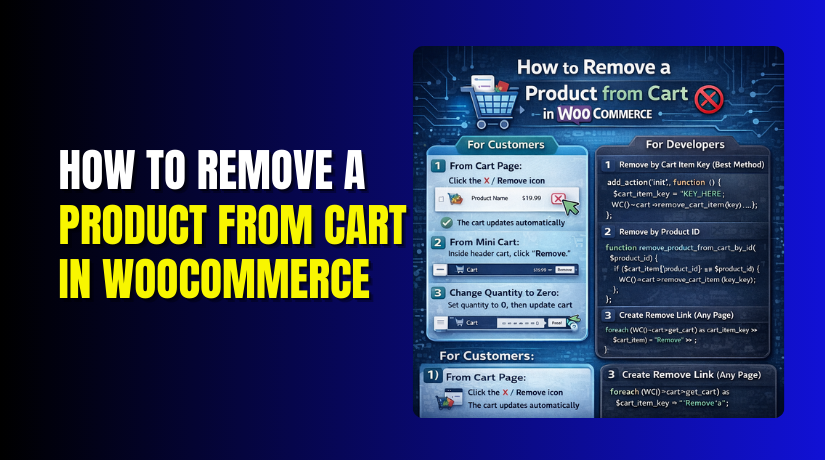
How to Remove a Product from Cart in WooCommerce (Step-by-Step Guide)
Table of Contents
- Introduction
- Why Cart Item Removal Matters for Every Store and Every Checkout Flow
- How WooCommerce Cart Removal Works Behind the Scenes in WooCommerce
- Things to Check Before Remove a Product from Cart in WooCommerce
- Easy Methods to Remove a Product from Cart in WooCommerce
- Troubleshooting: When “Remove From Cart” Is Not Working in WooCommerce
- Best Practices to Keep Cart Removal Smooth and User Friendly
- Conclusion
Introduction
Many shoppers change their mind before placing an order. They may add extra items during browsing. Later, they want a quick way to remove them. This is why cart control is important for every store. In this guide, you will learn how to remove products from carts in WooCommerce safely. You will also understand how WooCommerce removes items from cart works. You will know where the remove option appears for customers. You will also learn what updates after removal. This helps you avoid user confusion and lost sales. It also supports cleaner WooCommerce cart page customization decisions.
Why Cart Item Removal Matters for Every Store and Every Checkout Flow
Cart removal keeps the buying journey smooth and stress free. Customers feel in control when changes are easy. This reduces drop offs during checkout steps. It also lowers refund requests and support complaints. If removal feels broken, shoppers may leave fast. They may think the store is not working properly. A clean cart also helps customers review totals quickly. It helps them remove wrong sizes or colors quickly. It also helps them remove duplicate items with one click. When people ask how to delete products from WooCommerce cart, they want speed. They also want the totals and shipping to update instantly. This is why removal affects trust and conversion.
Cart item removal also reduces your store support load. Customers will not message you for simple cart fixes. It also improves mobile shopping where taps must be simple. A visible remove option helps users avoid editing quantities. A correct cart experience supports better repeat purchases too.
How WooCommerce Cart Removal Works Behind the Scenes in WooCommerce
WooCommerce Saves Cart Items Inside a Session
WooCommerce stores cart data using a session system. This works for guests and logged-in users. Each product you add becomes a cart line item. WooCommerce keeps this data until checkout completes. This is why the cart stays even after page reloads. If sessions break, cart actions may fail.
Every Cart Row Gets a Unique Cart Item Key
WooCommerce assigns a unique key to every cart row. This key is not the product ID. It also includes variation and selected options. This helps WooCommerce track similar items separately. When you click remove, WooCommerce targets that key. This ensures the correct item gets removed.
The Remove Button Sends a Remove Request
When users click the remove icon, WooCommerce triggers a remove action. It can be a normal link or an AJAX call. In both cases, the goal is the same. It tells WooCommerce to delete that cart item key. This is the main WooCommerce remove item from cart workflow.
WooCommerce Deletes That Item From the Cart
After the request, WooCommerce removes the cart row from session data. The product is no longer part of the cart. This is how you remove products from carts in WooCommerce. It is fast and works on default cart layouts. If the cart row returns, caching is often involved.
Cart Totals and Taxes Recalculate Automatically
After removal, WooCommerce recalculates cart totals right away. It updates subtotal, tax, and grand total values. If the store uses fees, those can change too. This update is important for user trust. It also reduces checkout confusion for customers.
Coupons and Discounts Get Checked Again
WooCommerce rechecks coupon rules after cart changes. Some coupons require a minimum spend amount. Others require specific products to remain in the cart. If removal breaks rules, the discount may disappear. This is normal and expected behavior in WooCommerce.
Shipping Rules Can Change After Removal
Shipping calculations depend on cart weight and total. Removing an item can change shipping methods shown. It can also remove free shipping eligibility. This is why totals may change after removing products. Customers should see updated shipping right away.
Mini Cart Removal Often Uses AJAX for Faster Updates
Many themes remove items from the mini cart using AJAX. This refreshes the cart count without reloading pages. It improves speed and keeps shopping smooth. This is called WooCommerce AJAX remove from cart behavior. If it breaks, users report cart update issues.
Cart Page Layout Can Affect the Remove Option
Some themes replace the default cart template with custom layouts. Some builders use blocks and custom cart elements. In such cases, the remove button can be hidden. This is part of WooCommerce cart page customization behavior. Wrong templates can also cause removal issues.
Programmatic Removal Is Possible With Custom Rules
Store owners can remove items using custom code logic. This is helpful for bundle rules or restricted items. It is also useful for auto-removing invalid products. This is called remove item from cart programmatically WooCommerce. It must be handled carefully to avoid cart errors.
Things to Check Before Remove a Product from Cart in WooCommerce
Check That Your WooCommerce Cart Page Exists and Is Set Properly
First, confirm your Cart page is created and published. Then open WooCommerce settings and confirm the Cart page. If the wrong page is assigned, remove links may fail. Customers may not remove products from carts in WooCommerce correctly. This also affects the full WooCommerce remove item from cart flow.
Confirm the Cart Page Layout Is Not Broken or Missing Elements
Open the Cart page and review the cart table layout. If the cart table is missing, remove icons may disappear. This often happens after heavy WooCommerce cart page customization changes. A missing cart layout can confuse users during checkout. It can also make removal look like it is disabled.
Identify If You Use Cart Blocks or Classic Cart Shortcode
WooCommerce can use blocks or the classic cart shortcode. Blocks and classic templates behave differently in many themes. If your theme expects classic, blocks may look broken. If your site uses blocks, outdated templates can misbehave. This mismatch can cause WooCommerce cart remove buttons not working issues.
Check Your Theme for Cart Template Overrides and Old Files
Many themes override WooCommerce cart templates for styling. If those override files are outdated, cart actions can break. The remove link may not render or may not trigger. This can make users ask how to delete products from WooCommerce carts. Switch to a default theme and test cart removal quickly. If it works, your theme override needs attention.
Make Sure the Mini Cart Is Enabled and Updates Correctly
If you use a mini cart, check if it shows item rows. The remove icon should appear next to each product. Many mini carts rely on fragments for updates. If fragments fail, the count may not refresh correctly. This is a common issue with WooCommerce AJAX removed from cart setups. Users then think removal did not work, but it did.
Clear Cache and Exclude Cart Pages From Aggressive Caching
Caching can freeze cart pages and show old cart content. This makes removed items appear again after refresh. Clear plugin cache, server cache, and CDN cache carefully. Then exclude cart and checkout pages from caching rules. This single step fixes many removal complaints quickly. It also reduces WooCommerce cart remove button not working reports.
Check for Plugins That Restrict Cart Changes or Lock Quantities
Some plugins restrict cart edits for rules and offers. Min and max quantity plugins may block changes suddenly. Bundle, subscription, and gift plugins can also lock items. These rules may stop customers from removing certain cart rows. Users may click remove but see no change at all. This feels like a broken cart, but it is the rules.
Review Any Custom Code That Edits Cart Behavior or Removes Items


Custom snippets can change cart actions without clear warnings. Some code rewrites remove links for tracking events. Other code removes items automatically under specific conditions. This is called remove item from cart programmatically WooCommerce behavior. If logic is wrong, it can fight customer actions. It can also remove the wrong cart row unexpectedly.
Test Cart Removal on a Staging Site to Isolate the Real Cause
Testing on a staging site keeps your live store safe. Disable one plugin at a time and test removal. Also test with a default theme for quick comparison. This helps you find the exact conflict faster. You can then fix the cause without guessing or risking sales. Once stable, your WooCommerce remove item from cart actions will feel smooth.
Easy Methods to Remove a Product from Cart in WooCommerce
Removing an item should feel quick and simple for customers. WooCommerce gives a remove option on the cart page. Many themes also show it in the mini cart. Some stores allow removal using quantity changes too. In this section, you will learn step by step methods. You will learn to remove products from carts in WooCommerce without confusion. You will also understand WooCommerce removes items from cart on different cart views. These steps help reduce user frustration during checkout.
Method 1: Remove a Product from the WooCommerce Cart Page (Step By Step)
Step 1: Open the Cart page from your site menu
- Click the cart icon in your header or menu area.
- Make sure the cart page loads without errors or blanks. This confirms your cart is ready for customer actions.
Step 2: Find the product row you want to remove.
- Locate the item name, price, and quantity in the row.
- Double-check the variation if the product has options.
- This avoids removing the wrong item by mistake.
Step 3: Click the remove icon or remove link.
- Click the small “×” icon near the product row.
- This triggers the WooCommerce remove item from cart action instantly.
- The product row should disappear after the click.
Step 4: Confirm totals updated after removing the item.
- Check subtotal, tax, and final total under cart totals.
- Shipping methods may change after the cart value changes.
- This confirms you remove products from cart in WooCommerce correctly.
Step 5: Use the Undo option if your cart shows it.
- Some carts show an Undo link after item removal.
- Click Undo quickly if you removed the wrong product. This makes the cart experience feel smooth and safe.
Method 2: Remove a Product from the WooCommerce Mini Cart Step By Step
Step 1: Open the mini cart from the header cart icon.
- Click the cart icon to open the dropdown or side cart.
- You will see cart items in a small list view. Many stores use this for faster shopping control.
Step 2: Click the remove icon next to the product.
- Click the small “×” icon beside the item in the mini cart.
- Many themes use WooCommerce AJAX remove from cart here.
- The item should be removed without a full page reload.
Step 3: Check that the cart count updates immediately.
- Look at the cart badge number near the cart icon.
- It should reduce after the item is removed successfully.
- If it stays the same, refresh once to confirm the display.
Step 4: Open the cart page to verify the item is gone.
- Go to the full cart page and review item list.
- If the item still appears, caching may be involved. This can look like WooCommerce cart remove button not working.
Method 3: Remove a Product by Setting Quantity to Zero Step By Step
Step 1: Locate the quantity field for the product row.
- Open the cart page and find the quantity box for the item.
- Some themes show plus and minus buttons for quantity changes.
- This method helps when removing icons is hard to tap.
Step 2: Reduce quantity to zero if your theme allows it.
- Type 0 in the quantity field if it accepts zero.
- Or click the minus button until quantity reaches zero.
- Some carts remove the item automatically after reaching zero.
Step 3: Click Update cart if your cart needs manual refresh.
- Some carts require clicking the Update cart to apply quantity changes.
- Click it once and wait for the cart to refresh.
- This is a valid way to delete products from WooCommerce cart.
Step 4: Confirm totals and shipping updated after the change.
- Check subtotal, coupon discount, tax, and shipping calculations again.
- If totals do not refresh, clear cache and reload once.
- If the item returns, your cache or theme may be overriding cart.
Now you know three safe ways to remove cart items. You can remove it from the cart page using the remove icon. You can remove it from the mini cart for faster edits. You can also reduce the quantity to zero when allowed. If removal feels stuck or items return, the cause is usually caching.
Troubleshooting: When “Remove From Cart” Is Not Working in WooCommerce
Sometimes a theme or plugin creates conflicts too. In this section, we will fix WooCommerce cart remove buttons not working issues. We will also cover stable tips for WooCommerce cart page customization and smooth cart updates.
When the Remove Icon Is Missing on the WooCommerce Cart Page
If the remove icon is missing, the cart layout changes. This often happens after heavy WooCommerce cart page customization. Use these checks to restore the remove option fast.
- Open WooCommerce > Status and check for template overrides.
- Switch to a default theme and test cart removal again.
- Recheck the Cart page is set in WooCommerce settings.
- If you use blocks, confirm the Cart block exists.
- If you use a shortcode, confirm the cart shortcode is present.
Fix When the WooCommerce Cart Remove Button Not Working After Click
If the button clicks but nothing changes, something blocks action. Caching, scripts, or plugins usually cause this behavior. Follow these steps in order for quicker results.
- Clear cache from plugin, server cache, and CDN cache.
- Exclude cart and checkout pages from full page caching.
- Disable cart related plugins and test removal again.
- Test in an incognito window to avoid stored cache.
- Check browser console for errors on the cart page.
Fix When Removed Items Return After Page Refresh
If items return, your cart display is likely cached. The remove request works, but the page shows old data. This confuses users who remove products from carts in WooCommerce. Use these steps to stop the cart from reverting.
- Disable cache for cart, checkout, and account pages.
- Clear WooCommerce cart fragments by clearing site cache.
- Disable “delay JavaScript” settings for WooCommerce pages.
- Confirm your host cache ignores WooCommerce session cookies.
- Test with one caching plugin only, not multiple layers.
Fix When Mini Cart Does Not Update After Removing Items
Mini cart issues are often fragment or AJAX refresh problems. Many themes rely on WooCommerce AJAX remove from cart updates. If fragments fail, the mini cart count may stay wrong. Try these fixes to refresh the mini cart properly.
- Clear cache and disable minify for WooCommerce scripts.
- Disable performance plugins for cart and mini cart pages.
- Check if your theme mini cart uses custom scripts.
- Test mini cart removal with a default theme.
- Turn off conflicting header cart plugins and retest again.
Fix When Blocks and Classic Cart Setup Conflicts Break Removal
WooCommerce can run block cart or classic cart templates. If your theme expects classic, blocks may behave oddly. This can trigger WooCommerce cart remove button not working reports. Use one cart system and keep it consistent.
- Confirm whether you use blocks or classic shortcode pages.
- Avoid mixing block checkout with classic cart templates together.
- Update WooCommerce and your theme to the latest stable versions.
- Replace outdated cart templates with current WooCommerce templates.
- Retest removal after each change, not all changes together.
Fix When Cart Rules Plugins Stop Customers From Removing Items
Some plugins lock cart items due to rules and offers. Bundles, gifts, and min max quantity rules can block removal. This can look like WooCommerce remove item from cart is broken. Confirm rule settings before changing core cart behavior.
- Disable rule plugins and test cart removal once again.
- Check gift rules that auto-add items to cart.
- Check bundle rules that require items to stay together.
- Check quantity rules that prevent zero quantities in cart.
- Add clear notices so users understand removal restrictions.
Fix When Custom Snippets Remove Items Automatically and Confuse Users
Custom code can remove items based on conditions and rules. This is removing items from cart programmatically WooCommerce behavior. If logic is too strict, it fights customer removal actions. Keep code rules simple and fully tested on staging first.
- Disable snippet plugin and test cart removal again.
- Check for hooks that run on cart load or refresh.
- Log the rule condition to confirm it matches your intent.
- Ensure the code targets the correct cart item key.
- Retest with one rule at a time for clean results
Best Practices to Keep Cart Removal Smooth and User Friendly
A smooth cart builds trust and reduces checkout drop offs quickly. These best practices improve removal, speed, and cart clarity. They also support safe WooCommerce cart page customization choices.
- Keep the remove icon visible and easy to tap.
- Show a clear “Removed” notice with an undo option.
- Exclude cart and checkout pages from caching rules always.
- Avoid too many cart plugins that change core behavior.
- Test removal on mobile, guest checkout, and logged users.
- Update WooCommerce, theme, and plugins on a staging site.
- Keep your mini cart fast and avoid heavy script delays.
Conclusion
Removing items from the cart should always feel quick and reliable. Customers expect the remove icon to work instantly on every device. Most cart issues happen due to caching, theme overrides, or plugin conflicts. A clean cart setup also improves trust and reduces checkout drop offs.
Keep your cart layout simple and avoid heavy cart custom changes. Test removal after every update to prevent future cart errors. If you are stuck with WooCommerce cart remove button not working issues, get expert help from WooHelpDesk. WooHelpDesk can fix cart problems, improve speed, and remove conflicts safely.



