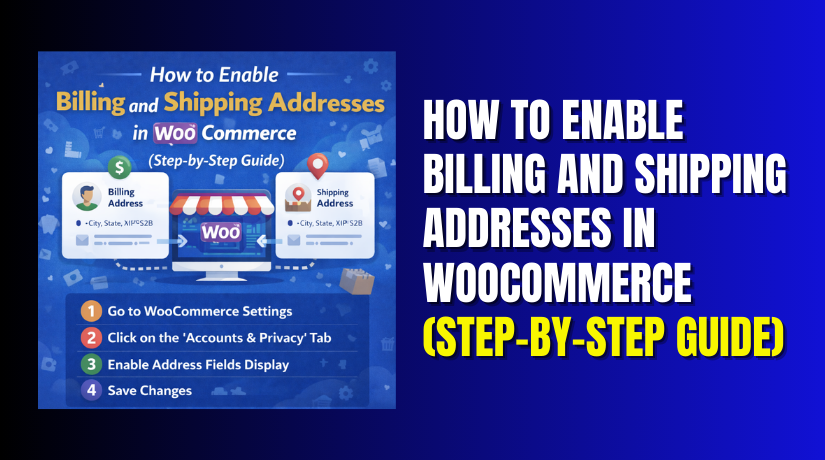
How to Enable Billing and Shipping Addresses in WooCommerce (Step-by-Step Guide)
Table of Contents
- Introduction
- Understanding the Difference Between Billing and Shipping Address in WooCommerce Clearly
- How to Enable Billing Address in WooCommerce (Properly and Correctly)
- How to Enable Shipping Address in WooCommerce with Proper Configuration
- Common Problems with Billing and Shipping Addresses in WooCommerce and How to Fixes
- Best Practices for Billing and Shipping Address Setup in WooCommerce
- Conclusion
Introduction
Every online store needs correct customer address details. These details help process orders without delays. When you enable billing and shipping addresses in WooCommerce, you improve checkout accuracy. Billing details help verify payments and customer identity. Shipping details ensure products reach the correct location. Many store owners ignore proper WooCommerce checkout settings at first.
This mistake can cause failed payments or delivery issues. A proper WooCommerce billing address setup protects your revenue. Correct WooCommerce shipping address settings reduce shipping mistakes. Customers expect a smooth checkout process.
Clear WooCommerce address fields make checkout fast and simple. When billing and shipping fields work correctly, customer trust increases. This small setup step improves the overall buying experience.
Understanding the Difference Between Billing and Shipping Address in WooCommerce Clearly
Billing and shipping addresses serve different purposes in WooCommerce. The billing address connects to payment information. It verifies the customer’s card or payment method. A proper WooCommerce billing address setup ensures secure transactions. The shipping address tells where the order should be delivered. It works with your WooCommerce shipping address settings.
Sometimes both addresses are the same. Many customers ship products to their home address. In other cases, they differ completely. Customers may send gifts to another location. Businesses may use separate warehouse addresses. WooCommerce billing and shipping fields allow this flexibility. These WooCommerce address fields appear during checkout.
Store owners can manage them through WooCommerce checkout settings. Understanding this difference helps you configure the store properly. It also supports better WooCommerce checkout page customization later if needed.
How to Enable Billing Address in WooCommerce (Properly and Correctly)
Step 1: Open WooCommerce Settings from Your WordPress Dashboard
- First, log in to your WordPress admin panel.
- Go to WooCommerce and click Settings.
- This area controls all main store options. These WooCommerce checkout settings manage billing information.
- Make sure your plugin is updated properly.
- An outdated version may hide some options.
- Once inside settings, click the Accounts and Privacy tab. This section controls customer checkout behavior.
Step 2: Configure Checkout Options for Billing Details
- Scroll to the Guest Checkout section carefully.
- Enable guest checkout if needed for your store.
- Billing information must be collected during checkout.
- WooCommerce billing address setup works automatically by default.
- The system shows billing fields on checkout pages.
- Do not disable required checkout options accidentally.
- Save changes after updating these WooCommerce checkout settings.
Step 3: Verify and Manage WooCommerce Billing Address Fields
- Now check the actual billing form fields.
- WooCommerce address fields are active by default.
- Fields include name, email, phone, and address. These WooCommerce billing and shipping fields are important.
- Make sure required fields are not removed.
- Email and phone should always remain required.
- These fields support payment and order confirmation.
Step 4: Review Billing Fields on the Checkout Page
- Visit your store’s checkout page for testing.
- Add a product to the cart first. Proceed to the checkout screen carefully.
- Confirm billing address fields appear correctly.
- Test form submission with sample information. This ensures proper WooCommerce billing address setup.
- If fields are missing, review WooCommerce checkout settings again. A correct setup prevents payment and order errors.
How to Enable Shipping Address in WooCommerce with Proper Configuration
Step 1: Open WooCommerce Shipping Settings from Dashboard
- Log in to your WordPress admin panel first.
- Go to WooCommerce and click Settings again.
- Now select the Shipping tab carefully.
- This section controls all WooCommerce shipping address settings.
- Shipping must be enabled for physical products.
- If shipping is disabled, address fields may not appear.
- Always confirm shipping options are active. Save changes before moving forward.
Step 2: Create and Configure Shipping Zones Properly
- Click on Shipping Zones inside the Shipping tab.
- Shipping zones define delivery areas for your store.
- Add a new shipping zone if needed.
- Select countries or regions carefully.
- Then add a shipping method to that zone.
- Common methods include flat rate or free shipping. Without zones, shipping fields may not work correctly.
- Proper configuration supports correct WooCommerce billing and shipping fields display.
Step 3: Enable the “Ship to a Different Address” Option


- Now open the Shipping Options section.
- Look for the shipping destination settings carefully.
- Choose the option that allows shipping to a different address.
- This ensures shipping fields appear during checkout.
- These WooCommerce address fields allow customers flexibility.
- Customers can enter separate delivery details easily.
- Save the updated WooCommerce checkout settings after changes.
Step 4: Test Shipping Address on the Checkout Page
- Visit your store’s checkout page for testing.
- Add a physical product to the cart. Proceed to checkout and review the form.
- Confirm the shipping address section appears properly.
- Try selecting “Ship to a different address.”
- Enter sample shipping details for testing.
- Ensure WooCommerce billing and shipping fields work correctly.
- A proper WooCommerce shipping address settings setup avoids delivery errors.
Common Problems with Billing and Shipping Addresses in WooCommerce and How to Fixes
Shipping Address Not Showing on Checkout Page
Sometimes the shipping section does not appear. This usually happens with virtual products only. WooCommerce hides shipping for non-physical items. Check your product type settings carefully. Make sure the product is marked as physical. Also review WooCommerce shipping address settings again. Confirm shipping zones are created correctly. Test with a physical product in the cart. Proper WooCommerce checkout settings restore shipping fields quickly.
Billing Address Fields Missing During Checkout
Missing billing fields can break order processing. This often happens due to theme conflicts. Some themes override WooCommerce address fields incorrectly. Switch to a default theme for testing. Disable recently added plugins temporarily. Then check WooCommerce billing address setup again. Ensure required WooCommerce billing and shipping fields remain active. Save settings after every change carefully.
Address Fields Not Saving After Order Placement
Sometimes customers enter details but data is not saved. This may be caused by caching plugins. Clear website cache and browser cache first. Also review WooCommerce checkout page customization changes. Incorrect custom code can block form submission. Disable custom snippets for testing. Check error logs inside your hosting panel. Proper WooCommerce checkout settings should save all address details.
Best Practices for Billing and Shipping Address Setup in WooCommerce
Keep WooCommerce address fields simple and clean. Do not add unnecessary required fields. Fewer fields improve checkout speed. Always test your WooCommerce billing and shipping fields regularly. Test both guest and logged-in checkout scenarios. Review WooCommerce shipping address settings after adding new zones. Maintain proper WooCommerce billing address setup for secure payments. Avoid heavy WooCommerce checkout page customization unless needed. A simple checkout improves customer trust and conversions.
Conclusion
Enabling correct address fields improves checkout performance significantly. When you enable billing and shipping addresses in WooCommerce properly, your store runs smoothly. A correct WooCommerce billing address setup prevents payment failures. Proper WooCommerce shipping address settings reduce delivery mistakes. Clean WooCommerce address fields improve customer experience instantly. Well-managed WooCommerce billing and shipping fields increase trust and conversions. Simple WooCommerce checkout settings create a faster buying process. Avoid complex WooCommerce checkout page customization unless truly needed. Always test checkout after making changes. A well-configured store leads to fewer errors and higher sales.
If you face issues while configuring your store, expert help is available. WooHelpDesk provides professional WooCommerce support for store owners. Our team fixes checkout errors, shipping problems, and payment issues quickly. We ensure your WooCommerce billing and shipping fields work perfectly. Get reliable technical support from experienced WooCommerce specialists. Contact WooHelpDesk today and keep your online store running without interruptions.



