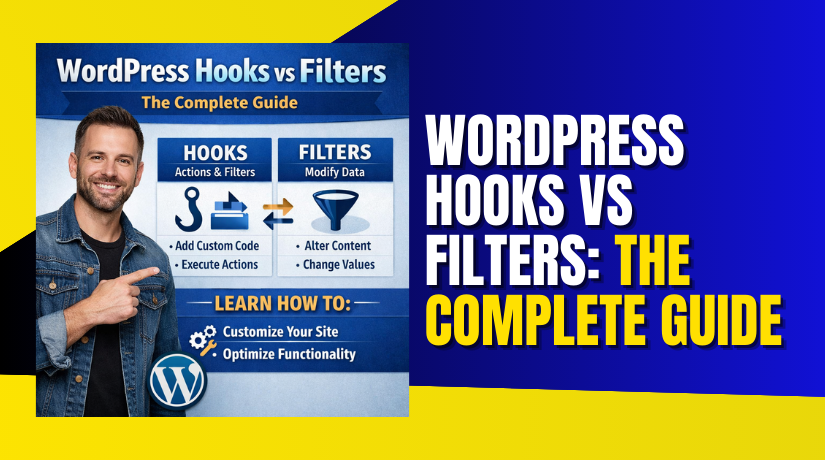
WordPress Hooks vs Filters: The Complete Guide
Table of Contents
- Introduction
- What is Hook in WordPress?
- What are Different Types of Hooks in WordPress?
- How to Add Hooks (Actions) in WordPress – Step by Step?
- What is Filter in WordPress?
- What are the Different Types of Filters in WordPress?
- How to Add Filters in WordPress – Step by Step?
- What is the Difference Between a Hook and a Filter in WordPress?
- Final Verdict
Introduction
WordPress powers millions of websites. Its flexibility comes from hooks. But hooks confuse many developers.
The terms get mixed up. Action. Filter. Hook. What do they mean? How are they different?
Understanding hooks separates beginner developers from professionals. Hooks are the foundation of WordPress customization. They let you modify WordPress without touching core files. This keeps your site upgradeable and secure.
Think of WordPress as a busy airport. Planes arrive and depart constantly. Hooks are the gates where you can add your own luggage or redirect passengers. Some gates let you add new things. Others let you modify what already exists.
This guide explains everything. You will learn what hooks are. You will understand actions versus filters. You will see real examples you can use immediately. By the end, you will never confuse hooks and filters again.
What is Hook in WordPress?
A hook is a specific place in WordPress code where you can run your own functions . It is like a designated meeting point. When WordPress reaches that point, it pauses and says, “Does anyone have code to run here?”
Hooks are part of the WordPress Plugin API . They allow your custom code to interact with WordPress Core, themes, and plugins. You do not need to edit original files. Your code stays separate and safe.
Why Hooks Matter?
- Hooks make WordPress extensible.
- Without hooks, every customization would require editing core files. Core updates would wipe out your changes. Hooks prevent this disaster.
- WordPress itself uses hooks extensively. Core developers place hooks throughout the code. When you use hooks, you are using the same system WordPress itself relies on.
How Does Hook Work in WordPress?
- When WordPress executes, it follows a specific sequence. It loads core files, then plugins, then themes. At many points, it checks for registered hooks.
- If your function is registered to a hook, WordPress executes it right there. Your code runs alongside WordPress’s own code. This integration feels seamless to users.
Registering a Hook
- You register a hook using WordPress functions. The syntax is consistent across hooks:
add_action( ‘hook_name’, ‘your_function_name’ );
add_filter( ‘hook_name’, ‘your_function_name’ );
- Both functions tell WordPress, “When you reach this hook, run my function”.
What are Different Types of Hooks in WordPress?
WordPress has two hook types. Actions and filters. Both are hooks. They just do different things .
- Actions
- Actions let you run code at specific moments. WordPress does something, and your code runs alongside it. Actions do not modify data. They just execute.
- Think of actions as announcements. “Post published!” Your code hears this and does something. Send an email. Updates a counter. Logs the event. The announcement itself carries no data to modify.
- Filters
- Filters let you modify data before WordPress uses it. Content, titles, excerpts, queries. Filters intercept data, change it, and return it.
- Think of filters as preparation stations. “Here is the post title.” Your filter receives the title, modifies it, and hands it back. WordPress then uses your modified version.
How to Add Hooks (Actions) in WordPress – Step by Step?
Follow these steps to add custom actions using WordPress hooks.
Step 1: Identify the Action Hook You Need
Find the WordPress action hook where you want your code to run. Common examples:
- wp_head – runs inside the <head> section.
- wp_footer – runs before the closing </body> tag.
- init – runs after WordPress has loaded.
- save_post – runs when a post is saved.
Check the WordPress Hooks Database or plugin/theme documentation.
Step 2: Create Your Custom Function
Write a PHP function that contains the code you want to execute.
Example: A function that adds a message to the footer.
function my_custom_footer_message() {
echo ‘<p>Thank you for visiting my website!</p>’;
}
Step 3: Hook Your Function Using add_action()
Use the add_action() function to attach your custom function to the chosen hook. Place this after your function definition.
Syntax:
add_action( ‘hook_name’, ‘your_function_name’, priority, accepted_args );
- hook_name – required, the action hook name (e.g., ‘wp_footer’).
- your_function_name – required, the name of your custom function (as a string).
- priority – optional, default 10. Lower numbers run earlier.
- accepted_args – optional, default 1. How many arguments your function accepts.
Example:
add_action( ‘wp_footer’, ‘my_custom_footer_message’ );
Step 4: Specify Priority (If Needed)
If multiple functions are attached to the same hook and you need to control the order, set a priority.
Example: Run your function before others (priority 5).
add_action( ‘wp_footer’, ‘my_custom_footer_message’, 5 );
Step 5: Pass Arguments (If the Hook Provides Them)
Some action hooks pass parameters to your function. For example, save_post passes the post ID and the post object. You must tell WordPress how many arguments your function accepts.
Example:
function log_post_save( $post_id, $post ) {
error_log( “Post $post_id was saved.” );
}
add_action( ‘save_post’, ‘log_post_save’, 10, 2 );
Here, 10 is priority and 2 is the number of accepted arguments.
Step 6: Place Your Code in the Correct Location
Add all the code (function + add_action) in one of these places:
- Child theme’s functions.php – recommended for theme customizations.
- Custom plugin file – makes functionality theme-independent.
- Code snippets plugin – safe for non-developers (e.g., Code Snippets).
Step 7: Test Your Action
Visit your site and verify that your code runs as expected. For example, check the footer for the added message. Use browser developer tools or view page source.
What is Filter in WordPress?
A filter is a hook that modifies data . Filters receive information, change it, and send it back. They are WordPress’s way of letting you customize output.
How Filters Work?
Filters operate on the principle of transformation. Data goes in. Modified data comes out. WordPress then uses the modified version.
The function apply_filters() creates a filter. It takes at least two parameters: the filter name and the value to filter.
apply_filters( ‘filter_name’, $value_to_filter );
When WordPress reaches this line, it pauses. It collects all functions hooked to ‘filter_name’. It runs them in priority order. Each function receives the value, modifies it, and passes it to the next.
What are the Different Types of Filters in WordPress?
Filters appear throughout WordPress. Different categories serve different purposes. Understanding them helps you find the right filter for your task.


- Content Filters
- Content filters modify what users see. They operate on posts, pages, and custom post types .
- the_content filters main post content. Use it to add social sharing buttons, related posts, or affiliate disclaimers .
- the_title filters post titles. Use it to add prefix text or modify title display .
- the_excerpt filters post excerpts. Use it to customize excerpt text separately from full content.
- Title and Navigation Filters
- These filters modify site structure and navigation elements.
- wp_title filters the browser title tag. Use it for SEO optimization .
- nav_menu_items filters menu items. Use it to dynamically show or hide menu links.
- body_class and post_class add CSS classes to HTML elements. Use them for targeted styling .
- Query Filters
- Query filters modify how WordPress retrieves data from the database. They are powerful but complex.
- pre_get_posts is technically an action that lets you modify query parameters. It acts like a filter for query variables .
- posts_where, posts_join, and posts_orderby directly modify SQL clauses. Use them for advanced custom queries.
- User and Role Filters
- These filters modify user data and capabilities.
- user_contactmethods adds custom contact fields to user profiles.
- editable_roles filters which roles appear in user management screens.
- map_meta_cap filters capability mapping for complex permission scenarios.
- Security Filters
- Security filters help protect your site.
- wp_kses_allowed_html filters allowed HTML tags for content sanitization.
- nonce_life filters how long nonces remain valid.
- salt filters let you customize security keys for better encryption.
- Admin Interface Filters
- Admin filters customize the WordPress dashboard.
- admin_footer_text filters the footer text in the admin area .
- manage_posts_columns filters which columns appear in post lists.
- default_content filters default content for new posts.
- WooCommerce Filters
- If you use WooCommerce, you have thousands of filters available. They modify everything from product display to checkout behavior.
- woocommerce_loop_add_to_cart_link filters add-to-cart button HTML.
- woocommerce_product_get_price filters product prices dynamically.
- woocommerce_email_subject_new_order filters email subject lines.
How to Add Filters in WordPress – Step by Step?
Filters modify data before WordPress outputs or uses it. Follow these steps to create custom filters.
Step 1: Identify the Filter Hook You Need
Determine which filter hook allows you to modify the desired data. Common filter hooks:
- the_content – filters post content before display.
- excerpt_length – changes the number of words in excerpts.
- body_class – adds custom CSS classes to the body tag.
- wp_title – modifies the page title.
Step 2: Create a Callback Function
Write a function that accepts at least one parameter (the data to filter) and returns the modified data.
Important: Your function must return the modified value.
Example: Function to change excerpt length.
function my_custom_excerpt_length( $length ) {
return 30; // new word count
}
Step 3: Hook Your Function Using add_filter()
Use add_filter() to attach your function to the chosen filter.
Syntax:
add_filter( ‘filter_name’, ‘your_function_name’, priority, accepted_args );
- filter_name – required, the filter hook name.
- your_function_name – required, your callback function name.
- priority – optional, default 10.
- accepted_args – optional, default 1.
Example:
add_filter( ‘excerpt_length’, ‘my_custom_excerpt_length’ );
Step 4: Set Priority (Optional)
If you want your filter to run before or after others, specify a priority. Lower numbers run earlier.
add_filter( ‘excerpt_length’, ‘my_custom_excerpt_length’, 5 );
Step 5: Handle Additional Arguments (If Available)
Some filters pass more than one parameter. For instance, the_title passes the title and the post ID. You must declare the number of accepted arguments.
Example: Add a prefix only on specific posts.
function prefix_post_title( $title, $id ) {
if ( $id == 42 ) {
$title = ‘Special: ‘ . $title;
}
return $title;
}
add_filter( ‘the_title’, ‘prefix_post_title’, 10, 2 );
The last parameter 2 tells WordPress your function expects two arguments.
Step 6: Ensure Your Function Returns the Value
Never forget the return statement. If you don’t return anything, the filtered data becomes empty.
Step 7: Place the Code in the Right Location
Same as actions: put your code in a child theme’s functions.php, a custom plugin, or a code snippets plugin.
Step 8: Test the Filter
View a page where the filter applies. For excerpt length, check a category page that shows excerpts. For the_content, view a single post and verify the modifications.
Step 9: Debug If Necessary
If the filter doesn’t work:
- Check hook name spelling.
- Verify your function returns a value.
- Ensure no other filter is overriding yours (try a higher priority).
- Enable WordPress debug mode to see errors.
What is the Difference Between Hooks and Filters in WordPress?
This question reveals common terminology confusion. The distinction is simple once understood.
| Comparison Factor | Hook | Filter |
| Definition | A point in WordPress where custom code can execute . | A hook type that modifies data before use . |
| Relationship | The parent category contains both actions and filters. | A child type within the hook category. |
| Purpose | Enable customization without core file edits . | Transform data passed through them . |
| Return Value | Depends on type. Actions return nothing. Filters return modified data. | Always returns modified data . |
| Creation Function | N/A (hooks are created by actions or filters). | Created by apply_filters() . |
| Registration Function | Both add_action() and add_filter() register hooks. | add_filter() registers filter hooks . |
| Data Handling | Actions execute code. Filters transform data. | Receives data, modifies it, returns it . |
| Side Effects | Actions can have side effects like database writes. | Should have no side effects . |
| Examples | wp_head action adds header content. save_post action runs on post save. | the_content filter modifies post content. excerpt_length changes excerpt word count. |
| Common Confusion | People say “hook” when meaning “action” or “filter”. | Filters are hooks, but not all hooks are filters. |
Final Verdict
Understanding WordPress hooks versus filters is fundamental to WordPress development. The distinction seems subtle but changes everything about how you approach customization.
Hooks are the overarching system. They are the gates where your code enters WordPress. Every hook is either an action or a filter. This mental model simplifies everything.
Actions let you run code at specific moments. They are perfect for adding new features, sending notifications, or logging events. Actions do not modify existing data. They just execute alongside WordPress. Use actions when you want to do something new.
Filters let you modify existing data. They are perfect for changing content, adjusting queries, or customizing output. Filters receive data, transform it, and return it. Use filters when you want to change something that already exists.
The technical implementation reinforces this distinction. Actions use do_action() and expect no return. Filters use apply_filters() and expect modified data returned. This simple difference drives entirely different use cases.
Choose actions when you need to add functionality. Add a footer script. Send an email on post publish. Log user activity. These are action tasks. Choose filters when you need to modify existing content. Change post titles. Adjust excerpt length. Add CSS classes. These are filter tasks.
The best WordPress developers use both strategically. They know when to act and when to filter. They respect each tool’s purpose. Their code is cleaner, more maintainable, and more reliable.
Have questions before starting with WooCommerce & WordPress? Get support here at WooHelpDesk.



