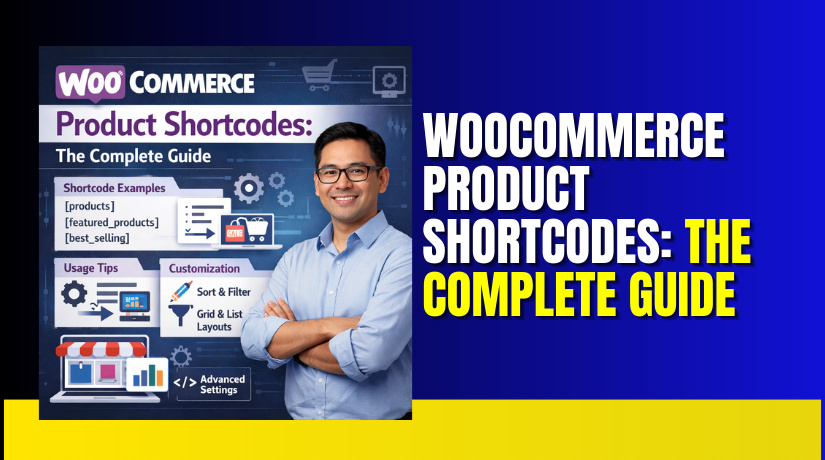
WooCommerce Product Shortcodes: The Complete Guide
Table of Contents
- Introduction
- What is the Shortcode for Products in WooCommerce?
- What are the Benefits of Using Shortcodes for Products in WooCommerce?
- How to Use WooCommerce Shortcodes?
- What are Various WooCommerce Product Shortcodes?
- What are the Best Practices for WooCommerce Product Shortcodes?
- Final Verdict
Introduction
Your WooCommerce store holds hundreds of products. Each item has images, prices, descriptions, and variations.
Now you need to put them somewhere else. Not just on your shop page. On your homepage. Inside blog posts. Within custom landing pages. In sidebars. On sale pages. Everywhere your customers look.
You could duplicate content manually. You could hire a developer. You could spend hours copying HTML.
Or you could use one simple line of text.
That is the promise of the WooCommerce product shortcode. A few characters inside square brackets. No coding knowledge required. Instant product displays anywhere on your WordPress site.
This comprehensive guide is the definitive resource for mastering product shortcodes in 2026. We cover every major shortcode. We explain every parameter. We provide real examples you can copy and paste immediately.
By the end, you will understand exactly what shortcodes are, which one to use for every scenario, why they remain essential even in the Gutenberg era, and how to troubleshoot when things go wrong.
Let us begin with the foundation.
What is the Shortcode for Products in WooCommerce?
The primary WooCommerce product shortcode is [products].
This single shortcode is the most powerful and versatile tool for displaying inventory items anywhere on your WordPress site. It replaces nearly every legacy product shortcode from earlier WooCommerce versions.
When you type [products] into any page, post, or widget area, WooCommerce automatically generates a complete product grid. Your items appear with images, titles, prices, and add-to-cart buttons.
But the true power lies in what comes next.
Parameters transform everything.
A shortcode parameter is an additional instruction placed inside the brackets. It tells WooCommerce exactly which products to show and how to show them.
Consider this example:
[products limit=”6″ columns=”3″ category=”shoes”]
This shortcode displays six products from the shoes category arranged in three columns. Without parameters, you get everything. With parameters, you get precision.
The [products] shortcode is the Swiss Army knife of WooCommerce displays. It handles:
- Products from specific categories
- Items with particular attributes
- Products filtered by ID or SKU
- Best-selling and top-rated items
- On-sale and featured merchandise
- Paginated collections
- Random selections
But [products] are not alone.
WooCommerce includes several specialized product shortcodes for common scenarios:
| Shortcode | Purpose | Example |
| [product] | Display a single product by ID | [product id=”99″] |
| [product_page] | Show full single product page | [product_page id=”123″] |
| [product_category] | Products from specific category | [product_category category=”electronics”] |
| [product_categories] | Display category thumbnails | [product_categories number=”4″] |
| [recent_products] | Newest additions to your store | [recent_products per_page=”8″] |
| [featured_products] | Items marked with a star | [featured_products columns=”3″] |
| [sale_products] | Currently discounted items | [sale_products per_page=”6″] |
| [best_selling_products] | Top sellers by revenue | [best_selling_products per_page=”5″] |
| [top_rated_products] | Highest customer ratings | [top_rated_products columns=”2″] |
Many of these specialized shortcodes are actually wrappers for the master [products] shortcode. WooCommerce maintains them for backward compatibility and semantic clarity.
However, the official documentation now recommends [products] for new development. It accepts every parameter the specialized shortcodes use, plus many they do not.
When someone asks “What is the shortcode for products in WooCommerce?”, the complete answer is:
The [products] shortcode is the universal solution. Use specialized shortcodes like [featured_products] or [sale_products] when you want cleaner, self-documenting code. Use [product] or [product_page] for single-item displays.
All of these are WooCommerce products shortcode list essentials every store owner must know.
What are the Benefits of Using Shortcodes for Products in WooCommerce?
Why use shortcodes at all? Page builders exist. Gutenberg blocks exist. Why type square brackets in 2026?
- Zero Coding Knowledge Required
- You do not need to write PHP, JavaScript, or HTML. You copy a line of text. You paste it. The system does the rest.
- This democratizes store customization. Store owners without development resources still control exactly how products appear.
- Place Products Anywhere
- Shop pages are default. Shortcodes unlock everywhere else.
- Inside blog posts reviewing products. Within landing pages for marketing campaigns. In sidebars featuring bestsellers. On thank-you pages suggesting related items. Your products go where your customers go.
- Dynamic Content That Updates Automatically
- Shortcodes do not create static snapshots. They generate live queries.
- When you mark a new product as featured, every page using [featured_products] updates immediately. When inventory sells out, sale badges disappear automatically. When prices change, every shortcode reflects the new amount.
- No manual updates. No stale information. No broken promises to customers.
- Complete Control Through Parameters
- Parameters are your instruction manual. They tell WooCommerce exactly what you want.
How many products? limit=”8″.
How many columns? columns=”4″.
Which category? category=”hoodies”.
What order? orderby=”price” order=”DESC”.
Which attribute? attribute=”color” terms=”red”.
This granular control exceeds what many page builder widgets offer.
- Lightning-Fast Performance
- Shortcodes execute database queries directly. They do not load heavy JavaScript frameworks or render-blocking CSS.
- A properly optimized [products] shortcode adds milliseconds to your page load time. Page builder equivalents often add seconds.
- Theme Independence
- Shortcodes work in every WordPress theme. Twenty Twenty-Four. Custom builds. Legacy designs. Your shortcode functions identically regardless of styling.
- This makes store redesigns dramatically simpler. Your content contains the product logic. Your theme contains only a presentation.
- Migration and Backup Simplicity
- When you move hosts or clone your store, shortcodes move with your content. They are plain text inside your database. No proprietary builder data. No reconstruction required.
- Perfect for Email Newsletters and Custom Links
- The [add_to_cart_url] shortcode generates direct product links. Use these in email campaigns, social media ads, and SMS marketing.
- Customers click. Products enter carts. Revenue follows.
- Content Marketing Integration
- Blog posts sell products. Shortcodes make this seamless.
- Write a review of hiking boots. Insert [product id=”456″] beneath your conclusion. Readers proceed from education to purchase without leaving your content.
- No Vendor Lock-In
- Page builders tie your store to specific companies. If your builder stops updating, your layouts break.
- Shortcodes are WordPress core functionality. WooCommerce is the market leader. Your investment in learning shortcodes pays dividends for the life of your store.
How to Use WooCommerce Shortcodes?
Implementing shortcodes requires no technical expertise. Three primary methods cover every scenario.
Method 1: Gutenberg Block Editor (WordPress 5.0+)
The Gutenberg editor provides a dedicated shortcode block. This is the recommended method for most users in 2026.
Step-by-step instructions:
- Edit any page or post where you want products displayed.
- Click the blue plus icon (+) to add a new block.
- Type “shortcode” in the search field.
- Select the “Shortcode” block from the results.
- A text field appears. Paste or type your WooCommerce shortcode.
- Example: [products limit=”4″ columns=”2″ best_selling=”true”]
- Click Preview or Update to see your product grid.
Method 2: Classic Editor (TinyMCE)
Some stores still use the Classic Editor plugin. The process remains straightforward.
Step-by-step instructions:
- Navigate to Pages → Add New or Posts → Add New.
- Ensure you are in the “Text” or “HTML” tab, not “Visual.”
- Position your cursor where the products should appear.
- Type your shortcode directly into the editor.
- Example: [product_category category=”books” per_page=”6″]
- Switch back to the “Visual” tab or Publish to verify the display.
Method 3: Widget Areas (Sidebars and Footers)
Product displays are not limited to page content. Widget areas offer prime real estate for promoting merchandise.
Step-by-step instructions:
- Go to Appearance → Widgets in your WordPress admin.
- Locate the sidebar, footer, or any widget area where you want products.
- Click the plus icon (+) to add a block.
- Select “Shortcode” block (or “Text” widget in classic interfaces).
- Enter your WooCommerce shortcode.
- Example: [featured_products per_page=”3″ columns=”1″]
- Click Update or Save.
Method 4: Theme Template Files (Developers)
For permanent placement in theme files, PHP integration is required.


Code example:
<?php echo do_shortcode(‘[products category=”featured” limit=”6″]’); ?>
Place this in:
- header.php for site-wide promotions.
- front-page.php for custom homepage layouts.
- single-product.php for cross-sells and upsells.
- archive-product.php for modified category pages.
Method 5: Raw Shortcodes in Text Widgets (Legacy)
Older WordPress installations may use Text widgets. Shortcodes execute here automatically.
- Navigate to Appearance → Widgets.
- Add a “Text” widget to your desired location.
- Paste your shortcode directly into the text area.
- Save the widget.
This method works but offers less visual feedback than block-based approaches.
What are Various WooCommerce Product Shortcodes?
While [products] is the universal tool, several dedicated shortcodes exist for specific use cases. These are often more readable and require fewer parameters.
- [product] – Display a Single Product
This shortcode shows a single product with its image, title, price, and add‑to‑cart button.
Parameters:
- id – Product ID (required if no SKU)
- sku – Product SKU (required if no ID)
- columns – Rarely used; defaults to 1
Example: [product id=”123″] or [product sku=”woo-hoodie”]
Use case: Highlighting a specific item within blog posts or promotional pages.
- [product_page] – Embed Full Product Page
This shortcode displays the entire single product template, including gallery, description, reviews, and variations.
Parameters:
- id – Product ID
- sku – Product SKU
Example: [product_page id=”123″]
Use case: Creating standalone product landing pages without building custom templates.
Important: This shortcode outputs a full product page, including theme wrappers. It is resource‑intensive. Use sparingly.
- [product_category] – Products from One Category
Legacy shortcode. Still supported but [products category=”…”] is preferred.
Parameters:
- category – Category slug (required)
- per_page – Products per page
- columns – Grid columns
- orderby – Sorting
- order – Direction
Example: [product_category category=”hoodies” per_page=”6″ columns=”3″]
- [product_categories] – Display Category Thumbnails
Shows a grid of product category images and links.
Parameters:
- number – Number of categories to display
- columns – Grid columns
- hide_empty – Show/hide categories with no products (1 or 0)
- orderby – name or id or count
- parent – Display only child categories of this parent ID
Example: [product_categories number=”6″ columns=”3″ hide_empty=”1″]
Use case: Category navigation on homepage or sidebar.
- [add_to_cart] – Direct Add‑to‑Cart Button
Creates a button that adds a specific product to the cart.
Parameters:
- id – Product ID
- sku – Product SKU
- style – Button CSS styling (e.g., border:4px dotted red)
- class – Custom CSS class
- price – Show price? (YES/NO, default YES)
- quantity – Default quantity to add (default 1)
Example: [add_to_cart id=”99″ class=”custom-button” price=”NO”]
- [add_to_cart_url] – Product Link URL
Returns the URL to add a product to cart. Useful for hyperlinks.
Parameters: Same as [add_to_cart].
Example: <a href=”[add_to_cart_url id=’99’]”>Buy Now</a>
- [shop_messages] – Display System Notices
Shows WooCommerce success/error messages anywhere. Useful after custom cart actions.
Example: [shop_messages]
What are the Best Practices for WooCommerce Product Shortcodes?
- Always set a limit: Unlimited products crash slow hosting and overwhelm shoppers.
- Match columns to limit: Avoid orphaned products in incomplete rows.
- Test on staging first: Shortcode parameters interact. Verify appearance before deploying live.
- Use semantic shortcodes for clarity: [featured_products] is more readable than [products visibility=”featured”]. Choose what your team will understand.
- Cache aggressively for anonymous users: Most stores benefit from page caching. Random shortcodes require cache exceptions.
- Avoid nested shortcodes: Do not place [products] inside another [products]. Performance suffers.
- Document your shortcodes: Leave comments in your content. In the future you will thank yourself.
Final Verdict
WooCommerce product shortcodes remain absolutely essential in 2026 despite the proliferation of Gutenberg blocks and page builders. The [products] shortcode and its specialized variants offer universality that visual editors cannot match. A shortcode works identically in every WordPress environment, every theme, and every hosting setup.
This portability ensures your content survives theme changes, platform migrations, and developer turnover. When you export your site, shortcodes travel as plain text without requiring proprietary builder plugins or specialized import tools.
The precision of shortcode parameters exceeds what any visual interface currently provides. Need products that are on sale, from a specific category, but excluding certain tags? Shortcodes handle this with simple parameters. Blocks often hide these advanced filters or omit them entirely.
For store owners who require surgical control over product merchandising, shortcodes deliver capabilities that drag-and-drop builders have not yet matched. The parameter ecosystem allows you to filter by category, tag, attribute, price, rating, sales status, and dozens of other criteria in any combination.
Master both tools for maximum effectiveness. Use shortcodes when you need granular control, when developing custom templates, or when building portable solutions that must work across multiple sites.
Use Gutenberg blocks when your team prioritizes visual feedback and rapid assembly. The WooCommerce product shortcode is not a legacy feature—it is a professional tool that separates serious ecommerce operators from casual store owners.
Have questions before starting with WooCommerce & WordPress? Get support here at WooHelpDesk.



