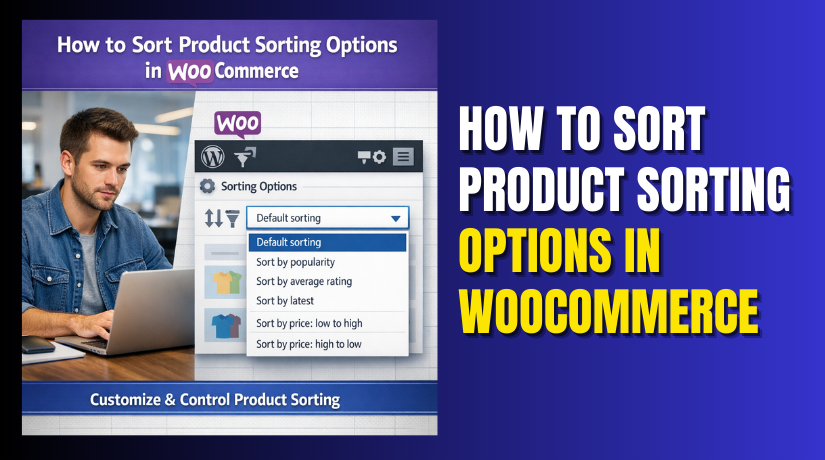
What are the Product Sorting Options in WooCommerce: How to Sort Products Step by Step
Table of Contents
- Introduction
- What is WooCommerce Product Sorting?
- Why to Sort Products in WooCommerce?
- What are the Product Sorting Options in WooCommerce?
- How to Sort Products in WooCommerce Step by Step?
- Final Verdict
Introduction
Product sorting decides what shoppers see first on your shop pages. That first view strongly shapes clicks, trust, and sales outcomes. WooCommerce includes several product sorting options for catalog browsing. These options help customers find items without feeling lost quickly. When sorting feels right, shoppers stay longer and buy more. When sorting feels wrong, shoppers bounce and never return again.
That is why WooCommerce product sorting options matter for every store. Sorting also affects how featured items get discovered and compared. It can also change which products receive the most views.
In this guide, you will learn WooCommerce product sorting from scratch. You will learn how WooCommerce sort products by price popularity rating works. You will also learn how to change product sorting WooCommerce safely. You will understand WooCommerce default product sorting and its behavior. You will also learn when custom product sorting WooCommerce makes sense. Each part will keep steps clear, practical, and easy to follow. Each sentence will stay short, readable, and action focused.
What is WooCommerce Product Sorting?
WooCommerce product sorting is the way products get ordered on pages. It controls the sequence customers see in product grids and lists. Sorting can show newest items first or popular items first. It can also show items by price, rating, or manual order. Sorting appears on the shop page and product category pages. It can also appear on tag pages and search result listings.
Most themes show sorting as a dropdown above product grids. That dropdown changes the product order without changing product data. Sorting is not the same as filtering products by attributes. Sorting reorders results, while filtering narrows results by conditions. Sorting affects visibility, and visibility affects clicks and conversions.
WooCommerce default product sorting is a setting that controls initial ordering. Shoppers can still change sorting using the dropdown selector. Store owners can also hide the dropdown if they prefer fixed ordering. Advanced stores can also add custom product sorting WooCommerce rules. These rules can prioritize profit, inventory, or campaign based product lists.
Why to Sort Products in WooCommerce?
Sorting helps shoppers find the right products faster in your store. It decides what people see first on shop and category pages. First positions get the most clicks and product page visits. Better ordering makes your store feel organized and trustworthy. That is why WooCommerce product sorting options matter for sales.
1) Sorting Improves Product Discovery and Browsing Speed
- Shoppers see top products first without endless scrolling.
This reduces frustration and keeps visitors exploring your catalog longer. - Users compare items faster when products are logically ordered.
Faster comparison leads to faster decisions and more add to carts. - Category pages become easier to browse with better ordering.
Better browsing reduces bounce rates and improves shopping confidence. - Mobile users benefit because fewer items show above the fold.
Top rows matter more on mobile screens and small device layouts.
2) Sorting Builds Trust and Reduces Buying Hesitation
- Popularity sorting shows best sellers and creates strong social proof.
New visitors trust products that many shoppers have already purchased. - Rating sorting highlights quality products when reviews are strong.
Positive ratings reduce fear and improve purchase confidence quickly. - Latest sorting shows fresh products and active catalog updates.
A fresh catalog makes your store feel maintained and reliable. - Manual sorting shows curated picks and best value collections.
Curated lists feel intentional and guide buyers toward safe choices.
3) Sorting Increases Conversions With Better Merchandising
- You can push best sellers to increase sales from top rows.
Best sellers often convert better than random catalog products. - You can highlight seasonal and campaign products during promotions.
This matches customer intent and improves campaign performance. - You can surface high margin items without changing page design.
More visibility can increase revenue per visitor over time. - You can promote stock products to reduce disappointment.
Showing out of stock items first can increase exits and complaints.
4) Sorting Reduces Support Questions and Wrong Purchases
- Clear ordering helps buyers choose correct items more confidently.
Confident choices reduce returns and refund requests later. - Price sorting helps buyers match budgets without misunderstandings.
Budget clarity reduces checkout surprises and abandonment. - Better ordering reduces confusion for similar product collections.
Less confusion means fewer pre-sale chats and support tickets. - Better visibility for trusted products reduces buyer regret later.
Regret often comes from poor choices and unclear catalog structure.
5) Sorting Supports Better SEO Engagement Signals
- Better sorting increases time on site and page depth metrics.
Visitors stay longer when they quickly find relevant products. - Lower bounce rates happen when top products match user intent.
Better engagement supports stronger performance signals over time. - More internal clicks help search engines discover product pages.
Discovery supports indexing and visibility for more products. - Better category browsing can improve long tail product discovery.
Long tail discovery can drive more organic traffic and sales.
What are the Product Sorting Options in WooCommerce?
WooCommerce includes several built in product sorting options for catalogs. These options appear in the sorting dropdown on shop pages. They also appear on category and tag archive pages often. Each option changes the order products show on the page.
Some options use sales data, while some use pricing data. Some options use your manual product ordering settings too. Understanding each option helps you choose the best default sorting. It also helps you guide shoppers toward the right products faster.
This section explains every major WooCommerce product sorting option clearly. It also explains where each option works best in real stores. You will also learn how WooCommerce sort products by price popularity rating works. You will also learn what WooCommerce default product sorting usually means.
1. Default Sorting, Also Called Menu Order
WooCommerce default sorting usually means “menu order” with title. This option uses your manual product order first. If two products have the same order, titles can decide the order. This sorting is useful when you want curated catalog ordering. It works well for campaign pages and controlled product sequences. It is also useful for new stores with limited sales history. Manual order gives stable positioning and predictable first rows. It helps you highlight the best products without relying on data.
What it uses to sort products
- Menu order number you set inside product settings.
Lower menu order numbers appear before higher order numbers. - Secondary sorting may use product title automatically.
This avoids random ordering when menu order numbers match.
Best for these store goals
- Curated collections where you choose the product sequence.
This works well for brand stories and themed product lists. - New stores without strong sales and review data yet.
Manual order prevents random “best selling” lists with no meaning. - Seasonal campaigns always need stable product positions.
Stable order supports ads, banners, and matching landing pages.
2. Sort by Popularity
Popularity sorting orders products by total sales count typically. It shows best selling products first for most stores. This option builds trust because it shows proven items. It helps new visitors pick products with less hesitation. It works well for general shop pages and big categories. It can also increase conversions by showing high converting products. Many stores use this as a strong default sorting choice.
What it uses to sort products
- Total sales numbers recorded in WooCommerce reports.
More sales usually means higher popularity ordering positions. - It may not reflect recent trends in some stores.
Old best sellers can stay high even if demand changes.
Best for these store goals
- Stores with steady sales history and many repeat buyers.
Sales data becomes meaningful and helpful for new visitors. - Stores selling common products with clear demand patterns.
Popular items become safe picks for uncertain new customers. - Stores wanting higher conversions from top rows quickly.
Best sellers often convert better than random mid catalog items.
3. Sort by Average Rating
This option sorts products by their average star rating. It helps shoppers choose trusted products based on feedback. It can increase confidence and reduce fear of bad products. It works best when many products have enough reviews. It works poorly when most products have few reviews. Low review counts can create random looking sorting and distrust. Use rating sorting only when reviews are consistent and meaningful.
What it uses to sort products
- Average rating score like 4.5 or 4.8 stars.
Products with higher scores appear earlier in the results. - Review count is not always considered for ordering.
A product with one review can outrank one with many reviews.
Best for these store goals
- Stores with a strong review culture and many active customers.
More reviews make rating sorting feel fair and reliable. - Stores selling quality focused products where trust matters.
Beauty, health, and premium goods benefit from rating signals. - Stores trying to reduce returns and buyer regret.
Higher rated products often lead to fewer complaints and refunds.
4. Sort by Latest
Latest sorting shows newest products first by publish date. It helps returning shoppers see new items quickly. It helps launch based stores highlight new drops and releases. It keeps the catalog feeling fresh and active for visitors. It can also support SEO freshness on some category pages. The latest is useful for fashion, gadgets, and trend products. It is less useful for evergreen catalogs with stable items.
What it uses to sort products
- Product publish date in WordPress database.
Newer publish dates appear higher in the product list. - Updated date does not always affect ordering.
Publishing a product earlier can keep it lower in results.
Best for these store goals
- Stores that add new products often during the month.
Fresh items keep visitors engaged and browsing longer. - Launch campaigns where new arrivals should appear first.
New items must be visible for launch conversions and momentum. - Seasonal stores that rotate products regularly.
Latest sorting supports seasonal rotation and product discovery.
5. Sort by Price, Low to High
This option orders products from cheapest to most expensive. It helps budget shoppers compare products quickly and easily. It can increase conversions for bargain focused audiences. It can also help users find entry level products first. It may reduce visibility for premium items and bundles. Use it when price is a key deciding factor for buyers. It works well for stores with many similar products.
What it uses to sort products
- Product price field set inside WooCommerce product data.
Lower prices appear at the top of the product list. - Sale pricing can affect ordering depending on settings.
Discounted prices may change ordering when sales are active.
Best for these store goals
- Stores targeting budget buyers and price sensitive shoppers.
Budget shoppers often want the cheapest option first. - Stores selling products with similar features and differences.
Price becomes the easiest comparison factor for many buyers. - Stores offering many entry level items and add ons.
Low priced items can bring first purchases and future upsells.
6. Sort by Price, High to Low
This option orders products from expensive to cheapest. It helps premium stores highlight high value products first. It can increase average order value when used carefully. It can also support luxury brands and premium product lines. It may scare budget shoppers and increase bounces sometimes. Use it when your store positioning is premium or niche. It also works well for B2B catalogs and high ticket items.
What it uses to sort products


- Product price field, sorted from highest to lowest value.
Highest priced products appear first in the results. - Variable products can show minimum price in some themes.
That can affect ordering accuracy in some catalogs.
Best for these store goals
- Luxury stores where premium items should be seen first.
Premium visibility supports brand perception and positioning. - Stores promoting bundles and high value packages.
High value offers can increase revenue per visitor significantly. - B2B catalogs where buyers expect higher price ranges.
B2B buyers often filter by specs, not only low price.
How to Sort Products in WooCommerce Step by Step?
WooCommerce sorting can mean two different actions for store owners. One action is changing the default sorting for shop pages. Another action is changing the manual order of products in catalogs. Some stores also want custom sorting using plugins and rules.
This section explains all three methods in simple steps. Each method includes arrow paths and practical checks for safety. You will learn how to change product sorting WooCommerce without confusion. You will also learn how WooCommerce default product sorting is controlled.
Method A: Change WooCommerce Default Product Sorting
This method sets the default sort option shown to customers first. Customers can still change sorting using the dropdown selector.
Step 1: Open WooCommerce product catalog settings
Dashboard → WooCommerce → Settings → Products → Display
- Find the section called Default product sorting on this screen.
This setting controls what users see before they choose another option. - Confirm you are editing the correct store environment first.
Do not change live settings without testing during busy sales hours.
Step 2: Choose your default sorting option
Products → Display → Default product sorting → Select option
- Choose Default sorting for manual curated menu order control.
This works best for campaign pages and curated store collections. - Choose Sort by popularity for best seller based store ordering.
This builds trust and helps new visitors choose proven products. - Choose Sort by average rating if your store has many reviews.
Low review stores should not rely on rating sorting as default. - Choose Sort by latest if you launch products often each month.
New releases get top visibility and shoppers see fresh inventory. - Choose Sort by price low to high for budget focused catalogs.
This helps bargain shoppers compare quickly and stay engaged. - Choose Sort by price high to low for premium positioning stores.
This supports luxury catalogs and higher average order values.
Step 3: Save changes and confirm results on shop page
Products → Display → Save changes → Visit Shop page
- Refresh shop page and confirm the dropdown shows a new default.
Check category pages too, because behavior can differ sometimes. - Test on mobile because top rows matter more on phones.
Mobile shows fewer products above the fold for quick impressions. - Clear cache if sorting does not update on the frontend.
Caching can keep old catalog order visible for visitors.
Method B: Set Manual Order Using Menu Order Sorting
Manual ordering is used when default sorting is set to menu order. You can then drag products into the order you want.
Step 1: Switch product list to sorting mode
Dashboard → Products → All Products → Sorting
- Click Sorting to enter the drag and drop ordering screen.
This screen lets you control product order without coding. - Confirm your default sorting uses menu order for effect.
If default uses popularity, manual order may not show on shop pages.
Step 2: Drag and drop products into your preferred order
Products → Sorting → Drag product → Drop position
- Drag best converting products to top for faster conversions.
Top row visibility increases clicks and product page visits quickly. - Place seasonal products near top during promotions and holidays.
Seasonal ordering supports campaign traffic and ad intent matching. - Keep similar products grouped for easier comparisons by shoppers.
Grouping improves scanning and reduces confusion during browsing.
Step 3: Save manual ordering and test category pages too
Products → Sorting → Save sort order → View categories
- Some categories may have different ordering due to filters.
Always check category pages after manual ordering for consistency. - Test pagination order so products remain stable across pages.
Unstable order across pages creates confusion and reduces trust.
Method C: Sort Products Inside Each Category Using Category Ordering
Some stores need different manual orders per category. WooCommerce supports this using the category sorting view in some setups.
Step 1: Open category view and check order behavior
Dashboard → Products → Categories → Select category → View
- Check if category pages use default sorting or custom rules.
Some themes or plugins override category ordering unexpectedly. - Decide if you need category specific manual ordering control.
Category ordering is helpful for large catalogs and many departments.
Step 2: Use menu order rules with category focused merchandising
Products → All Products → Quick Edit → Menu order
- Set menu order number for key products in a category.
Lower numbers appear earlier when menu order sorting is used. - Use consistent ranges like 1 to 50 for top category products.
This creates stable ordering and avoids confusing random sequences. - Avoid using the same menu order for too many products.
Too many duplicates can cause alphabetical fallback ordering.
Method D: Change Sorting Dropdown Options Shown to Customers
Some stores want fewer dropdown choices for cleaner browsing. Some stores want additional options using plugin features.
Step 1: Decide what you want shoppers to see in the dropdown
Shop page → Sorting dropdown → Review options shown
- Too many options can overwhelm shoppers on mobile screens.
A shorter list improves clarity and decision making during browsing. - Too few options can reduce control for serious comparison buyers.
Give enough options for your audience and product type.
Step 2: Use a sorting control plugin if you need custom dropdown options
Dashboard → Plugins → Add New → Search sorting plugin
- Use plugins if you need custom product sorting WooCommerce rules.
Custom rules can include featured first or stock based ordering. - Choose plugins that are lightweight and actively maintained.
Heavy plugins can slow shop pages and create conflicts with themes. - Test sorting changes on staging before going live always.
Sorting changes can affect sales and product discovery immediately.
Method E: Verify Sorting Works Correctly After Any Change
Testing is required because sorting touches product queries and caches. This prevents hidden issues that reduce browsing and conversions.
Step 1: Test shop page sorting behavior
Visit Shop → Check first row → Use dropdown options
- Confirm default sorting loads correctly on first page load.
Then change sorting using dropdown and confirm products reorder. - Confirm sorting stays consistent after refresh and page changes.
Inconsistent sorting can confuse shoppers and increase exits quickly.
Step 2: Test category pages and tag pages too
Visit Category → Check sorting → Visit Tag page
- Confirm categories use the expected default sorting option too.
Some themes apply separate logic to categories and shop pages. - Confirm tag pages show sorting dropdowns if the theme supports it.
If not, sorting may still work but dropdown may be hidden.
Step 3: Clear cache and test in private window
Clear cache → Open Incognito → Visit Shop again
- Cache can show old order, even after saving settings changes.
Private windows help verify what new visitors actually see. - If using CDN, clear it too and retest from another device.
CDN caches can keep old HTML fragments and confuse results.
Final Verdict
WooCommerce product sorting options help customers browse and compare products faster. They decide which products appear first on shop and category pages. The best default depends on your store data and buyer behavior. Popularity is great when you have steady sales and history.
The latest works best for stores launching new products frequently. Rating works well only when you have strong review volume. Price sorting helps when customers shop mainly based on budget. Default menu order is best for curated collections and campaigns. Always test sorting on shop, category, and mobile pages after changes. Clear cache and use private mode to confirm real visitor results.
Have questions before starting with WooCommerce & WordPress? Get support here at WooHelpDesk.



