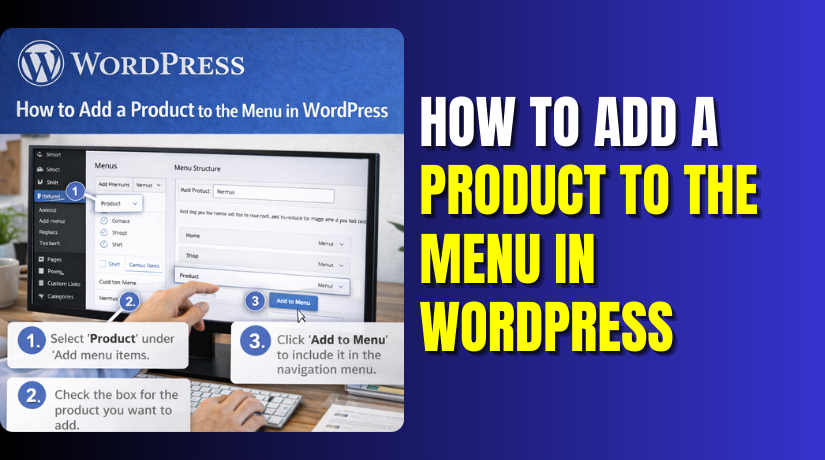
How to Add a Product to the Menu in WordPress (Step-by-Step Guide)
Table of Contents
- Introduction
- What You Need Ready Before You Start Adding Products
- How to Add a Product to a WordPress Menu (Different Methods Explained)
- How to Add a Product as a Dropdown Menu Item (Sub-Menu)
- Common Problems After Editing Menus And Simple Fixes
- Best Practices To Make Product Menu Links Convert Better
- Conclusion
Introduction
Adding a product to a menu means linking its page. This link appears inside your WordPress navigation menu for visitors. People click that menu item and open the product page. In most cases, you are not “moving” the product. You are simply adding a direct link to the menu. This is the fastest way to guide buyers to products. It also improves store navigation and reduces extra browsing steps. Many store owners do this for best sellers or offers. You can Add product to the WordPress menu without using any code.
Menus help users find pages without searching or scrolling. A clear menu makes your store feel simple and easy. Product links in menus can boost clicks on important items. They also help you promote seasonal products with less effort. You can highlight a new launch product in the main menu.
You can also promote a sale product with a short label. This is a clean way to Customize WordPress menu for conversions. It also improves navigation for mobile users and desktop users. A good menu reduces confusion and keeps buyers on track.
What You Need Ready Before You Start Adding Products
Before you create a custom menu in WordPress, prepare a few basics. This makes the steps faster and avoids common setup mistakes. You do not need any plugin for this basic work. You only need access to your WordPress dashboard and product page. If you have WooCommerce installed, you are already close.
Make Sure Your Product Is Published And Visible
Your product should be published for visitors and search engines. Draft products usually open only for logged-in admins. Private products may not open for normal store visitors. Open the product page in a new browser tab first. If it loads correctly, you can add it to menus. This avoids broken links after you add the menu item. It also avoids confusion while testing your menu changes.
Confirm You Can Access The Menu Editor From Admin
You need admin access or menu editing permission to proceed. Most sites manage menus from WordPress appearance menus in admin. Go to your dashboard and locate the Appearance section. If you can see Menus, you can edit navigation easily. If you cannot see Menus, your role may be limited. In that case, ask the site admin for menu access. This is needed to add product to the WordPress menu safely.
Know Which Menu Location You Want To Update
Many sites have more than one menu in WordPress. Common menus include Header, Primary, Footer, and Mobile menu. You should decide where the product link must appear. A header menu is best for high priority product links. A footer menu is better for secondary product links or support. If you pick the wrong menu, changes may not show. This is why menu location choice matters before editing.
Keep A Simple Plan For Menu Labels And Order
Decide the label you want users to see in the menu. Use a short label that explains the product clearly. You can use the product name, or a short offer name. Keep the label easy to scan and easy to understand. Also decide where the link should sit in the menu. Place it near related items for better browsing flow. This small planning helps you customize the WordPress menu with less rework.
How to Add a Product to a WordPress Menu (Different Methods Explained)
Method 1: Add A Single Product Link To The WordPress Menu Using URL
This method is the most reliable on most store setups. It works even if WordPress does not show products as menu items. You will copy the product page link and add it as a Custom Link. This is the easiest way to add a product to the WordPress menu without extra tools. It also works well for featured products and seasonal items. Follow each step carefully and save changes at the end.
Step 1: Open The Product Page And Copy The Correct URL
- Open the WordPress dashboard and go to Products in WooCommerce.
- Click the product you want to show in the menu.
- Click “View Product” to open the live product page.
- Copy the full URL from your browser address bar.
- This URL helps Add product page to menu WordPress correctly.
- Make sure the product is published before copying the link.
Step 2: Open The Menu Editor From WordPress Appearance Menus
- Go to the WordPress dashboard and open Appearance settings.
- Click Menus to open the WordPress menu editor screen.
- Select the correct menu from the dropdown menu list.
- Choose Header or Primary menu for best product visibility.
- This ensures your WordPress menu settings update the right place.
Step 3: Add The Product Link Using Custom Links Option
- Find Custom Links on the left side menu panels.
- Paste the product URL inside the URL field box.
- Enter a short label inside the Link Text field.
- Click “Add to Menu” to add the product link.
- This is the main step to Add product to WordPress menu.
- Your link now appears at the bottom of menu items.
Step 4: Write A Clear Menu Label That Users Understand Fast
- Use a short label that matches the product purpose.
- Use the product name if it is short and clear.
- Use offer labels like “Sale Item” for quick attention.
- Avoid long labels that break the header menu layout.
- Good labels help Customize WordPress menu for better clicks.
Step 5: Arrange The Link Position With Drag And Drop
- Drag the new link and place it in the right spot.
- Keep it near Shop or Categories for better navigation.
- Put it higher if it is a featured product item.
- This improves your WordPress navigation menu user flow.
Step 6: Save The Menu And Test It On Your Website
- Click “Save Menu” to apply changes across the website.
- Open your site and check the header or selected location.
- Click the menu item and confirm it opens the product.
- If it works, you successfully Create a custom menu in WordPress.
Use a single product link only for high priority products. Use categories when you have many products to show. Keep the main menu short to avoid clutter and confusion. Test the menu on both desktop and mobile screens. Clear caching if changes do not appear instantly. This ensures your WordPress navigation menu stays clean and useful. It also keeps buyers moving toward checkout with fewer steps.
Method 2: Add Products to Menus Using WooCommerce Categories Instead
Category links work better than many single product links. They help you customize WordPress menus without making it crowded. They also make navigation easier on mobile screens.
Step 1: Create Or Confirm Your Product Categories
- Open the WordPress dashboard and go to Products then Categories.
- Review the category list and confirm names look clear.
- Add a new category when you need a new menu section.
- Use short names that users understand at first glance.
- Save the category and keep it ready for menu use.
Step 2: Assign Products To The Correct Category
- Open a product and locate the Product Categories box.
- Select the right category that matches the product type.
- Click Update to save changes and keep products organized.
- Repeat this step for all related products in bulk.
Step 3: Add The Category In WordPress Appearance Menus
- Go to WordPress appearance menus and open your menu.
- Find Product Categories in the left panel menu options.
- Select your category and click Add to Menu now.
- If categories are missing, use Custom Links instead.
- Paste the category URL and add a clear label.
- This also helps Add product page to menu WordPress correctly.
Step 4: Arrange Category Order And Save Menu Settings
- Drag categories into a simple order that feels natural.
- Keep popular categories near the top for more clicks.
- Click Save Menu to apply WordPress menu settings updates.
- Test the category link on your live website right away.
You created a clean menu that stays easy to manage. Users can browse products faster with fewer menu items. Categories also scale well when your store grows later. Next, you can add a Shop link for complete browsing.
Method 3: Add a “Shop” Link and Guide Users From There
This method works best for stores with many product types. A Shop link gives users one clear place to start. It reduces menu clutter and keeps navigation focused always. It supports better browsing, even when your catalog grows. A Shop link is simple and works on most WooCommerce sites. It helps users browse everything without searching and scrolling. It is also a smart way to Add product to WordPress menu.


Step 1: Find The Shop Page And Confirm It Works
- Go to Pages in WordPress dashboard and find Shop.
- Open the Shop page and confirm it loads products properly.
- If Shop is missing, check WooCommerce settings for it.
- Copy the Shop page URL if you plan Custom Links.
Step 2: Add Shop Page In The WordPress Menu Editor
- Open WordPress menu editor from Appearance then Menus.
- Select your main menu and load it for editing.
- Open the Pages panel and select the Shop page option.
- Click Add to Menu and place it where you want.
- If Shop is not listed, add it as Custom Link.
- This supports Create custom menu in WordPress without extra steps.
Step 3: Add Helpful Store Pages Only When They Matter
- Add Cart page when users often review items before checkout.
- Add Checkout page only if you want faster buying steps.
- Add My Account page for logins and order tracking needs.
- Keep these links limited to avoid a crowded menu.
Step 4: Save Menu And Test The Full Shopping Flow
- Click Save Menu to apply changes across your website.
- Open your site and click Shop from the header menu.
- Confirm products load and filters work as expected.
- Test Cart and Account links if you added them.
You added one strong entry point for store browsing. Users can reach products faster using fewer menu clicks. Your menu now stays neat and easier to update.
How to Add a Product as a Dropdown Menu Item (Sub-Menu)
Dropdown menus work when you group links under one parent. This is perfect for “Shop,” “Sale,” or “Featured Products.” You can Add product to WordPress menu under that parent item. It keeps the WordPress navigation menu short and user-friendly.
- Open WordPress appearance menus and select your main header menu.
- Add the parent item first, like “Shop” or “Featured Products.”
- Add the product link using Custom Links, like Part 2.
- Paste the product URL to Add product page to menu WordPress.
- Write a short link label that users understand quickly.
- Drag the product link below the parent item in the list.
- Drag the product link slightly right to create a sub-menu.
- Save menu changes using WordPress menu settings on the right side.
- Open your site and test the dropdown on desktop and mobile.
Quick Tips For Better Dropdown Results
- Keep dropdown items limited to avoid a long list.
- Use categories for many products instead of many product links.
- Use clear parent labels like “Sale” or “New Arrivals.”
- Test on mobile menus, because dropdown behavior can change.
Common Problems After Editing Menus And Simple Fixes
Menu edits can fail for simple reasons, not big ones. Most fixes take less than two minutes to apply. Try these before changing your theme or plugins.
Menu Changes Are Not Showing On The Front-End
First, confirm you clicked the Save Menu button properly. Next, confirm you edited the correct menu name. Many sites have header and footer menus separately. Check menu location settings inside the editor screen. Clear your browser cache and any site cache plugin. Then refresh the page in an incognito window.
You Edited A Menu But Another Menu Updated
This happens when multiple menus exist in the website. Go back to WordPress appearance menus and re-check selection. Confirm the menu location is set to “Primary” header. Save again and test the header area carefully.
Product Link Opens A 404 Or Wrong Page
The product URL may have changed after an update. Open the product page and copy the fresh URL again. Replace the old Custom Link URL inside the menu. Also refresh permalinks to fix routing issues quickly. Go to Settings → Permalinks and click Save Changes.
Product Works For Admin But Not For Visitors
This usually means the product is not publicly visible. Check product status as Published, not Draft or Private. Also check catalog visibility is not hidden from users. Copy the live product URL and update the menu item.
Dropdown Does Not Open Or Looks Broken
Some themes need the correct menu location assignment. Confirm the menu is set to the header location. Also test the dropdown on another device or browser. If you use a mega menu plugin, it may override behavior. Disable the menu plugin briefly and test dropdown again.
Best Practices To Make Product Menu Links Convert Better
Your menu should help people reach products with fewer clicks. Keep your header menu short so users do not feel confused. Add only your best product links in the top menu. These can be “Best Seller,” “New,” or a limited-time offer. For the rest of your products, use categories instead of many links.
Categories keep the WordPress navigation menu clean and easier to browse. Use short labels that explain the link in seconds. For example, use “Shop,” “Sale,” or “New Arrivals” as labels.
Place your most important link near the start of the menu. Users often click the first few items they see. Keep dropdowns small and organized for mobile users. If a dropdown is too long, people skip it quickly. Always test the menu on a phone after saving changes.
Also test in an incognito tab to avoid cache issues. Review your menu once a month and remove old product links. This simple routine helps you customize the WordPress menu for more clicks and better sales.
Conclusion
You now know how to add a product to the menu in WordPress. You learned what it means and what you need ready first. You also learned the most reliable method using a product URL. Then you learned how to use categories and the Shop link. These options keep your WordPress navigation menu clean and easy. You also learned how to create dropdown links for better structure. With a well-made menu, users find products faster and buy sooner. A small menu improvement can raise clicks and reduce confusion. Keep labels short, keep the menu organized, and test on mobile. This is the best way to add products to the WordPress menu confidently.
If you want a clean menu and better store navigation, WooHelpDesk can help. We can customize WordPress menu, fix menu display issues, and improve shopping flow. We also handle WooCommerce setup, category structure, and menu design for mobile. If your menu is not updating or links are breaking, we can fix it fast. Visit WooHelpDesk and get professional WordPress support today.



