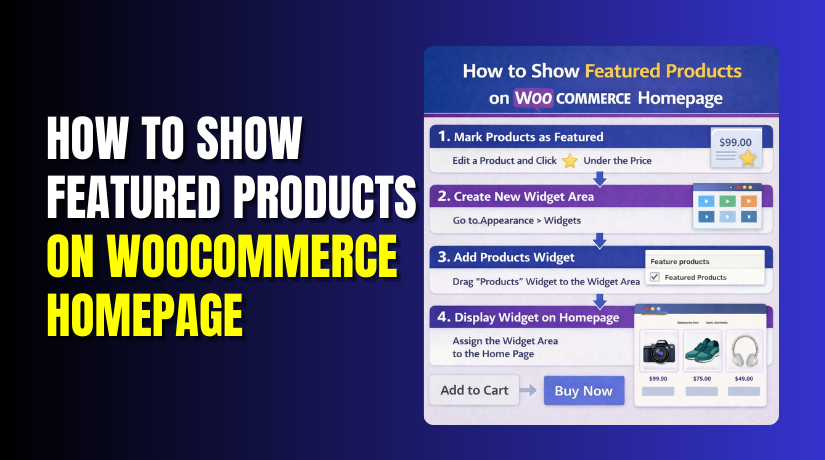
How to Show Featured Products on WooCommerce Homepage
Table of Contents
- Introduction
- What are WooCommerce Featured Products?
- What are the Key Features of WooCommerce Featured Products?
- What are the Advantages of Using WooCommerce Featured Products?
- How to Show Featured Products on WooCommerce Homepage?
- Effective Tips to Follow When Setting Up Featured Products on WooCommerce Homepage
- Final Verdict
Introduction
Your homepage is the first sales pitch for new visitors. It sets trust, shows value, and guides shoppers quickly. Featured products help you highlight your best items instantly. They reduce decision time and increase clicks to product pages. Many shoppers scan, compare, and leave within a few seconds. You must show the right products before they lose interest. That is why featured sections improve your store’s first impression.
In this guide, you will learn smart homepage product placement. You will learn how to show featured products on WooCommerce homepage. You will also learn simple ways to improve WooCommerce homepage customization. You will build a layout that looks clean and sells better. You will also learn how to add featured products to WooCommerce. We will keep every step clear, practical, and beginner friendly. You will also learn when to use a WooCommerce featured products shortcode. You will understand what makes featured products different from others.
What are WooCommerce Featured Products?
WooCommerce featured products are items you mark as “featured.” WooCommerce then treats them as highlighted store selections. They are not a separate product type inside WooCommerce. They are normal products with a special featured flag. This flag helps you filter and display them anywhere.
You can display featured products WooCommerce on the homepage easily. You can show them in grids, sliders, or simple lists. You can also use them inside category landing pages. Many themes and builders support featured product layouts by default. This makes featured products a quick and flexible selling tool.
Featured products work well for best sellers and top reviewed items. They also work well for new arrivals and trending bundles. You decide what “featured” means for your store goals. You can change featured items anytime without editing product details. That makes homepage updates faster and easier for store owners.
Featured products can be physical, digital, or subscription products too. You can also feature variable products with size and color options. You can also feature products with sale prices and coupons. The featured flag helps you control visibility for specific sections. It works well with most WooCommerce homepage customization methods. It also works well with page builders and block editors.
What are the Key Features of WooCommerce Featured Products?
WooCommerce featured products come with practical store management benefits. They are simple to set up and simple to control. They help you build a strong homepage product strategy. They also work with many layout tools and theme builders. They can be displayed using blocks, widgets, and shortcodes. They can also be added using popular page builders easily. This makes them useful for both beginners and advanced store owners. Below are the key features you should understand clearly.
1. Manual Product Selection and Full Control
- You choose exactly which products appear as featured items.
This gives you control over your store message and product priority. You can highlight items that match your brand and profit goals. You can also rotate items weekly to keep the homepage fresh. - You can change featured products without changing product categories.
This prevents messy category structures and confusing product navigation. Categories stay stable while featured collections change as needed. This helps you run promotions without reorganizing your catalog.
2. Easy Display Options Across Your Store
- Featured products can appear on the homepage, shop, or landing pages.
You can display featured products WooCommerce wherever you need visibility. You can place them above fold for faster clicks and sales. You can also place them near banners for stronger campaign focus. - Featured products work with blocks, widgets, and builder elements.
Most modern themes support featured product layouts with simple settings. This reduces custom coding and speeds up homepage edits. It also keeps your design consistent across different devices.
3. Works With Shortcodes and Custom Layouts
- You can use a WooCommerce featured products shortcode for placement.
Shortcodes help when themes do not provide a built-in block. They also help when you want featured grids inside content areas. This supports better WooCommerce homepage customization without heavy tools. - Shortcodes help you control columns, limits, and sorting easily.
This helps you create clean grids that match your design needs. You can show four items, eight items, or more products. You can also keep spacing balanced for better mobile viewing.
4. Supports Campaign Planning and Product Testing
- Featured products help you test which items get more clicks.
You can feature different items and compare results over a week. This helps you learn what buyers like without changing ads. It also supports smarter pricing and product photo improvements. - Featured products help you push products with better margin.
You can feature items with strong profit and stable stock levels. This reduces losses from underpriced items and low margin sales. It also supports long term store growth and sustainability.
5. Helps Create a Cleaner Homepage Shopping Path
- Featured sections reduce scrolling and help buyers act faster.
Shoppers find popular items quickly and move to checkout sooner. This reduces confusion for first time visitors and new buyers. It also improves the shopping experience for mobile customers. - Featured sections improve product discovery and cross selling chances.
Once buyers click a featured product, related items can sell too. This increases the average order value using simple product paths. It also improves upsell performance using product recommendations.
What are the Advantages of Using WooCommerce Featured Products?
Featured products help your homepage work like a smart product showcase. They guide visitors toward items you want to sell first. They also reduce browsing time and improve the shopping flow. When shoppers see clear product highlights, they trust the store faster. This section explains why featured products drive better store performance. You will also learn how they support SEO and better conversions.
1. Faster Product Discovery for First Time Visitors
- Featured products reduce the time needed to find good items.
Visitors often feel lost when your store has many categories. A featured section acts like a guided entry point for them. It shows the best products without requiring extra searching steps. This improves the first impression and lowers bounce rate risk. It also helps mobile shoppers who hate long browsing sessions. - Featured products improve browsing confidence for new buyers.
New buyers do not know your brand and need quick signals. Showing strong products helps them trust product quality more easily. They feel safer when top items appear on the homepage quickly. This supports more clicks, more cart ads, and more checkout starts.
2. Better Conversion Rate Through Strong Homepage Focus
- Featured products create a direct path from homepage to product.
A focused product grid encourages immediate browsing and quick decisions. Shoppers click faster when the product selection looks curated. This reduces random wandering and improves the chance of checkout. It also helps you sell more without changing your ad strategy. - Featured products make your homepage layout look more professional.
A clean product section improves the design and visual balance. Customers associate clean layout with quality and reliability in stores. A better look often leads to longer browsing time and trust. This improves conversion chances across product and category pages.
3. Higher Average Order Value Through Smart Product Selection
- Featured products help you promote bundles and best value items.
Bundles increase cart value and improve profit per shipping order. You can feature kits, multipacks, and seasonal sets easily. Customers like “best value” options when they appear first. This pushes larger carts without adding extra discount pressure. - Featured products help cross sales start earlier in the journey.
Once a shopper opens a featured product, recommendations appear next. Related products, upsells, and add-ons work better with intent. This increases cart size without heavy persuasion or popups. It also improves revenue per visitor on the homepage.
4. Better Control Over What You Promote Weekly
- Featured products give you full control over your homepage message.
You can change the featured list anytime without redesigning pages. This helps you promote new launches or limited offers quickly. You stay flexible when demand changes and stock levels shift. You can also plan weekly product rotations for freshness. - Featured products help you push slow moving inventory carefully.
Some items need visibility, not heavy discounts, to sell. Featuring them increases exposure while keeping your pricing stable. This protects brand value and avoids discount-only sales habits. It also frees warehouse space without harming your profit margin.
5. Supports Better SEO and Internal Linking Signals
- Featured products improve internal linking from the strongest page.
Your homepage usually has the most authority and traffic. Linking to products from the homepage supports faster product discovery. Search engines crawl those product pages more frequently and reliably. This can help index updates and new products faster. - Featured products improve keyword relevance through product titles and links.
Product names and links on the homepage reinforce topic relevance. This supports category signals and long term content structure. It also increases the chance of products ranking for specific terms. It helps when product pages are optimized with clean metadata.
How to Show Featured Products on WooCommerce Homepage?
There are multiple ways to show featured products on your homepage. The best method depends on your theme and builder setup. Some stores use block editor tools for quick layouts. Some stores use Elementor sections for full design control. Some stores use the WooCommerce featured products shortcode for flexibility. We will cover the best methods with step by step instructions. Each method supports clean WooCommerce homepage customization.
Method 1: Mark Products as Featured in WooCommerce First
You must mark products as featured before displaying them. This is the base step for every method below.
Step 1: Open your product list inside WooCommerce.
WordPress Dashboard → Products → All Products
- You will see a star icon in the product list view.
This star is the featured toggle for each product in WooCommerce. When the star is filled, the product is featured. When empty, the product is not featured yet. - Choose products that match your homepage goal and campaign.
Pick best sellers, high margin items, or strong review products. Avoid low stock items that can frustrate customers quickly. Also avoid products with unclear photos or weak descriptions.
Step 2: Mark selected products as Featured using the star.
Products → All Products → Star Icon → Click
- Click the star next to each product you want featured.
The star icon should turn solid to confirm it is featured. Repeat this for all products you want to highlight. Keep the list limited for a clean homepage layout. - Keep featured products count consistent for design balance.
Choose eight, twelve, or sixteen products for stable grids. Too many products can reduce focus and slow decisions. A smaller set improves scanning and click-through rates.
Method 2: Use the WordPress Block Editor on the Homepage
This is the easiest way for most WooCommerce store owners. It uses built-in WooCommerce blocks in WordPress editor.
Step 1: Open your homepage for editing in WordPress.
WordPress Dashboard → Pages → All Pages → Home → Edit
- Make sure you are editing the correct homepage page.
Some themes use a template, not a regular page for homepage. Check your reading settings if you are unsure about the homepage. You want to edit the page set as your homepage. - Decide where the featured products section should appear.
Place it near the top to increase visibility and more product clicks. Place it after a hero banner for strong visual flow. Avoid placing it too far down the page.
Step 2: Add the Featured Products block to the homepage.
Home Editor → Add Block (+) → WooCommerce → Featured Products
- Select the block named “Featured Products” in WooCommerce.
This block automatically displays products you marked as featured. It updates as you change the featured product list later. This makes ongoing updates very easy. - Adjust block settings for columns, rows, and sorting options.
Choose columns based on your theme width and device layout. Four columns works well on the desktop for many stores. Two columns often work better for mobile screens.
Step 3: Customize the block layout and product display options.
Featured Products Block → Settings Panel → Layout Options
- Enable or disable product elements like price and rating.
Showing price builds clarity and helps customers decide faster. Showing ratings builds trust and encourages clicks from new visitors. Showing add to cart buttons can speed up buying too. - Choose an image size that matches your product photo style.
Consistent image sizes make the homepage look clean and premium. Cropped images look messy and reduce trust for buyers. Fix product image sizes before building the section.
Step 4: Save changes and test the homepage on mobile.
Editor → Preview → Mobile → Save
- Always preview on mobile and tablet view before publishing.
Most buyers shop on phones and expect smooth browsing. Make sure products align properly and do not overflow the screen. Also check button spacing and text readability. - Publish changes only after confirming the layout looks stable.
A broken homepage section can hurt conversions and trust fast. Test loading speed and scrolling behavior after changes. Keep the section lightweight and avoid heavy sliders.
Method 3: Use WooCommerce Featured Products Shortcode
Shortcodes help when you want precise placement and control. They also help when your theme lacks WooCommerce blocks support.
Step 1: Add a shortcode block to your homepage content.
Pages → Home → Edit → Add Block (+) → Shortcode
- Paste the WooCommerce featured products shortcode inside.
A common shortcode is: [featured_products limit=”8″ columns=”4″]
This shows eight featured products in four clean homepage columns. You can change limits and columns based on your layout needs. - Use the shortcode inside sections and columns for better design.
Many themes allow columns using blocks or builder layouts. Place shortcode inside a full width section for better spacing. Add a heading above to explain what customers see.
Step 2: Adjust shortcode values for better homepage layout control.
Shortcode Settings → Update Shortcode Attributes
- Increase the limit if you want more products in the section.
Try twelve products for three rows of four columns on the desktop. Avoid too many rows because it pushes other content down. Keep focus by limiting the product grid size. - Change columns to match your theme container width.
Use three columns for premium products with bigger images. Use four columns for stores with many items and tight grids. Always test the mobile view after changing columns settings.
Step 3: Add spacing, heading, and button under the shortcode section.
Home Editor → Add Blocks → Heading + Buttons
- Add a clear heading like “Featured Products” or “Top Picks.”
Headings guide users and improve scanning across the homepage. They also help accessibility and improve page readability. Keep headings short and easy to understand. - Add a “Shop Now” button linking to your shop page.
This supports buyers who want to browse more product options. It also improves navigation and reduces friction for new visitors. Use clear button text and visible contrast styling.
Method 4: Use Elementor for WooCommerce Homepage Customization
Elementor is popular for homepage design and product sections. It gives full control over layout, spacing, and style.
Step 1: Edit the homepage using Elementor editor.
Pages → Home → Edit with Elementor
- Choose a section where featured products should appear.
Place the section under the hero banner for strong visibility and clicks. Use padding to create clean spacing around the section. Avoid placing it inside cramped columns layouts. - Add a heading that matches your homepage message.
Headings make sections clear and increase product discovery flow. Use a short message like “Best Sellers” or “Featured Picks.” Keep it consistent with your store’s brand voice.
Step 2: Add the Featured Products widget or Products widget.
Elementor Panel → WooCommerce Widgets → Products
- Select query option to show only Featured products.
Elementor allows filtering to show only featured items easily. You can choose sorting by date, sales, or menu order too. This gives more control than basic block settings. - Customize grid columns, spacing, and typography settings.
Make product cards clean and easy to scan quickly. Use consistent spacing to avoid clutter and visual noise. Keep font sizes readable on mobile and tablet views.
Step 3: Style product cards for better homepage conversion.
Elementor → Widget Style → Product Card Options
- Show ratings and prices to build trust and clarity.
Ratings reduce hesitation for new buyers and improve clicks. Prices reduce surprise and help customers shortlist products. Add to cart buttons can increase direct purchases too. - Use hover effects carefully to avoid slow performance.
Heavy animations can slow down the homepage and hurt speed. Keep hover effects simple and subtle for better user experience. Always test homepage speed after adding effects.
Method 5: Use the WooCommerce Customizer or Theme Options
Many themes include homepage settings and WooCommerce product controls. These settings can add a featured products section quickly. This method works well when your theme has built-in shop sections.


Step 1: Check if your theme has homepage shop sections.
WordPress Dashboard → Appearance → Customize
- Look for settings like “Homepage Sections” or “Shop Settings.”
Some themes include a homepage builder inside the customizer. These sections often include product grids and product sliders. - Search for a “Featured Products” option inside homepage sections.
If available, enable it and choose how many products show. This can quickly display featured products WooCommerce without extra tools.
Step 2: Configure layout settings for columns and product count.
Customize → Homepage Sections → Featured Products
- Set columns based on your homepage width and spacing needs.
Four columns works well for most desktop layouts and grids. Three columns works better for larger images and premium products. - Set product count to keep the section focused and clean.
Eight to twelve products usually creates a balanced homepage view. More products can push key content too far down.
Step 3: Publish changes and check responsive behavior on mobile.
Customize → Mobile Preview → Publish
- Mobile layout must stay readable and tap friendly for shoppers.
Check button spacing, image cropping, and price visibility carefully. Fix spacing now to avoid lost mobile conversions later.
Method 6: Use Full Site Editing for Block Themes
Block themes use templates and template parts for homepage design. You can place product blocks inside template areas reliably. This is powerful WooCommerce homepage customization for modern WordPress sites.
Step 1: Open the Site Editor and locate the homepage template.
WordPress Dashboard → Appearance → Editor
- Open “Templates” and select “Front Page” or “Home.”
This controls how your homepage renders across your theme structure. Changes here affect the homepage layout globally and consistently. - Add a section area where products should appear clearly.
Place it below your hero area and above long text sections. This improves visibility and increases product clicks early.
Step 2: Insert the Featured Products block inside the template.
Editor → Add Block (+) → WooCommerce → Featured Products
- This block automatically uses your featured product selections.
You control products by toggling the featured star in the products list. The homepage updates without editing the template again. - Adjust block settings for columns, rows, and order display.
Set a clean grid that matches your brand and product images. Keep the grid consistent for a professional store appearance.
Step 3: Save template changes and test caching behavior.
Editor → Save → View Site → Hard Refresh
- Some caching can delay updates to featured products sections.
Clear cache if changes do not appear after saving the template. Also clear the CDN cache if your store uses global caching.
Method 7: Use Shortcode Variations for Better Control
Shortcodes help when you want exact placement and exact output. They also help when you want quick testing across layouts. This approach is great for adding featured products to WooCommerce.
Step 1: Place a shortcode where your featured grid should appear.
Pages → Home → Edit → Shortcode Block
- Use this starter shortcode for a clean featured products grid.
[featured_products limit=”8″ columns=”4″] works for many stores. It is simple, fast, and consistent across most themes. - Add a heading above the grid to guide shopper attention.
A clear heading increases clicks and improves section scan speed. Keep it short and aligned with your store message.
Step 2: Use ordering options for stronger product performance.
Shortcode Block → Update Shortcode Attributes
- Sort featured products by popularity when you want quick trust.
Use orderby=”popularity” to highlight stronger converting items. This often improves clicks and reduces doubt for visitors. - Sort featured products by date when promoting new arrivals.
Use orderby=”date” to keep the section feeling fresh. New items can earn early traction from repeat visitors.
Step 3: Control columns for better mobile and tablet experience.
Shortcode Attributes → columns=”3″ or columns=”2″
- Lower columns create larger cards and improve mobile tapping.
Bigger product cards improve readability for names and prices. It also reduces accidental taps and frustration during browsing. - Higher columns fit more products but can feel crowded quickly.
Crowded grids reduce product focus and may lower click rates. Always test readability before increasing column count.
Method 8: Build a Featured Products Section Using Widgets
Some classic themes still use widget areas for homepage sections. Widgets can place product grids in common template locations. This method works well for older theme builds and layouts.
Step 1: Open the Widgets screen and locate the homepage widget area.
WordPress Dashboard → Appearance → Widgets
- Look for areas like “Homepage,” “Front Page,” or “Shop Sidebar.”
Themes name widget areas differently, so check each available area. Add widgets only where you want products to appear. - Add a block widget area if your theme supports it.
Some widget screens allow blocks inside widget areas now. This lets you use WooCommerce blocks without editing templates.
Step 2: Add a shortcode widget and paste your shortcode.
Widgets → Add Block (+) → Shortcode
- Paste the WooCommerce featured products shortcode inside the widget.
Use the same shortcode you tested on the homepage content area. This ensures consistency across your layout and spacing. - Add spacing and section title using a heading widget.
Headings improve scanning and make your homepage feel structured. They also help users understand why those products appear.
Effective Tips to Follow When Setting Up Featured Products on WooCommerce Homepage
When setting up featured products on your WooCommerce homepage, you want to make the most of the space and make sure you are showcasing the right products to your customers. Effective product placement can improve both user experience and conversions. Below are some practical tips to help you make the most out of this feature.
Tip 1: Keep Your Featured Product Section Clean and Focused
Too many products on your homepage can overwhelm customers. You want to provide options but not too many choices. By carefully selecting a handful of featured products, you help streamline the shopping experience and increase the likelihood of a purchase.
- Limit the number of products displayed: Try to limit featured products to 8-12 items. This creates a neat, clean layout, avoiding overwhelming visitors.
- Use categories for better selection: Choose the best products across different categories, not just one. If you sell both fashion and accessories, feature top picks from both to appeal to a wider audience.
- Rotate products regularly: Change the featured products periodically to promote new arrivals, seasonal items, or limited-time offers. This keeps the homepage fresh and encourages repeat visitors.
Tip 2: Choose the Right Products to Feature
Not every product should be featured. Featured products should reflect the store’s goals, customer demand, and product value. The right selection increases the chances of conversions.
- Pick best-sellers: Choose products that are already popular with your customers. These items tend to have higher conversion rates.
- Promote seasonal items: Highlight seasonal products, such as gifts during holidays or summer essentials. This creates urgency and relevance.
- Feature products with strong reviews: Items with positive reviews build trust and increase the likelihood of purchase.
- Promote new arrivals: New products often need extra visibility to boost initial sales. Featuring them on the homepage can drive awareness.
Tip 3: Organize Featured Products Based on Customer Intent
Customers visit your homepage with different goals. Some want to browse, some want to make a quick purchase, and some are looking for specific deals. Tailoring your featured products to their intent can boost engagement.
- Create focused product collections: Instead of showing random products, categorize featured items (e.g., “Best Sellers,” “New Arrivals,” “Limited Time Offers”).
- Use filters to group products: WooCommerce allows you to group featured products based on product categories, tags, or custom taxonomies. This can improve the shopping experience and make it easier for visitors to find what they want quickly.
- Target promotions with featured products: Feature products based on promotions like “Buy 1, Get 1 Free,” or “Discounted Items” to attract budget-conscious customers.
Tip 4: Optimize Product Images and Descriptions for Better Presentation
High-quality images and clear descriptions are essential for converting visitors into buyers. The featured product section should be visually appealing and informative.
- Use high-resolution images: Customers expect to see clear, high-quality images of the products. Avoid using low-quality or pixelated photos that can negatively impact the shopping experience.
- Ensure product consistency: Maintain consistency in image size and quality to give your homepage a polished, professional look. All product images should be similar in style and size.
- Keep product descriptions brief but informative: Feature only the essential details—product name, price, and a short description. Too much text can clutter the homepage and detract from the visual appeal.
- Add ratings and reviews: Displaying product ratings on featured items adds social proof and builds trust with customers. Use simple, visible stars and show the average rating on the product thumbnail.
Tip 5: Test and Optimize Featured Product Layout for Mobile Users
A growing percentage of WooCommerce shoppers buy using mobile devices. This means your featured products section should be optimized for mobile viewing. Mobile users expect a smooth, fast, and easy experience when browsing your store.
- Ensure mobile responsiveness: Make sure the featured product section adapts properly to different screen sizes. Use a responsive theme or plugin that automatically adjusts for mobile and tablet screens.
- Optimize for fast loading: Large images can slow down page load times, negatively impacting both user experience and SEO. Compress images for faster loading without losing quality.
- Test the checkout flow on mobile: Once users click on a featured product, they should be able to add it to the cart and proceed to checkout seamlessly. Test the full process to ensure that it’s easy to navigate on a mobile device.
Tip 6: Use Clear Call-to-Action (CTA) Buttons
A call-to-action button is critical for encouraging customer engagement. Your featured products should have a clear path to purchase. Make sure each featured item has a strong, clear CTA button like “Add to Cart,” “Shop Now,” or “View Product.”
- Use contrasting colors for buttons: The CTA button should stand out on the page. Make sure the color contrasts with the background so that it grabs the user’s attention.
- Keep button text short and action-oriented: Avoid vague button text. Use simple phrases like “Shop Now” or “Add to Cart” that clearly tell the user what to do next.
- Test button placement: Ensure that the CTA button is easy to find. Place it in the same spot across all product grids and ensure it’s visible when the user first sees the product image.
Final Verdict
Using featured products on the WooCommerce homepage is one of the easiest and most effective ways to enhance your store’s shopping experience. It can guide customers, highlight important products, and lead to higher conversion rates. When choosing which products to feature, ensure you select top-selling, high-margin, or seasonal items that align with your store’s goals.
By following best practices like keeping your selection limited, optimizing for mobile, and using clear CTA buttons, you will create a homepage that is both visually appealing and conversion-optimized. Featured products help streamline the shopping experience and can lead to increased sales and customer satisfaction. With the flexibility of WooCommerce featured products shortcodes and plugins, adding this section to your homepage is simple and effective.
In conclusion, featuring the right products, using strategic placements, and regularly updating your featured section will help boost your store’s performance. Whether you’re promoting new arrivals, bestsellers, or seasonal products, featured products help guide customers toward a faster purchase. If you want to stand out, optimize your WooCommerce homepage customization with a clean, effective featured products section.
Have questions before starting with WooCommerce & WordPress? Get support here at WooHelpDesk.



