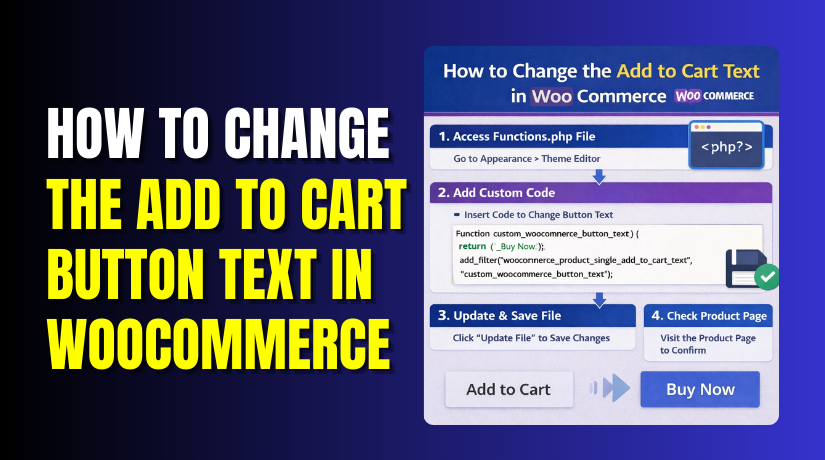
How to Change the Add to Cart Button Text in WooCommerce (Step by Step Guide)
Table of Contents
- Introduction
- What Is the Add to Cart Button Text in WooCommerce and How It Works
- Before You Change Anything, Find Where the Button Appears
- How to Change the Add to Cart Button Text in WooCommerce
- Common Issues After Changing Button Text (Step by Step Fixes)
- Best Practices for Button Text That Converts Better (Simple Rules)
- Conclusion
Introduction
The Add to Cart button is your store’s main action button. It tells shoppers what happens after they click. When the text feels unclear, people may pause and leave. When the text feels clear, more people continue shopping. Many stores want wording that matches their product and brand voice. Some stores sell services, subscriptions, or limited stock items. In those cases, “Add to Cart” may feel too generic. That is why many owners want to change the add to cart button text WooCommerce.
A small label change can improve clicks and reduce confusion. It also helps shoppers feel more confident during checkout. This guide keeps everything simple and safe to follow. You will learn what the button text means inside WooCommerce. You will also learn where that text appears in your store. Then you can choose the right method in later parts.
What Is the Add to Cart Button Text in WooCommerce and How It Works
Add to Cart button text is the label shown on buying buttons. WooCommerce displays this label using its default template strings. Themes can also change how the button looks and loads. That is why the same store can show different labels. In simple terms, WooCommerce prints the text based on context. The context depends on the page and the product type. On shop pages, the button often appears under product cards. On single product pages, the button appears near price. These two locations can use different text rules. This is important when you edit WooCommerce add to cart button text. If you change only one place, the other may stay unchanged. Many owners miss this and think the change failed. Knowing the source makes the fix faster and cleaner.
WooCommerce also changes button behavior for some product types. Simple products usually show “Add to Cart” everywhere. Variable products may show “Select Options” on shop pages. That happens because users must pick size or color first. External products often show “Buy Product” or custom text. Grouped products can show a different purchase flow on pages. This is where WooCommerce custom add to cart text becomes useful. You can match button text to the exact buying action. For example, you can use “Choose Options” or “View Details.” You can use “Book Now” for booking style products. You can use “Join Now” for membership style products.
The button text can also change during stock conditions. Out of stock products may show no button at all. Backorder settings can keep the button but show warnings. Some themes also show “Read More” for unavailable products. These changes can affect how your new text appears. That is why you should learn where WooCommerce pulls the label. In most cases, it comes from WooCommerce language strings. In some cases, it comes from your theme templates. In other cases, a plugin can override the label text. When you change WooCommerce button text, you should test key pages. Check the shop page, category page, and one product page. Also test a variable product and an external product. This quick testing prevents surprises after you publish changes.
Think of this as a WooCommerce add to cart button text tutorial. First, you understand what the label is and why it matters. Next, you learn where it shows and what controls it. After that, you choose a safe method to apply changes. In the next parts, you will see plugin and translation options. You will learn which approach fits your store best. You will also learn how to avoid common mistakes later.
Before You Change Anything, Find Where the Button Appears
Before you change anything, find every place the button appears. WooCommerce can show different text in different store areas. This step prevents confusion when changes apply only sometimes. It also helps you edit WooCommerce and add to cart button text correctly. Use this quick map before any plugin or translation edits.
Shop Page and Category Page Button Text Locations
The shop page shows buttons under each product card. Category pages and tag pages often show the same button. Search results pages can also show the same product cards. Many themes use the same template for these archive pages. Some themes show “Select Options” for variable products here. Others hide the button until the product page loads. This is where many “change WooCommerce button text” edits fail. The reason is the shop page uses a different button hook.
Single Product Page Button Text Locations
The single product page shows the main purchase button near price. This button can use different text than the shop page. It can also change based on product type settings. If you change only archives, product pages may stay unchanged. Always test one simple product and one variable product. This makes your WooCommerce add to cart button text tutorial accurate. You will know exactly what changed and what did not.
Simple vs Variable Products Change the Button Text Behavior
Simple products usually show the same Add to Cart text. Variable products often show “Select Options” on shop pages. That happens because users must pick options before adding. On the product page, the button may still say “Add to cart.” Some stores prefer a clearer message for variable products. That is where WooCommerce custom add to cart text helps most. You can match the label to the exact next step.
External and Affiliate Products Use Different Button Text
External products do not add items to your cart normally. They often send users to another link after clicking. WooCommerce may show “Buy product” or a custom link label. Your theme can also change this label automatically. If you only target Add to Cart, external labels may stay. So check at least one external product before final edits. This avoids confusion when you change add to cart button text WooCommerce.
Out of Stock and Backorder Messages Can Affect What You See
Out of stock products may hide the button completely. Some themes replace the button with “Read more” text. Backorders may keep the button but show a stock message. These messages can look like button text problems at first. Always confirm stock settings before you change any text. This keeps your changes clean and easy to track. It also reduces support issues after you publish.
How to Change the Add to Cart Button Text in WooCommerce
Method #1: Change Add to Cart Text Using a Lightweight Plugin (Simple Steps)
Step 1: Decide Your New Button Text First
- Pick the exact text you want to show on buttons. Keep it short and clear for shoppers. Examples: “Buy Now”, “Add to Bag”, “Get It Now”.
- This helps you change WooCommerce button text with no confusion. It also improves clicks on shop and product pages.
Step 2: Install a Lightweight Button Text Plugin
- Go to WordPress Dashboard → Plugins → Add New.
- Search for a plugin that changes WooCommerce button labels.
- Install it and click Activate after installation completes. This is the easiest way to change add to cart button text WooCommerce.
Step 3: Open the Plugin Settings Page
- After activation, open the plugin settings from your dashboard.
- You will usually find it inside WooCommerce or Settings.
- Look for options related to button text or label changes. This is where you will edit WooCommerce add to cart button text.
Step 4: Change Text for the Shop Page Button
- Find the option for Shop / Archive button text. Replace “Add to Cart” with your new text in that field.
- Click Save Changes after updating the text. This updates buttons on shop, category, and search pages.
Step 5: Change Text for the Single Product Page Button
- Now find the option for Single Product button text.
- Enter the new text you want to display on product pages.
- Save changes again to apply the update everywhere. This completes your WooCommerce custom add to cart text setup.
Step 6: Test the Change on Your Website
- Open your shop page and refresh it once.
- Check if the button text changed under product listings.
- Open one product page and confirm the main button text. Also check one variable product if you sell variations. This confirms your change WooCommerce button text work is successful.
Step 7: If You Do Not See the New Text, Clear Cache
- If your site uses caching, clear it right away.
- Clear cache from your cache plugin and hosting panel. Also clear CDN cache if you use Cloudflare or similar. Then refresh the shop and product pages again.
- This fixes most “text not changing” problems quickly.
Step 8: Quick Pros and Cons of Plugin Method
- Pros: Fast setup, no code, safe for beginners, easy rollback.
- Cons: One extra plugin, may conflict with some themes rarely.
- Still, this method fits most stores and works reliably. It is a simple WooCommerce add to cart button text tutorial approach.
Method #2: Change Button Text Using WooCommerce Translation Settings
Step 1: Understand When Translation Method Works Best
This method is best when you want a site-wide change. It works well when WooCommerce text comes from language strings. It is also useful for multilingual stores using language packs. Many store owners use this to change WooCommerce button text safely. It can also replace other WooCommerce labels in one place.
Step 2: Use a Translation Tool to Edit WooCommerce Text
- The easiest way is using a translation plugin tool.
- Go to WordPress Dashboard → Plugins → Add New.
- Search and install a translation plugin that edits strings.
- Activate it after installation completes. This makes it easy to edit WooCommerce add to cart button text.
Step 3: Open the String Translation Screen


- After activation, open the plugin’s string translation section. You will usually find it under Loco Translate or similar menu.
- Choose the option for Plugins → WooCommerce
- This screen shows all WooCommerce text used on your site. This is where WooCommerce custom add to cart text changes happen.
Step 4: Search for the Exact Text “Add to cart”
- Use the search box and type Add to cart.
- You may see multiple results depending on your setup.
- Pick the one linked to WooCommerce strings first. Now replace it with your new button text.
- Click Save after replacing the text. This applies the change add to cart button text WooCommerce method.
Step 5: Also Change “Select options” If You Sell Variations
- If you sell variable products, search for Select options
- Many shop pages show this instead of “Add to cart.”
- Replace it with a better action text if needed.
- Save changes again after updating the string. This improves consistency across your catalog pages.
- It also makes your WooCommerce add to cart button text tutorial complete.
Step 6: Check Shop Page and Product Page After Saving
- Open your shop page and refresh it once.
- Confirm the new button text shows on product cards.
- Open one product page and confirm the main button label.
- Check one variable product page and archive listing too.
- This confirms the translation edits applied correctly. Now your change WooCommerce button text effort is verified.
Common Issues After Changing Button Text (Step by Step Fixes)
Text Changes on Product Page, But Not on Shop Page
This happens because shop and product pages use different templates. Some plugins change only one location by default. Translation edits can also apply only to one string version. Fix it by checking both settings inside the plugin options. If using translation, search for “Add to cart” again. You may find two similar strings in WooCommerce or theme files. Update both strings and save changes.
Cache Still Shows Old Button Text
Caching is the most common reason for this issue. Your browser cache can also store old button labels. Clear cache from your cache plugin first and refresh pages. Clear hosting cache from your hosting panel if available. If you use Cloudflare, clear CDN cache too. Then open the page in an incognito window for testing. This fixes most “change WooCommerce button text” issues fast.
Theme Overrides WooCommerce Button Templates
Some themes override WooCommerce templates for button output. In this case, translation may not affect the button label. A plugin may also fail if the theme uses custom hooks. Check if your theme has a WooCommerce template folder. If yes, it may control the button text display. Try switching to a default theme for quick testing. If it works there, the theme override is the cause.
Page Builder or Sticky Cart Plugin Conflicts
Some page builders replace product templates with their own blocks. Sticky add to cart plugins also create a second button. You may change one button but not the other one. Check if you have sticky cart or quick view enabled. Disable those plugins one by one and test again. If the text updates after disabling, that plugin was overriding. This helps you edit WooCommerce add to cart button text properly.
Variable Products Still Show “Select Options”
Variable products often show “Select options” on shop pages. Many people only change “Add to cart” and stop. That is why the label looks unchanged on variable listings. Fix it by editing the “Select options” string too. Use plugin settings if supported, or update the translation string. This makes WooCommerce custom add to cart text consistent.
Wrong Language File Edited in Translation Method
If your site language is English, pick the correct locale file. Some tools edit a different language or a wrong file set. Also note WooCommerce and theme can have separate strings. Always choose WooCommerce plugin strings first for best results. Save changes and refresh pages after each edit. This makes your WooCommerce add to cart button text tutorial accurate.
Best Practices for Button Text That Converts Better (Simple Rules)
Use Clear Action Words
Your button should tell users what happens next. Use words that feel direct and confident for buyers. Good examples: “Add to Bag”, “Buy Now”, “Get It Now”. This improves clicks and reduces hesitation on busy pages. It also helps when you change add to cart button text WooCommerce.
Match Text With Product Type
Different products need different action labels for clarity. For variable products, “Choose Options” fits better than “Buy.” For external products, “Buy on Partner Site” can be clearer. For services, “Book Now” feels more correct and expected. This is the best use of WooCommerce custom add to cart text.
Keep Text Short for Mobile Screens
Long text breaks button design on smaller screens quickly. Keep your label within two to three short words. Short labels also look cleaner in product grids and sliders. This improves store design and reduces layout issues. It also keeps your change WooCommerce button text edits stable.
Stay Consistent Across Store Pages
Use the same tone on shop and product pages for trust. If shop says “Buy Now” but product says “Add,” it feels odd. You can keep labels the same or keep them logically matched. Example: shop “Quick Add” and product “Add to Cart.” Consistency improves user comfort and checkout flow.
Test One Change at a Time
Do not change multiple labels together in one day. Change one label, then track clicks and add-to-cart rate. Use analytics to compare before and after results. If results drop, revert the label and try a better one. This keeps your edits safe and measurable over time.
Conclusion
Changing the Add to Cart button text is a simple WooCommerce improvement. It helps shoppers understand the next step faster. It also makes your store feel more clear and trusted. You can change the text using a lightweight plugin or translation settings. Always check the shop page and the single product page too. Also test variable and external products before finalizing changes.
Clear cache after edits to avoid old text showing again. Use short and action-based words that match your product type. Keep the button text consistent across pages for better clicks. If you want a clean setup without conflicts, get expert help from WooHelpDesk. WooHelpDesk can update button labels, fix theme overrides, and test everything safely. Contact WooHelpDesk to improve your WooCommerce store experience today.



