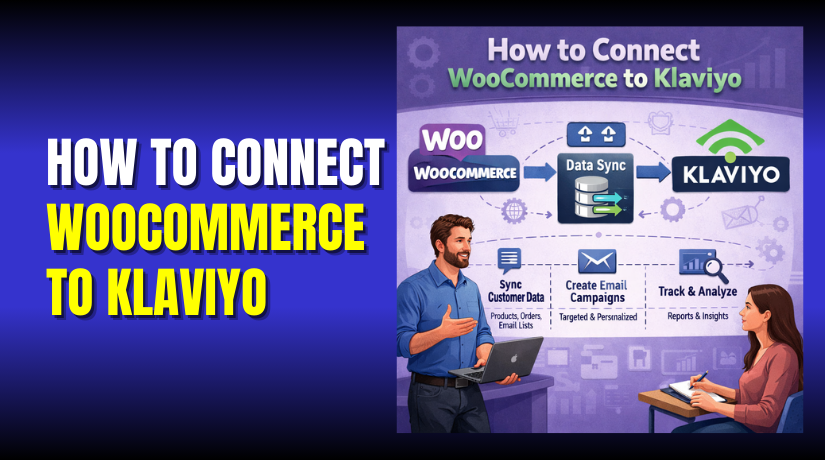
How to Connect WooCommerce to Klaviyo (Step by Step Integration Guide)
Table of Contents
- Introduction
- What Is Klaviyo in WooCommerce and Why It Matters
- What Are the Uses of Klaviyo for WooCommerce Store
- Does Klaviyo integrate with WooCommerce?
- What You Need Before You Start for a Clean WooCommerce Klaviyo Setup
- How to Integrate Klaviyo With WooCommerce (Step By Step)
- Common Issues When Connecting WooCommerce to Klaviyo and How to Fix
- Conclusion
Introduction
Running a WooCommerce store means you must keep buyers engaged. Email and SMS help you sell again without extra ads. This WooCommerce to Klaviyo integration helps you send smarter messages. It also saves time when your store starts growing fast. Most stores lose sales because follow-ups happen too late. Klaviyo fixes that with fast tracking and timely messages. You can integrate Klaviyo with WooCommerce without touching code much. That makes it great for store owners and small teams.
This guide is built for clear steps and clean results. You will learn the correct path from install to sync. You will also learn what Klaviyo does inside WooCommerce. This is a simple WooCommerce Klaviyo setup for beginners today. We will keep each step clear, small, and easy. We will avoid fluff and focus on what works. You will learn how to connect WooCommerce with Klaviyo safely.
You will learn what data moves between both platforms. You will learn how tracking works during shopping and checkout. You will learn what to check after the connection is done. After setup, you can send welcome emails automatically to new users. You can recover carts using timely reminders and smart offers. You can target repeat buyers with post-purchase follow-ups. You can send win-back emails when buyers stop ordering. You can show product tips based on past orders and views. You can track sales from each email and flow easily.
What Is Klaviyo in WooCommerce and Why It Matters
Klaviyo is a marketing tool made for online store growth. In WooCommerce, it becomes your customer data and messaging hub. It connects your store actions with emails and SMS messages. A stable Klaviyo WooCommerce connection improves follow-ups after each purchase. It helps you message the right person at the right time. It also helps you stop sending the same email to all.
Klaviyo uses events to understand what shoppers are doing. Events are actions like viewing items or starting checkout. Orders and customer details also become part of each profile. Klaviyo WooCommerce sync keeps profiles and orders updated in real time. That means your campaigns use fresh data, not old guesses. You can see who bought, what they bought, and when. You can also see who browsed but did not purchase. This helps you build messages that feel personal and useful.
Klaviyo connects to WooCommerce through an official integration method. Most setups use a plugin inside your WordPress dashboard. The plugin links your store with your Klaviyo account securely. It then starts pulling store data into Klaviyo profiles. It can sync customers, orders, products, and key events. You can use that data to build lists and smart groups. You can filter buyers by spend, items, and order count. You can also filter by last order date and activity. This WooCommerce Klaviyo integration tutorial explains the basics clearly today. It prepares you for the steps you will follow later.
Klaviyo supports two main message styles for store owners. First are campaigns, which are one-time message blasts. You send them for sales, launches, and store updates. Second are flows, which run automatically based on actions. Flows trigger when someone signs up or abandons checkout. They also trigger after purchase, refund, or long inactivity.
Campaigns are manual, but flows run day and night. Flows help you earn more while you focus elsewhere. That is why many stores start with flows first. With the right setup, you get tracking and clean data. That makes your future emails more accurate and more helpful. This is the core goal of a strong Klaviyo WooCommerce connection.
What Are the Uses of Klaviyo for WooCommerce Store
Run Promotional Email Campaigns for Sales and Launches
Klaviyo helps you send one-time emails for offers and updates. You can promote new products, seasonal sales, and limited deals. A WooCommerce to Klaviyo integration lets you target the right buyers. You can send campaigns to customers, leads, or past shoppers. You can also exclude people who recently purchased the same item. This keeps emails relevant and improves clicks and sales.
Automate Welcome Emails for New Subscribers and Leads
A strong WooCommerce Klaviyo setup lets you welcome new subscribers fast. You can introduce your brand, highlight best sellers, and build trust. You can add a first-order offer only when it makes sense. You can also guide users to popular categories and collections. This helps new leads become first-time buyers with less effort.
Recover Lost Sales Using Abandoned Cart Flows
Abandoned carts are common in most WooCommerce stores today. With Klaviyo WooCommerce sync, cart events trigger automatically. You can remind shoppers about items left behind in minutes. You can add urgency, social proof, or a small incentive. You can also stop the flow once the shopper buys. This prevents extra emails and keeps the experience clean.
Send Browse Abandonment Emails to Bring Visitors Back
Many shoppers view products but leave without adding to cart. Klaviyo can track product views using onsite tracking events. A stable Klaviyo WooCommerce connection helps these events fire correctly. You can send helpful reminders with the same product link. You can also suggest similar items to match their interest. This improves return visits and increases conversion chances.
Build Post-Purchase Flows to Increase Repeat Orders
Post-purchase emails keep customers engaged after payment completion. You can send order tips, care guides, and usage ideas. You can ask for reviews after delivery and build social proof. You can also cross-sell items that match their last purchase. This works best with accurate order events from WooCommerce. It makes your marketing feel helpful, not pushy.
Create Smart Customer Segments for Targeted Messaging
Segmentation is where Klaviyo becomes very powerful for WooCommerce. You can group buyers by total spend, order count, and recency. You can target VIP buyers with exclusive early access offers. You can target bargain buyers with deal-based campaigns only. You can also avoid discounts for loyal full-price customers. This improves revenue and protects your profit margins.
Send Win-Back Emails to Re-Engage Inactive Customers
Some buyers stop ordering after their first purchase. Klaviyo helps you detect inactivity using order and site events. You can send win-back emails after 30, 60, or 90 days. You can share new arrivals, helpful content, or a small coupon. You can also stop emails if they re-order quickly. This keeps your list healthy and your store active.
Recommend Products Using Purchase and Browsing Data
Klaviyo uses store data to power product recommendation emails. You can recommend related items after someone buys a product. You can recommend upgrades for customers who browse premium categories. You can also suggest bundles based on common purchase patterns. This is easier with a WooCommerce Klaviyo integration tutorial approach. It helps you set correct tracking and clean product data.
Use SMS for Fast Reminders and Short-Time Offers
Klaviyo supports SMS marketing if you collect proper consent first. You can send cart reminders, delivery updates, and short offers. SMS works well when you keep messages short and clear. Use it only for high intent segments and urgent alerts. A proper WooCommerce to Klaviyo integration keeps your SMS targeting accurate. This reduces spam and improves customer trust.
Track Revenue and Flow Performance with Clear Reporting


Klaviyo shows revenue from each flow and campaign in one place. You can see which emails bring sales and which need work. You can test subject lines and content to improve results. You can also track customer value and repeat purchase patterns. This helps you make smarter choices for future campaigns. It turns marketing into a measurable and repeatable system.
Does Klaviyo integrate with WooCommerce?
Yes, Klaviyo integrates with WooCommerce using an official integration. Most stores connect using a WordPress plugin and API key. This creates a secure Klaviyo WooCommerce connection in minutes. It also keeps your store data linked to Klaviyo profiles. Many store owners follow a WooCommerce Klaviyo integration tutorial for safety. That helps avoid wrong accounts and tracking mistakes later.
After you integrate Klaviyo with WooCommerce, key data starts syncing. Customer details sync to build profiles you can message later. Orders sync with products, totals, and order dates attached. Product data helps with recommendations and better segments. Store events sync to show shopper intent and interest. Events may include viewed products, added to cart, and checkout started. This is the core of a reliable Klaviyo WooCommerce sync process.
Tracking works by placing a Klaviyo script on your store. The script links browsing activity to customer profiles when possible. When a customer clicks email, tracking becomes more accurate. When they buy, the order event ties everything together. This is why setup accuracy matters during your first connection. If tracking is missing, some flows may not trigger correctly.
Sync timing is usually fast, but it can vary by store. New events often appear within minutes after store activity. Historical orders can take longer, especially for large stores. If you have many orders, initial sync may take hours. That is normal during the first WooCommerce Klaviyo setup stage. Once complete, ongoing sync stays steady and more predictable. This makes it easier to trust your data and your flows.
What You Need Before You Start for a Clean WooCommerce Klaviyo Setup
- WordPress Admin Access Is Required: You need admin access to install plugins and edit settings. This avoids delays during the WooCommerce to Klaviyo integration process.
- WooCommerce Must Be Active and Updated: Confirm WooCommerce is active and updated on your live store. Old versions can break the Klaviyo WooCommerce connection and events.
- Your Checkout Should Work Without Errors: Place a test order and confirm checkout completes without issues. Broken checkout blocks events and hurts Klaviyo WooCommerce sync accuracy.
- SSL Must Be Enabled Across Your Store: Your store should load with HTTPS on all key pages. SSL protects data and supports stable tracking for this integration.
- You Need Access to Your Store Email Inbox: Use a real email inbox you can open and verify. You will use it to test flows and order emails.
- Confirm You Are in the Correct Klaviyo Account: Open the correct Klaviyo workspace for this WooCommerce store. Wrong workspace causes wrong lists and messy profile data.
- Remove Any Existing Klaviyo Tracking Code First: Check your theme header and plugins for existing Klaviyo scripts. Duplicate scripts cause double tracking and confusing event reports.
- Note Your Cache and Security Plugins in Advance: Cache and security tools can block scripts and API requests. You may need small exclusions later for reliable tracking.
How to Integrate Klaviyo With WooCommerce (Step By Step)
This section shows the safest way to connect both platforms. It keeps your data clean and your tracking accurate. Follow each step in order for a stable Klaviyo WooCommerce connection. This WooCommerce to Klaviyo integration also helps avoid sync and event issues later.
Step 1: Install the Official Klaviyo Plugin in WordPress
- Log in to WordPress using an admin account.
- Go to Plugins and click Add New.
- Search for Klaviyo and open the correct plugin result.
- Click Install Now and wait for completion.
- Click Activate and confirm it shows as active.
- Open the plugin settings from the new menu item.
Step 2: Create Your Klaviyo API Key Inside Klaviyo
- Log in to your Klaviyo account in a new tab.
- Open Settings and find the API Keys area.
- Create a new key and name it for this store.
- Copy the key and keep it private.
- Do not share the key in chats or screenshots.
Step 3: Paste the API Key to Complete the Basic Connection
- Go back to WordPress and open Klaviyo plugin settings.
- Paste the API key into the required field carefully.
- Save settings to start the Klaviyo WooCommerce connection.
- Wait for the success message on the same page.
- Do not refresh again and again during first connection.
Step 4: Enable Onsite Tracking for Accurate Store Activity Events
- Open the Klaviyo plugin settings in WordPress.
- Find the tracking or onsite tracking option in settings.
- Enable it to track browsing and cart activity.
- Save changes and clear your site cache once.
- Check for duplicate Klaviyo code in your theme header.
- Remove duplicates to prevent double events and wrong counts.
Step 5: Confirm Customers and Orders Are Syncing into Klaviyo
- Open Klaviyo and go to Profiles for customer entries.
- Search for a recent customer email from your store.
- Open the profile and check for order or event history.
- Confirm order totals and products look correct.
- Wait longer if you have a large order history.
Step 6: Run a Test Order to Verify Key Events Quickly
- Open your store in an incognito browser window.
- Add a product to cart and start checkout once.
- Place a test order using a real email you can access.
- Go to Klaviyo and check for a new Placed Order event.
- Check for Started Checkout and Added to Cart events.
- If events appear, your tracking is working correctly.
Step 7: Confirm You Are Ready for Flows and Campaigns
- Create a basic welcome flow for new signups first.
- Set an abandoned cart flow after tracking is confirmed.
- Use segments to target buyers and repeat customers.
- Keep messages helpful and avoid too many sends early.
Testing keeps your reports clean and your flows accurate. It also prevents missed sales caused by broken events. Now your WooCommerce to Klaviyo integration is ready for real use.
Common Issues When Connecting WooCommerce to Klaviyo and How to Fix
These issues are common during a WooCommerce Klaviyo setup. Each fix is simple when you check the right place. Use these steps to protect your Klaviyo WooCommerce sync.
The Plugin Shows Connection Failed or No Success Message
- Confirm the API key is correct and not missing characters.
- Make sure you use the correct Klaviyo workspace account.
- Re-save settings once, then wait for the status update.
- Disable security blocks that may stop outgoing requests.
Orders Are Not Syncing into Klaviyo
- Place a fresh test order to check new syncing first.
- Confirm WooCommerce order status is created successfully.
- Check if the plugin is active and not blocked.
- Temporarily disable cache plugins, then test again.
Events Are Missing Like Added to Cart or Started Checkout
- Confirm onsite tracking is enabled in plugin settings.
- Clear cache and exclude checkout pages from caching.
- Check for script blocks from security or firewall plugins.
- Test again using an incognito window and fresh session.
Duplicate Events or Double Revenue Is Showing
- Remove any old Klaviyo scripts from theme header files.
- Check other plugins that may also add Klaviyo code.
- Keep only one tracking source, then test again.
- Confirm events count looks normal after a new test order.
Wrong Store Connected to the Wrong Klaviyo Account
- Disconnect the integration from the current Klaviyo account.
- Connect again using the correct workspace and correct API key.
- Delete wrong test lists if they confuse future targeting.
- Run a new test order after reconnecting for confirmation.
Checkout Events Missing Due to Custom Checkout Changes
- Test with the default checkout if you recently changed it.
- Disable checkout add-ons one by one to find conflicts.
- Keep the change that breaks events turned off.
- Retest until checkout events appear correctly in Klaviyo.
Conclusion
You now have a clear path for a successful WooCommerce to Klaviyo integration. You learned how to connect your store, enable tracking, and confirm events. You also learned how to avoid common sync and tracking mistakes. A clean WooCommerce Klaviyo setup helps you send timely emails and improve repeat sales.
It also helps you track revenue from flows and campaigns clearly. When your Klaviyo WooCommerce sync works properly, your marketing becomes faster and smarter. Your abandoned cart, welcome, and post-purchase messages start working automatically. This is the real benefit of a stable Klaviyo WooCommerce connection.
If you want expert help, WooHelpDesk can set everything up for you. We can handle the full WooCommerce Klaviyo integration tutorial work safely. We can connect Klaviyo, fix tracking, and test all key events. We can also build your core flows and segments for better results. So if you want to save time and avoid errors, contact WooHelpDesk today. We will help you integrate Klaviyo with WooCommerce the right way.



