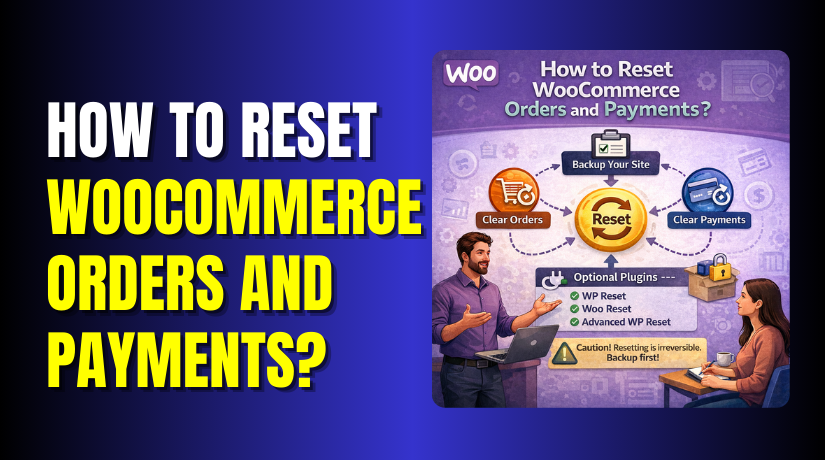
How to Reset WooCommerce Orders and Payments?
Table of Contents
- Introduction
- What “Reset WooCommerce Orders and Payments” Really Means?
- Why Reset WooCommerce Orders and Payments?
- Safety Setup Before You Delete Anything
- How to Reset WooCommerce Orders and Payments?
- Final Verdict
Introduction
Resetting orders and payments in WooCommerce is a serious store action. It can permanently remove sales records, payment notes, and order history. Many store owners search “reset WooCommerce orders” when they need a clean start. Some want to remove test orders made during setup and staging work. Some need to fix broken order data after a migration. Some want to rebuild a store after a failed launch.
When people say “reset,” they often mean different things. Some want to delete only failed test orders and transactions. Some want to wipe all orders and start order numbers again. Some want to remove payments, but keep customer accounts intact. Some want to clear the store data but keep products and pages. That is why you should plan your reset carefully.
WooCommerce stores can store data in many places. Orders live in WooCommerce orders tables and post records. Payment notes can live in order notes and gateway logs. Transactions can also exist inside payment gateways like Stripe. Refunds can exist inside WooCommerce and the gateway too. So “reset” may not fully delete gateway records. You must understand what can be cleared safely.
This guide explains why store owners reset orders and payments. It also explains safe methods for deleting WooCommerce order data. You will learn plugin methods and manual cleanup methods too. You will also learn safety steps to avoid losing real sales data. The goal is to help you clear WooCommerce orders and transactions safely. The goal is also to help you avoid data loss mistakes.
We will use simple steps and clear checks in each method. We will keep focus on real store needs and real outcomes. You will also learn how to choose a WooCommerce reset orders plugin wisely. You will learn how to confirm what was deleted after resets. You will also learn how to protect your store with backups.
What “Reset WooCommerce Orders and Payments” Really Means?
Resetting can mean deletion, cleanup, or full store wipe. The correct method depends on what data you want removed. Many mistakes happen when people reset the wrong data group. So you should define your goal before touching anything.
- Reset only orders and keep products untouched. This fits stores clearing test orders after setup. It also keeps catalog work safe and unchanged.
- Reset orders, payments, and refunds together. This fits stores needing a full sales history wipe. It also helps when test payments clutter reports.
- Reset store data including customers and coupons. This fits staging sites becoming new live stores. It also helps when demo data must disappear.
- Reset everything and start from a blank store. This is a full WooCommerce store data reset. It is best for failed builds and restarts.
When you reset, always confirm the scope of deletion first. Always verify what will stay and what will go. This prevents losing products, pages, and media by mistake.
Why Reset WooCommerce Orders and Payments?
There are many valid reasons to delete old orders and payment data. Most reasons relate to testing, cleanup, and store rebuild needs. Below are the most common reasons store owners reset order data. Each reason includes what it solves and why it matters.
1. Remove Test Orders After Store Setup
During setup, owners place many fake orders for testing. These orders can clutter the analytics and reports panels. They can confuse staff when reviewing real customer orders later. They can also cause wrong stock counts when not adjusted.
- Keep WooCommerce reports clean and reliable. Reports then reflect real sales and real revenue.
- Removes confusion from test customer names and emails. Staff then sees only real buyer details.
- Prevents wrong stock changes caused by test purchases. Inventory stays accurate for real selling days.
This is the most common reason for “delete WooCommerce orders and payments” searches. It is also the safest reason if you do it early.
2. Prepare a Staging Site for a Fresh Live Launch
Many stores are built on staging and later moved live. During staging, teams create test orders and test payments. If those records move to live, it looks unprofessional and messy. It can also confuse accounting later.
- Helps you launch with a clean store order history. Your first order becomes a real customer order.
- Avoids mixing staging data with live accounting records. This reduces reporting mistakes later.
- Makes store dashboards easier for staff to manage. Staff sees only real tasks and alerts.
This is where how to reset WooCommerce store data becomes important. You often want a controlled cleanup, not a full wipe.
3. Fix Broken Order Data After Migration or Plugin Conflicts
Sometimes order data becomes inconsistent after migrations or imports. A plugin conflict may create duplicate orders or broken statuses. Payment gateways might add repeated notes or failures. In such cases, cleanup can be the fastest fix.
- Removes duplicate orders created by import issues. This reduces customer support confusion later.
- Clears corrupted orders that break checkout reports. Reports then load faster and show correct numbers.
- Helps re-test checkout with clean order tables. You can validate gateway flow again properly.
Resetting is not always required for these issues though. You should try targeted deletion first when possible.
4. Reset Order Numbers for New Store Branding
Some store owners want a fresh order number sequence. They may be changing store names or business identity. They may also be moving from a demo store to a real store. They want order numbers to start from a clean base.
- Gives a clean professional order numbering story. Order numbering aligns with a fresh store launch.
- Prevents customers seeing high order counts on a new store. This can matter for perception sometimes.
- Makes admin workflows easier when starting fresh. You avoid mixed legacy and new data.
Order numbers depend on order records and database sequences. Resetting numbers can be tricky and must be tested. We will cover this safely in later parts.
5. Remove Sensitive Data Before Sharing a Site Copy
Sometimes developers share a site copy with other teams or vendors. They need to remove customer and payment data first. This is also needed before handing a site to new owners. Privacy and compliance matter for these cases.
- Reduces risk of customer data exposure to third parties. This protects your brand and customer trust.
- Helps comply with privacy rules and internal policies. Many rules require removing personal purchase data.
- Allows safe demos without real buyer information. You can show flows without leaking details.
This is one of the most important reasons for a full cleanup.
Safety Setup Before You Delete Anything
These steps reduce risk and prevent irreversible store mistakes.
Step 1: Take a Full Backup First
Hosting Panel → Backups → Create Backup
Backup protects you if deletion removes the wrong store records. A database backup is the most important safety layer. File backups also help with plugin and theme rollback needs.
- Backup the database before touching orders and payments. Database holds orders, order items, and order meta.
- Backup the wp-content folder before plugin reset actions. Plugins sometimes remove settings and stored data.
- Save backup files outside your hosting account too. External storage protects from hosting account issues.
Step 2: Confirm You Are Not Working on Live Store
WordPress Dashboard → Settings → General
Many people delete orders on live stores by accident. Always confirm your site URL and environment label first. If you use staging, confirm the staging domain and admin bar.
- Check the site URL and admin email before deleting. This confirms you are in the correct environment.
- Enable maintenance mode during large reset operations. This blocks new orders during the deletion process.
- Pause paid ads during cleanup to prevent new checkouts. New orders can break your reset results.
Step 3: Export Orders for Record Keeping
WooCommerce → Orders → Export
Exports help you keep proof of deleted orders when needed. Exports also help you restore order details in emergencies. This is crucial for accounting and compliance requirements.
- Export orders as CSV before you clear store history. CSV gives a lightweight copy for offline storage.
- Export refunds separately if your store uses refunds often. Refund records can be needed for disputes later.
- Save exports with date labels and environment labels. This prevents mixing live and staging data later.
How to Reset WooCommerce Orders and Payments?
Resetting orders and payments needs a safe and structured approach. One wrong click can delete real customer order history. Always treat this process as destructive database cleanup work. Use a staging site whenever you can for maximum safety.
Before you start, decide what “reset” means for your store. Do you want to reset WooCommerce orders only? Do you want to clear WooCommerce orders and transactions too? Do you want to remove refunds, notes, and logs as well. Your answer decides the correct method and steps.
Method 1: Reset Orders Using WooCommerce Admin Bulk Delete
This method is safest for removing test orders and failed payments. It does not require plugins or database changes for most stores. It works best when you only want to delete order history.
Step 1: Filter Orders You Want to Remove
WooCommerce → Orders → Filters
- Filter by date range to target only your testing period.
- Filter by status like Failed, Pending, or Cancelled first.
- Search by test email address to isolate dummy customer orders.
- Confirm each filtered order is truly a test order.
Step 2: Move Orders to Trash First
WooCommerce → Orders → Bulk Actions → Move to Trash


- Select orders in small batches to avoid server timeout errors.
- Trash first to keep a recovery window for wrong selections.
- Repeat the process until your target range is fully trashed.
Step 3: Permanently Delete Orders from Trash
WooCommerce → Orders → Trash → Delete Permanently
- Review trash carefully to confirm nothing real is inside.
- Delete permanently in batches for faster and safer completion.
- Refresh the orders screen to confirm counts update correctly.
This deletes WooCommerce order records inside WordPress. It does not remove gateway transaction history outside your website.
Method 2: Reset Orders Using a WooCommerce Reset Orders Plugin
This method is best for staging stores and repeated development resets. It can remove orders, refunds, customers, and more store data. Use only plugins that clearly explain what will be removed.
Step 1: Choose Reset Scope Inside the Plugin
WordPress Dashboard → Plugins → Reset Tool Settings
- Choose “Orders and refunds only” if you want minimal deletion.
- Avoid selecting “Products” unless you want a blank store.
- Avoid deleting customers if you still need user accounts.
- Read the deletion summary twice before clicking the reset button.
Step 2: Run the Reset on Staging First
Staging Site → Reset Plugin → Run Reset
- Test the reset on staging to confirm correct deletion behavior.
- Verify products, categories, pages, and menus remain unchanged.
- Confirm checkout still works after the reset completes.
Step 3: Apply the Same Process on Live Only When Needed
Live Site → Reset Plugin → Run Reset
- Reset live data only if there are zero real paid orders.
- Keep a full backup ready before you run the final reset.
- Inform your team to avoid new orders during reset time.
Method 3: Clear Payment Logs and WooCommerce Transaction Noise
Deleting orders can still leave logs and old payment notes behind. Logs can confuse future debugging and slow down investigations. Clearing logs also makes new issues easier to identify.
Step 1: Clear WooCommerce Logs
WooCommerce → Status → Logs
- Open gateway logs for Stripe, PayPal, Razorpay, or others.
- Download important logs before deletion for troubleshooting evidence.
- Delete old logs to remove clutter from past test payments.
Step 2: Remove Failed Test Orders That Look Like Failed Payments
WooCommerce → Orders → Filter Status “Failed”
- Keep real failed orders if customers actually attempted checkout.
- Delete only test failures to keep your order screen clean.
- Check order notes to confirm sandbox or test gateway messages.
Payment gateways store transaction history externally. WooCommerce cannot delete records from Stripe or PayPal dashboards.
Method 4: Rebuild Reports When Analytics Still Shows Old Sales
Sometimes you delete orders but analytics still shows revenue spikes. This happens because WooCommerce uses lookup tables and cached values. You must clear caches and rebuild reporting tables for accuracy.
Step 1: Clear WooCommerce Cache and Transients
WooCommerce → Status → Tools
- Use “Clear transients” to refresh cached totals and metrics.
- Clear WooCommerce transient cache if your tools list shows it.
- Refresh analytics pages after clearing to confirm updates appear.
Step 2: Rebuild Analytics Lookup Tables
WooCommerce → Status → Tools → Rebuild Tables
- Run table rebuild tools if your WooCommerce version includes them.
- Recheck analytics graphs to confirm old revenue spikes disappear.
- Verify order counts match what you see in the Orders screen.
Final Verdict
Resetting WooCommerce orders and payments can be helpful and necessary. It can remove test clutter and restore clean reporting quickly. It can also prepare a staging site for a clean live launch. But it is also one of the most destructive WooCommerce actions. So the “best” method depends on your store type and data value.
If your store has only test orders, resetting is usually safe. Use bulk deletion first, then clear logs and rebuild analytics. This approach is simple and reduces plugin dependency risks. It also keeps products, pages, and settings intact for launch. This is the best option for most new store owners.
If your store is staging and resets are frequent, a plugin is practical. A WooCommerce reset orders plugin saves time and reduces manual steps. It also helps repeat resets during QA and demo presentations. Still, always test the plugin scope and behavior on staging first. Always keep backups ready for rollback protection.
If your store is live with real customers, avoid full resets. Use targeted deletion only for known test orders and junk data. Keep real orders for refunds, disputes, taxes, and accounting needs. If you must clean deeply, export records first and rebuild analytics later. For live stores, controlled cleanup is safer than full wipes.
Have questions before starting with WooCommerce & WordPress? Get support here at WooHelpDesk.



