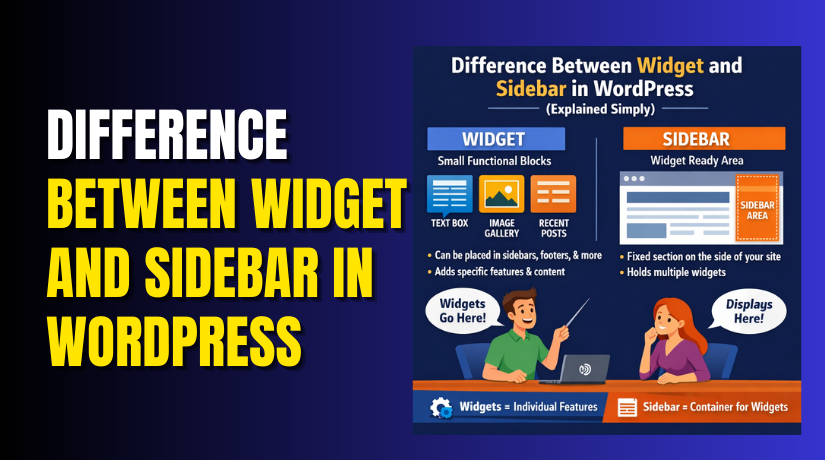
Difference Between Widget and Sidebar in WordPress (Explained Simply)
Table of Contents
- Introduction
- What is a Widget in WordPress?
- What is a Sidebar in WordPress?
- WordPress Widget vs Sidebar: Key Differences
- WordPress Sidebar Widget Difference
- How Widgets Enhance the Sidebar in WordPress
- Common Use Cases for Widgets and Sidebars in WordPress
- Best Practices for Adding Widgets to Sidebars
- Common Mistakes to Avoid with Widgets and Sidebars
- Conclusion
Introduction
WordPress is one of the most customizable platforms for building websites. Knowing the function of sidebars and widgets is crucial to building a dynamic and user-friendly website. These two elements are key to enhancing site functionality and user experience.
Small blocks called widgets offer functions like search bars, social media links, and recent postings. Sidebars are sections of the website layout where widgets can be added for better navigation. Understanding the difference between widgets and sidebars can help you make the most of WordPress’s customization options.
The definitions of WordPress sidebars and widgets, their distinctions, and how they complement one another to enhance the design and operation of your website will all be covered in this article. Let’s dive into understanding these two important elements of WordPress.
What is a Widget in WordPress?
WordPress widgets are little blocks of content that you can quickly add to different parts of your website. There are many different uses for widgets. For example, you can use them to display recent blog posts, categories, search bars, calendars, and social media feeds. These features help users navigate your site with ease.
Widgets are incredibly flexible. They are small, functional pieces of content that can be placed in sidebars, footers, headers, and other widgetized areas of your website. Numerous widgets are pre-installed in WordPress, and many more can be added via plugins.
Common Examples of Widgets in WordPress:
- Recent Posts: Displays the latest blog posts.
- Categories: Shows a list of blog categories.
- Search Bar: Provides a search option for users to find content.
- Text: Adds simple text or HTML content.
- Social Media Links: Displays links to your social media profiles.
Widgets are easy to manage and can be added or removed from the sidebar via the WordPress Dashboard. You can customize widget settings to fit your website’s needs. Understanding what a widget is in WordPress is the first step in improving your website’s functionality.
What is a Sidebar in WordPress?
A sidebar in WordPress is a vertical column that usually appears next to a page’s main content. It’s a part of the website layout where you can display additional information or functionality, such as widgets. The sidebar is often used for navigation, promotions, or displaying secondary content.
Depending on the theme you’re using, sidebars can be positioned either to the left or right of the main content. They are quite adaptable and provide a place to incorporate different components that improve the user experience.
For example, a typical WordPress sidebar might contain:
- Search bars, categories, and recent articles are examples of widgets.
- Advertisements to generate revenue.
- Links to important pages or social media profiles.
- Newsletter signup forms to increase subscriptions.
You can easily add or remove sidebars from your WordPress site through the theme settings. For a simple, minimalist appearance, some themes offer the choice to have several sidebars or to do away with them completely.
Sidebars serve a vital role in the overall structure of your site. They provide you more room to arrange useful components without taking up too much room in the primary content area.
WordPress Widget vs Sidebar: Key Differences
While widgets and sidebars often work together in WordPress, they serve different purposes. The main differences between sidebars and widgets are broken down as follows:
- Definition and Function
- Small blocks called widgets provide your website more functionality or content. They can be used to show a search bar, social media links, categories, and recent posts. Widgets add functionality without requiring custom coding.
- Sidebars, on the other hand, are specific areas of the website layout. They are used to organize and display widgets and other content. Think of sidebars as containers or sections where widgets are placed.
- Customization and Flexibility
- Widgets are highly customizable. You can change their settings, move them around, or even add custom widgets through plugins. They give you the power to add many different features to your site easily.
- Sidebars are less flexible. While you can control how many sidebars you have or where they appear, they mostly serve as spaces to display widgets. Some themes allow for different layouts, but sidebars themselves are relatively fixed.
- Purpose
- Widgets have a functional purpose. They provide specific content or features such as displaying your latest posts, showing categories, or offering a newsletter signup form. Widgets are about interaction and content delivery.
- Sidebars have an organizational purpose. They provide a place to display multiple widgets and secondary content in a neat, manageable way. Sidebars help structure the page layout and provide space for additional elements without crowding the main content.
- Placement
- Widgets are placed within sidebars, footers, or headers, depending on your website layout. These sections might include as many or as few widgets as you like.
- Sidebars are fixed sections in your website’s layout. They typically appear on the left or right of your main content. Sidebars may be present on all pages or just a few, depending on your WordPress theme.
- Types
- Widgets come in different types, such as text widgets, image widgets, or custom HTML widgets. You can choose a widget based on the type of content or feature you want to display.
- Sidebars are usually a single type of content area. You may have a default sidebar or multiple sidebars, depending on your theme’s customization options.
By understanding these key differences, you’ll see how widgets and sidebars complement each other but serve distinct roles in WordPress website design.
WordPress Sidebar Widget Difference
There is a specific difference when we talk about sidebar widgets compared to other widgets in WordPress. Sidebar widgets are widgets that are placed within the sidebar section of your website’s layout. While widgets can be used in any area that supports them, sidebars are the primary location for displaying multiple widgets.
Sidebar Widget Features:
- Sidebar widgets often include elements like recent posts, categories, social media links, or advertisement banners.
- These widgets help with the navigation and content distribution of your site.
- Sidebar widgets are crucial for increasing user interaction and enhancing your website’s usability.
While widgets can be used anywhere on your WordPress site, sidebar widgets are especially important for structuring the layout and enhancing the navigation. You can choose where to put particular widgets for the best outcomes by being aware of this distinction.
How Widgets Enhance the Sidebar in WordPress
Widgets and sidebars work together to create a user-friendly and engaging experience on your WordPress site. A sidebar is often a fixed section of your layout, and widgets are used to fill this space with useful content. The combination of the two allows for a dynamic and interactive website.
Here’s how widgets enhance the sidebar:
- Adding Functionality
Widgets provide practical features that make your website more functional. For example:
- Search bar widget: Makes it simple for visitors to search for content on your website.
- Recent posts widget: Keeps visitors updated with your latest content.
- Social media links widget: Shows symbols so people can interact with you on social networking.
These widgets can be added to sidebars to increase user interaction and make the site more navigable.
- Organizing Content
The sidebar serves as a content hub for various elements that may not fit in the main content area. Using widgets, you can organize and display secondary content in an easily accessible area. This helps visitors find important information without being overwhelmed by too much content in the main section.
- Customization and Control
WordPress makes it easy to customize your sidebar. You can add, remove, and reorder widgets without coding knowledge. Simply go to your Widgets section in the WordPress Dashboard, drag and drop widgets into your sidebar, and adjust settings for each one.
You may give your users a customized experience with this degree of control. Whether you want to show recent blog posts, popular categories, or even customer testimonials, widgets can help you fill your sidebar with the right content.
- Improving User Experience
By placing widgets in the sidebar, you can create a clean and organized layout. For example:
- Contact forms widget: Enables users to contact you with ease.
- Email signup widget: Encourages visitors to subscribe to your newsletter.
These widgets can improve the user experience by providing important information and features in a space that’s always accessible.
Widgets in the sidebar not only make your site functional but also enhance its overall user experience by offering interactive features that keep users engaged.
Common Use Cases for Widgets and Sidebars in WordPress
After learning how widgets improve sidebars, let’s look at some typical applications. WordPress websites can be highly customized with widgets and sidebars, depending on the website’s needs.


- Blogging Websites
- For blogs, a sidebar might include widgets like:
- Recent posts
- Popular categories
- Tag cloud
- Social media links
- Newsletter signup
These widgets make it easier for readers to browse your blog’s content and follow your updates.
- E-commerce Websites
- E-commerce sites can use sidebars for widgets like:
- Product categories
- Shopping cart summary
- Product search bar
- Featured products
You may enhance the shopping experience and make it simpler for customers to locate products by including these widgets in your sidebar.
- Business Websites
- A business website might use sidebars to display widgets like:
- Testimonials
- Company contact details
- Service offerings
- Social media feeds
These widgets provide visitors with quick access to essential information about the business and build trust.
Widgets are adaptable and can be tailored to any type of website. The functionality and user experience of your website can be improved by carefully selecting the appropriate sidebar widgets.
Best Practices for Adding Widgets to Sidebars
Adding widgets to sidebars is an easy and effective way to enhance your WordPress site. However, it’s important to follow some best practices to ensure that your site remains functional and user-friendly. The following advice will help you get the most out of adding widgets to your sidebar.
- Keep It Simple
Too many widgets in a sidebar can overwhelm visitors. Aim for a clean and simple design. Display only the most important elements to avoid clutter. Keep the user experience in mind. A cluttered sidebar may confuse visitors or make it hard for them to navigate.
- Organize Widgets by Priority
Place the most important widgets at the top of the sidebar. For example:
- Search bar widget should be placed at the top so users can quickly search your content.
- Recent posts widget should follow to keep visitors updated with your latest content.
This ensures that visitors can easily access key information as they navigate your website.
- Use Relevant Widgets for Your Site
The widgets you use in your sidebar should be relevant to the type of site you have. For instance:
- Blogs can use widgets like recent posts, categories, and a tag cloud.
- E-commerce websites might want to use widgets like product categories, shopping cart summary, and product search.
Using relevant widgets helps provide the right information to your visitors based on your website’s purpose.
- Ensure Fast Loading Times
Widgets can sometimes slow down your website. Be sure to add only the essential ones. Avoid overloading your sidebar with widgets that are unnecessary. High bounce rates and a bad user experience might result from a sluggish website.
To ensure your widgets load quickly, optimize any image widgets and minimize the use of heavy scripts. This will help your site stay fast and responsive.
- Ensure Mobile Responsiveness
A lot of people will use mobile devices to view your website. Make sure your widgets and sidebars look good on all screen sizes. Test your website’s layout on mobile devices to ensure the sidebar is responsive and widgets are easy to use.
Most modern WordPress themes are responsive, but it’s still essential to check and make sure everything works seamlessly on mobile devices.
Common Mistakes to Avoid with Widgets and Sidebars
Although sidebars and widgets can significantly improve the functionality of your website, there are a few frequent errors that can degrade the user experience and performance of your site. Here are some things to avoid:
- Overcrowding the Sidebar
Adding too many widgets is one of the most frequent errors. When you add too many widgets to your sidebar, it can make your site look messy and overwhelm visitors. Stick to a few key widgets that serve a purpose.
- Ignoring Mobile Users
Many site owners forget to test their sidebars on mobile devices. Users of mobile devices anticipate a responsive and seamless experience. You run the risk of losing visitors if your sidebar is overly busy or challenging to use on smaller displays.
- Using Unnecessary or Outdated Widgets
Avoid using outdated or unnecessary widgets. Keep your sidebar fresh and updated. Remove any widgets that no longer serve a purpose or are irrelevant to your current content.
- Not Keeping the Sidebar Clean and Organized
A clean sidebar with well-organized widgets creates a better user experience. Arrange your widgets in a logical order and group similar items together. A cluttered or disorganized sidebar can confuse visitors and make navigation difficult.
- Overloading with Ads or Promotional Widgets
Although it may seem tempting to place advertisements on your sidebar, exercise caution. Excessive advertising might drive people away from your website and make it appear spammy. Display advertisements should only be used when they are pertinent and do not interfere with the user experience.
By avoiding these common mistakes, you can ensure that your sidebar is both functional and user-friendly, offering a better experience for your visitors.
Conclusion
Now that we’ve explored the key differences between widgets and sidebars in WordPress, you should have a clear understanding of how each element works. Widgets are small, customizable blocks that provide functionality, while sidebars are designated sections of your layout where you display those widgets. When combined, they enable you to design your website in a way that improves user experience and functionality.
Remember that widgets allow you to add interactive elements like recent posts, social media links, or search bars, while sidebars provide a space for these widgets to be displayed. By understanding the relationship between the two, you can customize your WordPress site in a way that best serves your needs and engages your visitors.
If you need more guidance on customizing your WordPress website or need expert assistance with widgets, sidebars, or any other WordPress functionality, WooHelpDesk is here to help. Our team of experts can assist you in optimizing your site to ensure the best user experience and performance.
Contact us at WooHelpDesk today to learn more about how we can support your WordPress site’s customization and improve your site’s performance!



