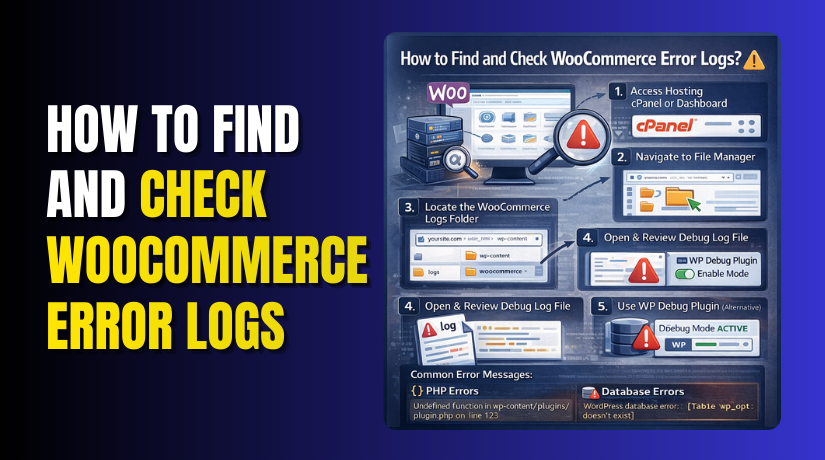
How to Find and Check WooCommerce Error Logs?
Table of Contents
- Introduction
- What Are WooCommerce Error Logs?
- What are the Types Of Logs That May Be Needed For WooCommerce?
- What are the Common Problems That WooCommerce Error Logs Help Solve?
- Why WooCommerce Error Logs Are Important?
- How To Find And Check WooCommerce Error Logs Step By Step?
- What are The Common Log Patterns and What They Usually Indicate?
- Final Verdict
Introduction
WooCommerce issues rarely explain themselves on the screen clearly. Errors can hide behind blank pages, slow checkout, or failed orders. That is why WooCommerce error logs matter for every store owner. Logs show what happened, when it happened, and why it happened. They help you fix problems faster, with less guessing involved. When you learn how to check WooCommerce error logs, troubleshooting becomes simpler and more accurate.
Many WooCommerce problems look the same from the front-end view. A checkout failure could be a plugin conflict or gateway timeout. A payment error could be missing API keys or blocked requests. A critical error could be a theme function or memory limit. Your visitors only see “something went wrong” on the page. The log file shows the real reason behind the failure.
This guide is built for real troubleshooting, not theory only. You will learn what logs mean and what they contain. You will learn the difference between store logs and debug logs. You will learn the exact WooCommerce logs location and access paths. You will learn how to read entries without feeling overwhelmed. You will also learn safe steps to avoid breaking your live store.
What Are WooCommerce Error Logs?
WooCommerce logs are saved records of events and system messages. They are generated when WooCommerce or related components run code. Some logs record errors, warnings, and fatal crashes in PHP. Some logs record API responses and payment gateway communication details. Some logs record scheduled tasks and background process messages too. Together, these form the wider world of WooCommerce error logs.
WooCommerce has its own logging system inside the plugin. It can store logs for specific sources like payments or webhooks. Many extensions also use the same WooCommerce logging system. That means you may see logs for shipping, taxes, or subscriptions. These logs help you trace where a failure started and continued.
A log is not only for developers and advanced users. Even store owners can learn patterns from basic entries. You can see timestamps and understand when errors spike. You can connect errors with plugin updates or traffic peaks. You can confirm whether problems happen for specific payment methods. You can also confirm whether an issue is server-level or plugin-level.
What are the Types Of Logs That May Be Needed For WooCommerce?
When you search for logs, you may find more than one type. Each log type answers a different troubleshooting question. Understanding the types saves time and prevents confusion. It also helps you choose the correct log for your issue.
A) WooCommerce System Logs Inside The Dashboard
These logs are created using WooCommerce logging functions. They are often stored as “log files” inside WordPress uploads. They can include gateway requests, webhook responses, and plugin errors. They are often grouped by source and date for easier review.
- Best for payment gateway errors and webhook delivery failures.
- Best for shipping API errors and tax calculation failures.
- Best for plugin module messages using WooCommerce logger system.
- Best for tracking issues tied to order ID and checkout requests.
B) WordPress Debug Log
This log is created when WordPress debug logging is enabled. It captures PHP notices, warnings, and fatal errors across WordPress. It also captures errors from themes and plugins, including WooCommerce. Many people call this the WooCommerce debug log, but it is WordPress-wide. It is usually stored in the wp-content directory when enabled.
- Best for white screen errors and critical PHP fatal issues.
- Best for plugin conflicts causing PHP warnings and deprecations.
- Best for tracking errors after updates and server changes.
- Best for identifying missing functions and undefined variables issues.
C) Server Error Logs From Hosting
These logs are maintained by your web server and PHP handler. They often include PHP fatal errors, timeouts, and memory failures. They can also include blocked requests, permission errors, and 500 errors. They are often accessed through cPanel or server control panels. These logs help confirm if failures occur before WordPress loads.
- Best for 500 errors and server timeouts during peak traffic.
- Best for memory exhaustion errors and PHP worker limitations.
- Best for file permission issues and blocked script executions.
- Best for diagnosing issues on server configuration level problems.
D) Plugin-Specific Logs
Some plugins keep their own logs outside WooCommerce logger. Security plugins, cache plugins, and SMTP plugins often do this. Payment gateways may log API requests in their own settings panels. These logs are useful when WooCommerce system logs look normal. They help you diagnose the surrounding infrastructure issues too.
- Best for email failures and missing order email notifications.
- Best for cache conflicts affecting cart and checkout pages.
- Best for firewall blocks and blocked REST API requests.
- Best for third-party integration issues outside WooCommerce itself.
What are the Common Problems That WooCommerce Error Logs Help Solve?
Logs are not just for “site down” situations. They help with common issues that happen in everyday stores. Some issues look small, but can hurt conversion badly. Logs help you find root causes faster and fix them permanently.
1. Checkout And Cart Problems
Checkout failures are one of the most expensive store problems. The customer tries to pay but the process breaks silently. The front-end often shows generic messages only to customers. Logs can show payment gateway errors, nonce failures, or blocked requests.
- Payment request blocked due to invalid API keys or settings.
- Gateway webhook not received, so order stays pending incorrectly.
- REST API blocked by security plugin, causing checkout failures.
- Session issues caused by caching cart or checkout pages wrongly.
2. Payment Gateway And Webhook Failures
Recurring and one-time payments rely on external gateway communication. Gateways send confirmations back using webhooks or callbacks. If webhooks fail, orders can stay pending or unpaid. WooCommerce logs can show webhook errors and response codes. This is crucial for fixing gateway reliability quickly.
- Webhook endpoint returning 403, 404, or 500 errors often.
- Server firewall blocking gateway IPs and external callbacks.
- SSL issues causing webhook requests to fail validation checks.
- Incorrect webhook secret causing signature verification failures.
3. Shipping, Tax, And API Integration Errors
Shipping label tools and tax services rely on external APIs too. If an API call fails, rates may not display or taxes break. Logs can show timeouts, authentication failures, and response payload problems. That helps you confirm whether the issue is local or external.
- Shipping rates not loading due to timeout or blocked API.
- Tax service failing due to wrong address format or auth.
- Product sync failing due to API limits or denied requests.
- Currency conversion failed due to missing service credentials.
4. Random Site Errors After Updates
Updates can introduce breaking changes or conflicts in plugins. Sometimes a small update triggers new warnings and fatal issues. Logs help you identify the exact file and line number. Then you can roll back safely or adjust settings properly.
- Fatal error from theme function incompatible with new version.
- Deprecated warnings flooding logs after PHP version changes.
- Plugin conflict causing checkout scripts to fail loading.
- Memory exhaustion after adding a heavy plugin or theme.
Why WooCommerce Error Logs Are Important?
WooCommerce stores depend on many moving parts at once. Themes, plugins, gateways, and server settings run together. When one piece breaks, the store can still look normal. Customers may face hidden failures during checkout or login. That is why WooCommerce error logs are extremely important. Logs show the root cause behind problems that look unclear.
1. Error Logs Help You Find The Exact Root Cause
- Logs show the file, function, or API call that failed.
- Logs show the plugin or system source behind the problem.
- Logs show timestamps for when the error started happening.
- Logs show error codes that explain what the server returned.
2. Logs Save Time During Checkout And Payment Troubleshooting
- Payment errors often show only generic messages to customers.
- Logs show gateway responses and failure reasons in detail.
- Logs show webhook delivery errors that keep orders pending.
- Logs show API authentication errors like invalid keys quickly.
3. Logs Help You Detect Plugin Conflicts Faster
- Logs show PHP errors caused by plugin compatibility issues.
- Logs show deprecation warnings after WordPress or PHP updates.
- Logs show missing function errors after theme changes.
- Logs show memory exhaustion and timeout patterns clearly.
4. Logs Make Support Requests More Accurate
- Logs give developers evidence instead of guessing based on screenshots.
- Logs show error context like order ID or user action details.
- Logs help plugin support teams identify known issues faster.
- Logs help hosting support trace server errors and restrictions quickly.
5. Logs Help You Monitor Store Health Over Time
- Logs show repeated errors that happen every day quietly.
- Logs help you catch issues before customers complain publicly.
- Logs show performance warnings like slow queries sometimes.
- Logs show spikes after updates or traffic events clearly.
6. Logs Help You Verify Whether A Fix Worked
- Logs show whether the same error appears after your changes.
- Logs show new errors that your fix may have introduced.
- Logs show successful webhook events and API calls after fixes.
- Logs confirm whether checkout errors stopped happening completely.
7. Logs Help You Keep Security And Privacy In Mind
- Logs can show suspicious requests and unexpected gateway failures.
- Logs can show repeated 403 blocks and authentication failures.
- Logs can reveal plugin vulnerabilities if errors repeat often.
- Logs help you detect malware behavior when patterns look unusual.
How To Find And Check WooCommerce Error Logs Step By Step?
You can find WooCommerce error logs in a few reliable places. Each log location helps solve a different store problem type. Use the steps below in the same order for best results. This method reduces guessing and speeds up real troubleshooting.
Step 1: Check WooCommerce Built-In Logs From The Admin Panel
WordPress Dashboard → WooCommerce → Status → Logs
WooCommerce stores many logs inside its own logging system. These logs are often the fastest place to start checking. They can show gateway errors, webhook failures, and plugin messages.


- Open the Logs tab and look for recent log sources.
- Select the correct source name from the dropdown list.
- Use the timestamp range to match your problem time.
- Copy only the relevant lines near the failure message.
Step 2: Understand Which WooCommerce Log Source You Should Open
WooCommerce → Status → Logs → Log File Dropdown
The correct log depends on the exact issue you are fixing. Payment issues usually appear in gateway related sources. Shipping issues often appear in shipping integration sources.
- Checkout payment errors usually appear under gateway log sources.
- Webhook problems often appear under webhook or API log sources.
- Shipping and tax issues appear under related integration sources.
- General store errors may appear under a WooCommerce system source.
Step 3: Find The WooCommerce Logs Location In Your Files
Hosting File Manager → wp-content → uploads → wc-logs
Sometimes you must access the raw WooCommerce error log file directly. This is useful when the dashboard does not load correctly. It is also useful when you need to download logs.
- Open your hosting File Manager or FTP client first.
- Go to the WooCommerce logs folder inside uploads.
- Look for files named with sources and date patterns.
- Download the file and open it in a text editor.
Step 4: Enable WordPress Debug Logging For Deeper Errors
Hosting File Manager → wp-config.php → Edit Safely
If WooCommerce logs look normal, enable WordPress debug logging. This creates a broad WooCommerce debug log style output. It captures PHP warnings and fatal errors across plugins.
- Enable logging only when you need deeper PHP error traces.
- Back up wp-config.php before making any change.
- Add the debug lines above the “stop editing” line.
Use this standard configuration for logging.
define( ‘WP_DEBUG’, true );
define( ‘WP_DEBUG_LOG’, true );
define( ‘WP_DEBUG_DISPLAY’, false );
Step 5: Find The WordPress Debug Log File Location
File Manager → wp-content → debug.log
After enabling debug logging, WordPress writes to a log file. Many store owners call this the WooCommerce debug log. It contains errors from WooCommerce, themes, and other plugins.
- Locate the debug.log file inside the wp-content folder.
- Reproduce the error after enabling debug logging quickly.
- Search for keywords like “fatal”, “warning”, or “uncaught”.
- Use file paths and line numbers to identify the failing code.
Step 6: Check Server Error Logs From Your Hosting Panel
cPanel → Metrics → Errors
Server logs help when WordPress cannot write logs correctly. They also help when the site returns 500 errors. Server logs show memory issues, timeouts, and permission errors.
- Open the Errors section and check the newest entries first.
- Look for memory exhaustion and timeout messages in the entries.
- Check for permission denied and file write failures too.
- Use server logs when debug.log cannot be created properly.
Step 7: Check WooCommerce Gateway Logs For Payment Problems
WooCommerce → Settings → Payments → Gateway Settings
Many payment gateways include a “logging” option in settings. Gateway logs can show request payload issues and API failures. These logs are critical for payment decline troubleshooting.
- Enable gateway logging only during controlled troubleshooting sessions.
- Recreate the payment error using a test order quickly.
- Look for API response codes and error message fields.
- Confirm webhook events are reaching your site successfully.
Step 8: Capture Logs The Right Way While Reproducing The Issue
Logs Open → Perform Action → Refresh Logs
Logs are most helpful when you capture them during the issue. Reproducing helps you generate fresh error entries to inspect. This method creates clear evidence and clean troubleshooting steps.
- Open logs first, then perform the failing action immediately.
- Note the exact minute when you triggered the problem.
- Repeat only once or twice to avoid duplicate noise.
- Use an order ID or user email to connect events.
Step 9: Learn How To Read Log Levels And Messages
Log File → Find Keywords → Review Context
Log reading becomes easier when you know basic patterns. Most logs use consistent structure and repeated terms. You can extract useful meaning without deep coding knowledge.
- Notices are usually safe but can signal compatibility issues.
- Warnings indicate problems that may break parts of checkout.
- Errors usually mean the action failed or returned invalid output.
- Critical or fatal errors crash execution immediately.
What are The Common Log Patterns and What They Usually Indicate?
These patterns appear across many WooCommerce stores frequently. Use this section to connect log phrases with likely causes. This helps you decide the next fix quickly and safely.
1. “403 Forbidden” In Gateway Or Webhook Logs
- Usually means a firewall or security plugin blocked the request.
- It may also mean basic auth blocks on staging sites.
- It can happen when REST API endpoints are restricted.
- It can also happen due to Cloudflare security rules too.
2. “404 Not Found” For Webhooks
- Usually means the webhook URL is wrong or outdated.
- It may happen after permalink changes or migration.
- It may happen when WooCommerce endpoints are disabled.
- It may happen when the site redirects to a new domain.
3. “cURL Error” Or “Timeout”
- Usually means the server cannot reach the external API.
- It may happen due to DNS issues or blocked outgoing requests.
- It may happen due to low server resources and slow processing.
- It may happen when the API provider is temporarily unavailable.
4. “Allowed Memory Size Exhausted”
- This usually means the PHP memory limit is too low.
- It often happens after enabling heavy plugins or themes.
- It can happen during checkout, imports, or cron tasks.
- It can happen when database queries become too heavy.
5. “Undefined Function” Or “Class Not Found”
- Usually means plugin conflict or wrong load order.
- It may happen after incomplete plugin updates or file corruption.
- It can happen if the PHP version is incompatible with the plugin.
- It can happen when required plugin dependency is missing.
Final Verdict
WooCommerce issues become easier when you trust the logs first. WooCommerce error logs show the real cause behind failures quickly. You can confirm if the issue is a plugin conflict or server limit. You can also confirm gateway webhooks, API calls, and renewals status. When you learn how to check WooCommerce error logs, you reduce downtime. You also avoid risky trial-and-error changes on your live store.
Use WooCommerce logs first for gateway and integration troubleshooting. Use the WooCommerce debug log when PHP errors are suspected. Use server logs when WordPress cannot write files or crashes. Always capture logs right after reproducing the issue carefully. Always share only relevant lines and remove sensitive data. After fixing the problem, disable debug logging to stay safe. This process keeps your store stable and your troubleshooting fast.
Have questions before starting with WooCommerce & WordPress? Get support here at WooHelpDesk.



