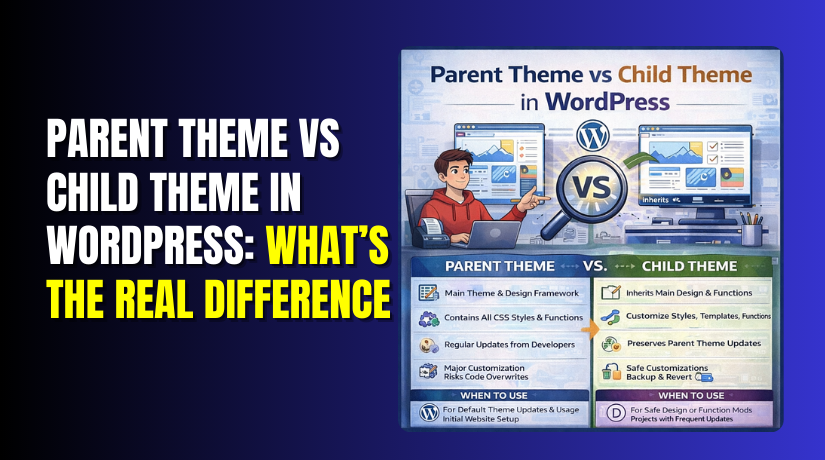
Parent Theme vs Child Theme in WordPress: What’s the Real Difference?
Table of Contents
- Introduction
- What Is a Parent Theme in WordPress?
- What Is a Child Theme in WordPress?
- The Real Difference That Impacts Your Site the Most
- Why Use a Child Theme in WordPress
- Do I Need a Child Theme in WordPress? A Clear Checklist
- When to Use a Child Theme in WordPress
- How to Create a Child Theme in WordPress
- Best Practices and Common Mistakes to Avoid
- Conclusion
- FAQ
Introduction
Many WordPress users edit a theme to match their brand. Everything looks perfect, until the next theme update. Then your custom code may disappear or break pages. This is why parent theme vs child theme WordPress matters. It helps you customize safely and update without stress. This guide keeps things simple for website owners. It also fits blogs, business sites, and WooCommerce stores. By the end, you will quickly grasp the main principle. You will also know which theme type protects changes best.
Quick takeaway before we start:
- Parent theme runs your site’s base design and features.
- Child theme keeps your custom edits safe during updates.
- Updates should never overwrite your hard work.
What Is a Parent Theme in WordPress?
If you ask what is a parent theme in WordPress, think “main theme.” It is the primary theme installed and active on your site. It controls your layout, fonts, colors, and templates. It also includes PHP files that control site behavior. Most parent themes get updates from the developer often. Updates can fix bugs and improve security. Updates can also add new design features and settings. But updates can replace theme files you edited directly. That means your manual changes may get removed. This risk is the biggest reason child themes exist.
A parent theme usually includes:
- Template files like header, footer, and page layouts
- A stylesheet for design rules and responsive layout
- Functions that add features and WordPress hooks
What Is a Child Theme in WordPress?
If you ask what is a child theme in WordPress, think “safe layer.” A child theme depends on a parent theme to work. It inherits the parent theme’s design and features automatically. Then it lets you add your own changes separately. WordPress launches your child theme after loading the parent theme. If your child theme adds a file override, WordPress uses it. If no override exists, WordPress uses the parent file.
A child theme is best for changes like these:
- Custom CSS that goes beyond basic theme options
- Extra code in functions for custom features
- Template edits for pages, headers, or WooCommerce layouts
This setup keeps your custom work protected during updates. It also makes future troubleshooting much easier.
The Real Difference That Impacts Your Site the Most
The difference between parent and child theme in WordPress is not just “two themes.” It is about how WordPress saves your custom work. It also changes how safely you can update files later. If you want the real answer, focus on one thing. Where do your edits live, and what happens during updates?
1) Updates and Safety: What Gets Overwritten
A parent theme update can replace the theme’s core files. This is normal and also expected. If you edited those parent files directly, your edits can vanish. Many site owners learn this the hard way. They update the theme and lose custom code instantly. A child theme avoids this risk in most cases. Your custom files stay in the child theme folder. The parent can update, but your edits remain untouched.
In simple terms:
- Parent theme edits can be overwritten by theme updates.
- Child theme edits usually stay safe during parent updates.
This is the biggest reason developers prefer child themes.
2) Customization Style: Settings vs Real Code Changes
Not every site needs code-level edits. Many modern themes offer strong options already. If you only change settings in the Customizer, you may be fine. These settings usually remain after updates. But custom code edits are different. Code edits include editing PHP templates or adding functions. They also include advanced styling beyond theme options.
Common customization types:
- Safe changes: logo, colors, fonts, menu setup
- Risky changes: editing header.php, footer.php, or functions.php
If you plan to touch code, a child theme is safer.
3) Template Overrides: Who Controls the Layout Files
Themes use templates to control page layouts. These templates decide what loads on pages. They also decide where sidebars and sections appear. In a child theme, you can override only one template. You do not need to change the full parent theme. WordPress will use the child file when it exists. If it does not exist, it uses the parent file.
This approach helps when you want:
- A custom header layout for branding
- A custom page template for landing pages
- A special layout for blog posts or categories
It keeps changes clean and easier to track.
4) Maintenance and Troubleshooting: Finding Problems Faster
When a site breaks, you need to find the cause fast. Parent theme edits can be messy over time. You may forget what you changed months ago. Child themes keep your custom code in one place. This makes debugging much easier. You can also disable the child theme quickly for testing. That helps you confirm if your edits caused the issue.
Child themes support better troubleshooting because:
- Your edits stay separate from theme core files
- You can compare child changes to the original parent code
- You can roll back changes without touching the parent theme
This matters a lot for WooCommerce store owners.
5) Team and Client Workflows: Cleaner Handoffs
Many USA businesses hire developers for small updates. Some use agencies or freelancers for design changes. A child theme makes this workflow smooth. Your custom work becomes easy to hand over. Another developer can open the child theme and see changes. They do not need to scan every parent file. This reduces mistakes and saves paid hours.
A child theme helps teams because:
- It keeps updates safer during long projects
- It makes code review and testing easier
- It reduces update risk across multiple site versions
It is also better for long-term site growth.
Why Use a Child Theme in WordPress
If you ask why use a child theme in WordPress, the answer is simple. It protects your unique work from changes made to the theme. It also keeps your site easier to manage later. Many USA site owners update themes often for security. They also update for speed and new features. A child theme lets you do that with less risk.
A child theme is useful because your changes stay separate. The parent theme can update without touching your edits. This matters when you customize beyond basic theme settings. It also matters when you run a WooCommerce store. Small layout changes can impact sales and checkout flow.
Here are the main benefits, explained in a practical way.
1) Your custom code stays safe during updates
Theme updates often replace template and function files. If you edited the parent theme directly, updates can remove edits. A child theme avoids this common issue. Your custom CSS and template changes stay in the child folder. This makes updates feel safer and less stressful.
2) You can customize deeper without breaking the core theme
Many themes offer design options in the dashboard. But sometimes you need more control. You may want a custom header layout for branding. You may want a unique blog post design for better reading. You may also want custom WooCommerce product page tweaks. A child theme gives you a clean place for these edits.
3) Testing becomes easier and faster
When something looks wrong, you need quick answers. With a child theme, you can check your changes easily. You can compare child files with the parent originals. You can also remove a change and test again. This helps you fix bugs faster and avoid long downtime.
4) Better long-term maintenance for growing sites
Many sites start small, then grow over time. More plugins get added, and more custom code appears. If edits live inside a parent theme, things get messy. A child theme keeps customization organized. This helps you manage changes for months and years.
5) Cleaner work for teams and client sites
If you work with developers or agencies, clarity matters. Child themes make handoffs easier. Another developer can open the child theme and see edits. They do not need to search every parent file. This saves time and reduces paid hours.
Do I Need a Child Theme in WordPress? A Clear Checklist
Many people ask, do I need a child theme in WordPress for my site? The honest answer is, it depends on what you change. Some sites never touch theme files. They use theme options and page builders only. In that case, a child theme may not be required. But if you plan to add custom code, it becomes important.
Use this checklist to decide in two minutes.
You may NOT need a child theme if:
- You only change colors, fonts, and logo settings.
- You only use the WordPress Customizer and theme options.
- You use a page builder and avoid theme file edits.
- You only add small CSS in the Customizer panel.
These changes usually survive theme updates.
You DO need a child theme if:
- You edit theme templates like header, footer, or single post.
- You add your own PHP hooks, filters, or functions.
- You add custom JavaScript for tracking or UI changes.
- You override WooCommerce templates for shop or checkout edits.
- You want a safe place for long-term site customization.
If any point matches your plan, use a child theme.
A smart rule for most business sites
If your website earns leads or sales, choose the safer setup. Start with a child theme even if you are unsure. It costs almost nothing to set up. It can save hours of repair work later. It also helps protect your site’s look and layout.
When to Use a Child Theme in WordPress
Many people ask when to use a child theme in WordPress for real work. The best answer depends on your next customization step. If you will touch code, templates, or WooCommerce files, use one. It keeps updates safer and fixes easier later. It also helps your site stay stable during busy seasons.
Here are common situations where a child theme makes sense.
1) You want to edit theme files like header or footer
Header and footer changes impact every page on your site. Many owners add phone numbers, trust badges, or custom menus. If you edit these inside the parent theme, updates can erase them. A child theme protects these edits from normal theme updates.
2) You want to add custom PHP functions
Many sites need small custom features over time. You may want custom shortcodes for landing pages. You may want custom login redirects for members. You may want custom blocks or extra theme support. These changes belong inside a child theme functions file. It keeps the parent theme clean and update-ready.
3) You want to override templates for design control
Sometimes theme settings are not enough for your goals. You may need a unique layout for posts and pages. You may need a special category layout for SEO sections. You may want a custom blog card design for better clicks. A child theme lets you override only the needed templates.
4) You want WooCommerce layout edits without breaking updates
WooCommerce stores often need layout tweaks for better sales. You may change product tabs, labels, or add custom text blocks. You may adjust cart and checkout layouts for fewer drop-offs. These changes may require template overrides. A child theme is the safe place for those edits.
5) You manage client sites or team-based work
A clean workflow saves time and reduces mistakes. A child theme keeps your customization in one folder. Another developer can review it quickly and safely. This is helpful for agencies, freelancers, and in-house teams.
6) You want safer testing on staging before going live
Many USA businesses use staging for updates and changes. A child theme makes testing simpler and more reliable. You can track exactly what changed from the base theme. This helps you avoid surprise layout issues on the live site.
How to Create a Child Theme in WordPress
If you search how to create a child theme in WordPress, you will find many methods. Some guides feel too technical or skip key steps. Below is a clean and beginner-safe process. It works for most modern themes and WordPress setups. Always take a full backup before you start. You should also use a staging site when possible.
Step 1: Pick the parent theme you will build on
First, decide which parent theme you will use long term. Make sure the theme is updated and supported. Check that it works well with your plugins. If you use WooCommerce, test shop pages first. Your child theme will depend on this parent theme.
Before moving forward, confirm these basics:
- The parent theme is installed and active
- The theme loads without layout errors
- Your site pages work on desktop and mobile
Step 2: Create a new child theme folder
Go to your site files using FTP or cPanel File Manager. Open this folder: /wp-content/themes/.
Create a new folder for your child theme. Name it clearly and keep it simple. Example: mytheme-child or astra-child. Clear names help later during support and updates.
Step 3: Create the child theme style.css file
Make a file called style.css and place it inside the child theme directory. This file tells WordPress your theme is a child theme. It also stores your custom CSS.
Your style.css must include a theme header at the top. It should include the parent theme name reference. Many users forget this and the theme does not appear. Keep the header clean and correct.
Example: wp-content/themes/parent-theme-slug-child/style.css
Paste this code and update the values.


/*
Theme Name: Parent Theme Child
Theme URI: https://woohelpdesk.com/
Description: Child theme for safe custom changes.
Author: WooHelpDesk
Author URI: https://woohelpdesk.com/
Template: parent-theme-slug
Version: 1.0.0
Text Domain: parent-theme-child
*/
What this header does in simple terms:
- It shows the child theme in the WordPress dashboard
- It links the child theme to the parent theme
- It keeps theme info organized for future edits
Step 4: Create the child theme functions.php file
Now create a file named functions.php in the same folder. This file loads your child theme features. It is also where you add custom functions later. The most important early task is loading styles correctly. Your child theme must load the parent theme styles too. If you do not load them, the site can look broken.
Paste this code as-is.
<?php
/**
* Enqueue parent and child theme styles.
*/
add_action(‘wp_enqueue_scripts’, function () {
$parent_handle = ‘parent-style’;
// Load parent theme stylesheet.
wp_enqueue_style(
$parent_handle,
get_template_directory_uri() . ‘/style.css’,
[],
wp_get_theme(get_template())->get(‘Version’)
);
// Load child theme stylesheet, after parent.
wp_enqueue_style(
‘child-style’,
get_stylesheet_directory_uri() . ‘/style.css’,
[$parent_handle],
wp_get_theme()->get(‘Version’)
);
});
Important note: Use proper enqueue methods for styles. Avoid old import methods when possible. This keeps performance better and avoids conflicts. Most modern parent themes also have recommended methods. Follow their docs if needed.
Step 5: Activate the child theme in WordPress
Go to your WordPress dashboard and follow this path: Appearance → Themes
You should see your new child theme in the list. Activate it like any other theme. After activation, open your homepage and key pages. Check the header, footer, and menus. Also check mobile view and site speed.
Do this quick check after activation:
- Homepage loads and looks correct
- A blog post page displays properly
- Contact page forms still work
- WooCommerce pages load if you use ecommerce
Step 6: Add your custom CSS and small edits first
Start with small changes before bigger overrides. Add your CSS in the child theme stylesheet. If you need custom scripts, add them carefully. Keep changes organized using comments. This makes later updates easier to manage. It also makes support faster if something breaks.
Step 7: Override templates only when you must
If you need a template change, copy the file into the child theme. Then edit only what is needed. Do not copy many files “just in case.” More copied files means more update risk later. Keep overrides minimal and focused.
Best practice for overrides:
- Copy one file, test, and commit the change
- Keep notes on what you changed and why
- Re-check that file after parent theme updates
Optional method: Use a child theme generator plugin
If you want a faster setup, you can use a generator plugin. It creates the folder and required files for you. This helps beginners avoid header mistakes. Still, you should understand what it creates. You will maintain it long term.
Best Practices and Common Mistakes to Avoid
A child theme keeps your changes safe, but only if used right. Many users create a child theme and still face issues later. These tips help you avoid common mistakes and keep updates smooth.
Best practices that work on real sites
- Keep your child theme changes small and well organized.
- Add comments in files to explain your custom edits.
- Use hooks and filters before copying full template files.
- Test theme updates on staging before updating live sites.
- Keep a full backup before major design or code changes.
Common mistakes that cause problems
- Copying the entire parent theme into the child theme folder.
- Editing the parent theme files after making a child theme.
- Overriding many templates without a clear reason or plan.
- Forgetting to load parent styles properly in functions.php.
- Skipping testing after WordPress, theme, or plugin updates.
A simple safety rule you can follow
If a change can be done with hooks, use hooks first. If not, override only one file. Then test, and write down what changed. This habit saves hours of future debugging.
Conclusion
Parent themes power your site’s base design and core features. Child themes protect your custom edits from theme updates. If you plan code changes, a child theme is the safer choice. It keeps your site easier to manage long term. Need help with child theme setup or WooCommerce template edits? Contact WooHelpDesk for clean, safe customization that stays update-proof.
FAQ
1) Will a child theme slow down my WordPress site?
No, a child theme usually does not slow your site down. WordPress loads the parent theme and child theme together. Speed depends more on hosting, plugins, and image sizes.
2) Can I use a child theme with Elementor or other builders?
Yes, you can use a child theme with page builders. Builders handle most design work in the editor. Child themes are still useful for custom code and template edits.
3) What happens if I delete the parent theme by mistake?
Your child theme will break if the parent theme is missing. The parent theme files are necessary for the child theme to load. Make sure the parent theme is always up to date and installed.
4) Do I need a child theme if I only use the Customizer?
Usually, no. Customizer changes are stored in the database, not theme files. Most of those changes remain after theme updates. You only need a child theme for code-level changes.
5) How do I update a child theme safely?
Update the parent theme like normal, then test key pages. Keep your child theme files small and clean. Use staging for big updates and always keep backups.
6) Can one parent theme have multiple child themes?
Yes, one parent theme can support multiple child themes. Only one theme can be activated at a time. This can help when testing designs for different site versions.



