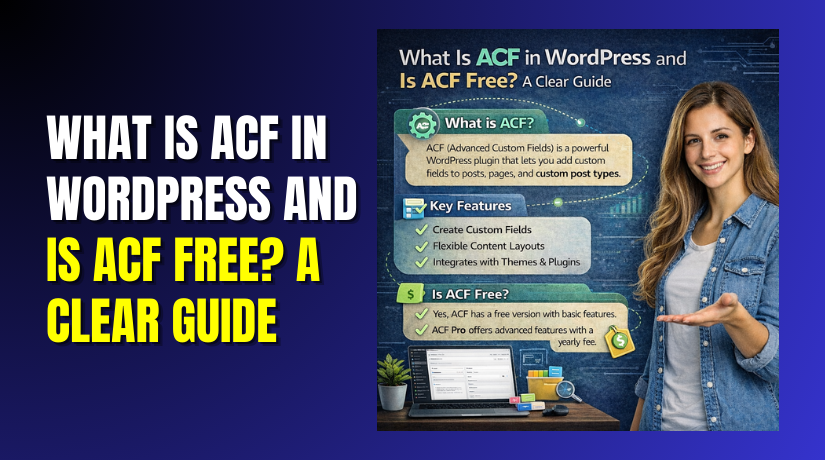
What Is ACF in WordPress and Is ACF Free? A Clear Guide
Table of Contents
- Introduction
- What Is ACF in WordPress?
- What Does Advanced Custom Fields Do?
- How the ACF Plugin Works in WordPress
- Where ACF Data Shows on the Website
- Is ACF Free? What You Get With the Free Version
- Limits of Free Version When People Get Stuck
- Advanced Custom Fields Free vs Pro: Which Should You Choose?
- Choose ACF Pro When Your Site Needs Modular Content
- How to Use ACF in WordPress (Step-by-Step)
- ACF Custom Fields WordPress: Practical Examples (Including WooCommerce)
- Conclusion
Introduction
WordPress is great, but custom content can feel limiting. You may want extra details on pages and products. You may also want cleaner editing for your team. That is where custom fields become very useful. Many site owners ask, what is acf in wordpress today. They want a simple tool that saves time. They also want content that stays consistent everywhere. ACF helps you do that without messy workarounds. You can build fields for text, images, and choices. You can then show those values anywhere on your site. This guide keeps everything clear and beginner-friendly. You will also learn is acf free and when upgrades matter. You will later see advanced custom fields free vs pro in simple terms.
What Is ACF in WordPress?
ACF stands for Advanced Custom Fields in WordPress. It is a popular plugin for adding custom fields. Think of it as a form builder for WordPress data. You create fields, then attach them to content screens. Editors then fill those fields like a simple checklist. The acf plugin wordpress works well for pages and posts. It also works well for custom post types. It helps you avoid placing everything inside main content. That makes your layouts cleaner and easier to manage.
Here is a simple example many USA businesses use. A service page can have structured details like these:
- Service Area
- Phone Number
- Pricing Range
- Business Hours
- Short Feature List
Without ACF, people often paste these details manually. That leads to uneven formatting and missed updates. With acf custom fields wordpress, you store details in the right place. You can then display them in a consistent design. This also helps when you redesign your theme later. Your data stays safe and reusable across templates.
What Does Advanced Custom Fields Do?
Many beginners ask, what does advanced custom fields do exactly. It helps you create structured data fields inside WordPress. It also helps you control where those fields appear. You can show fields only on specific pages or posts. You can also show fields only for certain categories. This keeps the editor screen clean and focused.
ACF mainly improves three things on your site:
- Editing speed: Editors fill fields faster with clear labels.
- Content consistency: Layout stays uniform across many pages.
- Display control: Developers show fields exactly where needed.
ACF can support many real content needs. You can build fields for product specs and feature tables. You can also add fields for team profiles and testimonials. You can store links, images, and short text blocks. You can even build dropdowns for fixed choices. That helps reduce mistakes while editing content.
How the ACF Plugin Works in WordPress
The acf plugin wordpress works in a simple, structured way. You build fields in the admin panel first. Then WordPress saves those values with your content. After that, your theme displays those values on the front end. This flow makes editing clean and predictable. It also helps you avoid messy formatting in pages.
ACF has three core building blocks you should know. These are easy to understand and use:
- Field Groups
- Fields
- Location Rules
Field Groups: Your Field “Container”
A Field Group is like a folder for related fields. You name it based on the content purpose. For example, “Service Page Details” is a clear name. Inside that group, you add all related fields. This keeps your admin screen organized for editors. It also helps you manage changes later.
A good Field Group name should be specific and simple. It should match what users will edit. That helps teams avoid confusion during content updates.
Fields: The Inputs Editors Fill
Fields are the actual inputs shown in WordPress. Editors fill them like normal form fields. Each field has a label, name, and field type. The label is what users see while editing. The name is what developers use for display output.
Common field types you will use most often include:
- Text and Textarea for short or long content
- Image for featured visuals inside a section
- URL for links to external pages or resources
- Select for controlled choices like states or service types
- True/False for quick toggles like “Show badge”
These field types make acf custom fields wordpress very practical. They also reduce editing mistakes and missing details.
Location Rules: Where Fields Appear
Location Rules control where your Field Group shows up. This part is what makes ACF powerful for real sites. You can target pages, posts, or custom post types. You can also target page templates and categories.
Here are common Location Rules used on business websites:
- Show fields only on “Pages”
- Show fields only on “Products”
- Show fields only when category is “Services”
- Show fields only on a specific page template
This way, editors only see fields that matter. That keeps the dashboard clean and easy to use.
Where ACF Stores the Data
ACF saves most values as WordPress post meta. That means the data stays connected to that post or page. It does not get mixed into your main content editor. This makes future design changes much easier. You can change the layout without rewriting content. Your saved values still remain available for display.
Where ACF Data Shows on the Website
ACF data shows in two places, based on your setup. First, it shows in the admin editor screen. Second, it shows on the front end when displayed. Many beginners expect fields to show automatically. But ACF does not display values by itself in most cases. You need to “output” the field values in a layout.
Admin Editor: Where You Fill the Values
After your setup is done, your fields appear on the edit screen. They appear under the WordPress editor area in most cases. Editors can fill values quickly and move on. This is where ACF saves time for teams.
You can also add helpful field instructions for editors. For example, you can guide image size and word limits. This improves content quality across your site.
Front End Output: Where Visitors See the Values
To show values to visitors, you connect fields to your design. There are two common ways people do this. The best approach depends on how your site is built.
Most sites use one of these display methods:
- Theme templates that print field values in the right spots
- Block-based layouts that pull field values in a visual way
This is where how to use acf in WordPress becomes very practical. You create structured content, then show it cleanly. This also helps with SEO and user experience. Your pages look consistent and more professional.
What “Displaying Fields” Means in Simple Words
Displaying fields means showing saved values inside your page design. For example, you store “Business Hours” in a field. Then your theme shows those hours in a nice box. You store “Product Specs” in fields too. Then the product page shows a specs table automatically.
This is the main reason people ask what is acf in WordPress. They want structured content without hard coding every change. ACF supports that workflow in a clean way.
Is ACF Free? What You Get With the Free Version
Yes, is acf free is a fair and common question. ACF has a free version you can install anytime. Most users start with it and stay happy. It covers the core needs of custom fields in WordPress. It also works well for many business websites in the USA. If you only need simple structured data, free is enough.
The free plugin lets you create Field Groups easily. You can add many common field types quickly. You can also set Location Rules for pages and posts. This makes acf custom fields wordpress easy to manage. It also helps your content stay consistent across the site.
With the free acf plugin wordpress, you can usually do tasks like these:
- Add extra details to service pages and landing pages
- Add staff profile fields for team pages and bios
- Add feature lists for products and blog posts
- Add buttons and links with clean URL fields
- Add image fields for section graphics and badges
Many site owners ask, what is acf in wordpress for this reason. They want better structure without complexity. ACF free helps you build that structure fast. You can also guide editors with field instructions. That helps your team avoid missing important details.
Free ACF is also helpful for WooCommerce content layouts. You can create extra fields for product notes and details. You can then show those values where they make sense. This improves the buyer experience and keeps pages clean.
Limits of Free Version When People Get Stuck
Free ACF is strong, but it has limits. You may not notice limits at first. You feel them when your site grows and changes often. You also feel them when you need repeatable page sections. This is where people compare advanced custom fields free vs pro. They want more control for bigger content needs.
Here are common signs you may outgrow free ACF:
- You need repeatable rows for specs, steps, or features
- You want flexible sections for modern landing pages
- You need global site fields like footer and header data
- You build many templates and want faster editing flow
- Your team edits content weekly and needs strict structure
A big issue is repeating content blocks in a clean way. Many pages need sections like highlights, FAQs, and feature lists. In free ACF, you often create many separate fields manually. That works, but it becomes hard to manage later. It also increases mistakes during editing.
Another issue is page layout flexibility. Modern websites need modular sections that can move. You may want to add sections in any order. You may also want to reuse sections across many pages. That is hard to do with only simple fields.
This is why users start looking at Pro upgrades. They want more power without custom coding. They also want content teams to work faster. This is where acf pro features become valuable for many sites.
Advanced Custom Fields Free vs Pro: Which Should You Choose?
Choosing between versions depends on your real site needs. Many users start by asking, is acf free and stop there. Free ACF works well for many simple websites. It helps you add structured data without complex tools. But some sites grow fast and need more control. That is when people compare advanced custom fields free vs pro.
The best way to decide is to check your content style. Ask how you build pages and how often you update them. Also think about how many people edit your website. ACF works best when content stays structured and repeatable.
Choose ACF Free When Your Site Is Simple
Free is a strong choice when your content is stable. It also works well when you have fewer templates. You can still create many useful fields and groups. You can still keep your editor screens clean and fast.
ACF Free is usually enough for these site types:
- Small business websites with service pages and contact pages
- Blogs that need extra author details and post settings
- Basic WooCommerce stores with simple product info sections
- Portfolio sites with consistent layouts and limited pages
For example, a local service business can add fields like these:
- Service area and ZIP codes
- Booking link and phone number
- Short list of included services
- Trust badges and quick highlights
This is a great use of acf custom fields wordpress. It keeps content easy for editors. It also keeps the front end design consistent for visitors.
Choose ACF Pro When Your Site Needs Modular Content
Pro becomes helpful when your pages change often. It also helps when your pages need flexible sections. If you build landing pages for campaigns, you need this. If you run a content-heavy store, you also need this.
ACF Pro is a better choice for these site types:
- Ecommerce stores with detailed product pages and spec blocks
- Agencies building many layouts for many client pages
- Content websites with repeating sections and many templates
- Teams that update content weekly and need strict structure
If you often copy sections between pages, Pro helps a lot. It reduces manual work and editing mistakes. It also makes content updates faster for non-technical users.
A Simple Decision Checklist


Use these quick checks to decide in minutes:
- Do you need repeatable rows for lists or tables?
- Do you need flexible page sections in any order?
- Do you manage many pages with the same section style?
- Do you want faster editing for a team workflow?
- Do you want scalable content without redesign problems?
If most answers are “yes,” Pro is a better fit. If most answers are “no,” free is usually enough. This is the clearest way to handle advanced custom fields free vs pro.
ACF Pro Features Worth Paying For
Now let’s talk about value, not just upgrades. ACF pro features matter when content becomes complex. Pro helps you build structured layouts without heavy coding. It also helps you create repeatable content blocks for real websites.
Here are the most useful acf pro features for many WordPress sites:
- Repeatable rows for features, steps, specs, and checklists
- Flexible page sections that can move and reorder
- Global fields for site-wide content like headers and footers
- Better control for complex layouts across many templates
Why Repeatable Content Matters
Many pages need lists that grow over time. A product page may add more specs later. A service page may add more steps later. With Pro, you can add rows without creating new fields. That keeps the editor clean and future-proof.
Repeatable content is great for things like:
- Product specs tables
- Pricing plan feature lists
- Step-by-step process blocks
- FAQs and quick answer lists
- Comparison points for services
Why Flexible Sections Save Time
Modern pages are built with sections and blocks. You may want a hero section first today. Next month you may move it down. You may also add a new section for reviews. Pro supports that type of page building workflow.
This is useful when you:
- Run promotions and update landing pages often
- Build pages for different locations or services
- Manage a WooCommerce store with rich product content
- Want consistent design with easy content updates
Pro helps content teams work faster and safer. It also reduces the need for constant developer changes. That is why many businesses upgrade after growth.
How to Use ACF in WordPress (Step-by-Step)
Now you know what is acf in wordpress and why it matters. Next, let’s set it up in a clean, simple way. This section explains how to use acf in wordpress without confusion. Follow these steps in order and keep things organized.
Step 1: Install and Activate ACF
Go to your WordPress dashboard and open the Plugins page. Click “Add New” and search for Advanced Custom Fields. Install the plugin and then activate it. You will now see ACF in the admin menu. This is where you will create your custom fields.
Tip for smoother setup: keep your theme and plugins updated. A clean system reduces conflicts during field testing.
Step 2: Create a New Field Group
Open ACF and click “Field Groups.” Then click “Add New.” Give your Field Group a clear name that matches its purpose. Good names make editing easy for your team. Examples include “Service Page Details” or “Product Extra Info.”
A Field Group is the container for your fields. It also controls where those fields appear.
Step 3: Add Fields Inside the Group
Click “Add Field” and start building your first input. Add a clear Field Label that editors understand quickly. ACF will create a Field Name automatically from the label. You can keep it as default in most cases.
Choose the right field type for your content goal. Start with simple types first and expand later.
Common beginner-friendly field types include:
- Text for small data like phone numbers
- Textarea for short paragraphs and notes
- Image for section visuals and icons
- URL for buttons and external links
- Select for fixed choices like state or plan type
- True/False for toggles like “Show this section”
This is the core of acf custom fields wordpress. You create the data structure first. Then you use it across templates and layouts.
Step 4: Set Location Rules Carefully
Scroll to Location Rules under your fields. This controls where your Field Group shows in WordPress. Choose rules based on your real content workflow.
Here are common Location Rule examples:
- Post Type is equal to Page
- Post Type is equal to Product
- Page Template is equal to a custom template
- Post Category is equal to a specific category
This step keeps the editor clean and focused. It also reduces confusion for editors and clients.
Step 5: Publish the Field Group
Click the Publish button after setup is complete. Now open a page or product that matches your rule. You will see your fields in the editor screen. Add values and save your content.
At this stage, many users expect fields to appear on the front end. That usually does not happen automatically. You still need to display field values in your layout. That is how the acf plugin wordpress stays flexible.
Step 6: Display the Fields on the Front End
You have two common ways to show ACF field values. Your choice depends on your site setup and theme workflow.
Most site owners use one of these approaches:
- Theme template output for full layout control
- Block-based output for visual editing and easier page changes
If you use a custom theme, templates are often best. If you use a modern builder style, blocks feel easier. Either way, the goal is the same. You pull saved values and show them in a designed section.
Simple display planning tips:
- Decide where each field value should appear
- Keep labels consistent for future editing
- Avoid creating fields you will never display
- Test fields on one page before scaling site-wide
Once you understand this flow, ACF becomes easy. You can create structured content in minutes. You can also keep designs consistent across many pages.
ACF Custom Fields WordPress: Practical Examples (Including WooCommerce)
The best way to understand ACF is to see real use cases. Here are examples that fit business and ecommerce sites.
Example 1: Service Page Details for Local Businesses
A local business page needs quick details that build trust. With acf custom fields wordpress, you can add structured fields like:
- Service area and ZIP codes
- Response time and business hours
- Call button link and booking link
- Key features list for the service
This helps visitors find important details faster. It also helps editors update data without breaking design.
Example 2: WooCommerce Product Extra Info Fields
WooCommerce products often need more than a short description. You may want consistent specs across many products. You may also want care instructions and shipping notes. ACF helps you store these details as clean fields.
Useful product fields include:
- Materials and size details
- Care and cleaning instructions
- Warranty and returns notes
- What’s included in the package
When displayed well, this improves buyer confidence. It also helps reduce pre-sale questions and confusion.
Best Practices: Performance, Security, and Maintenance
ACF works best when your setup stays organized and lightweight. You do not need hundreds of fields for good results. You only need the fields you will actually use.
Follow these best practices for long-term success:
- Use clear Field Group names and simple field labels
- Add fields only when they have a real display purpose
- Keep Location Rules tight to avoid editor screen clutter
- Test changes on one page before applying everywhere
- Update plugins carefully and keep backups before major changes
If you follow these steps, ACF stays fast and reliable. Your content also stays easy to manage as you grow. This is the real value behind what does advanced custom fields do for WordPress users.
Conclusion
ACF is a smart way to add structured content in WordPress. It helps you build custom fields without messy page formatting. You can start small with the free version. You can upgrade later if your site needs advanced layouts. This guide explained what ACF does and how it works. It also showed how to use ACF in real site examples. With the right setup, your pages stay clean and consistent. Your editing also becomes faster and less confusing.
Need help setting up ACF the right way? Contact WooHelpDesk for expert WordPress support. We can plan your field structure, fix display issues, and optimize your site for better results.



