How to Install a Theme in WooCommerce Step by Step?
Table of Contents
- Introduction
- What is a Theme in WooCommerce?
- What are the Key Features of WooCommerce Themes?
- What are the Benefits of Installing Themes in WooCommerce?
- What are the Reasons to Install a Theme in WooCommerce?
- How to Install a Theme in WooCommerce Step by Step?
- What Are The Top 3 Best Plugins to Install a Theme in WooCommerce?
- Final Verdict
Introduction
A WooCommerce store needs a theme that supports shopping features. A theme controls how your store looks and feels to visitors. It also controls layout, fonts, colors, and product page design. Many beginners install plugins first and skip theme planning. That can create design issues and slow store setup later. A proper WooCommerce theme setup makes your store faster to build. It also makes your pages look consistent and easier to navigate.
When you install WooCommerce themes, you choose the foundation of your store. A good theme supports product grids, carts, and checkout design. It also supports mobile responsiveness and speed improvements. Some themes are built only for WooCommerce stores. Some themes are general WordPress themes with WooCommerce support. Either way, you must test the theme before going live. You should also use a child theme if you plan heavy edits later.
This WooCommerce theme tutorial will guide you in a clear way. You will learn how to add themes to WooCommerce correctly. You will also learn how to activate WooCommerce themes without breaking pages. You will learn setup tips that prevent layout issues and plugin conflicts.
What is a Theme in WooCommerce?
A theme in WooCommerce is the design layer for your store. It controls the layout of shop pages and product pages. It controls how your homepage and menus look. It also controls how buttons, forms, and typography appear. WooCommerce uses WordPress themes, not separate theme systems. This means your WooCommerce store theme is a WordPress theme. The theme must support WooCommerce templates for best results.
When you activate WooCommerce theme, WooCommerce uses theme files for layout. These files control product pages, shop grids, cart, and checkout styling. A good theme improves user trust and conversion rate. A weak theme can cause broken layouts and slow performance. This is why theme choice is critical for store success.
What WooCommerce theme changes in your store?
A theme impacts design and also affects user actions. It changes how customers browse and buy products.
- Shop page layout and product grid design.
- Product page layout, tabs, and image gallery design.
- Cart and checkout form styling and trust elements.
- Header, footer, menus, and search layout.
- Mobile design, speed, and navigation behavior.
These changes affect sales and user experience directly.
What are the Key Features of WooCommerce Themes?
A good WooCommerce theme is not only about design. It also supports store features that help customers buy faster. When you install WooCommerce themes, you should look for these key features. These features make WooCommerce theme setup smoother and more reliable.
- WooCommerce template compatibility
A theme should support WooCommerce templates out of the box. This prevents broken layouts on shop, cart, and checkout pages. It also keeps buttons and forms looking consistent.
- Supports Shop, Product, Cart, and Checkout templates properly.
- Shows product images and galleries without layout issues.
- Keeps add to cart buttons aligned across product grids.
- Displays related products and upsells in clean sections.
- Keeps cart and checkout pages readable on mobile screens.
2. Responsive design for all devices
Most store traffic comes from phones and tablets today. A responsive theme adjusts layouts automatically on small screens. This improves user experience and reduces checkout drop offs.
- Product grids adjust based on screen width automatically.
- Menus turn into mobile friendly navigation layouts.
- Checkout fields stay readable and easy to fill.
- Buttons stay clickable and not too small on phones.
- Images scale correctly without stretching or distortion.
3. Fast loading and clean code structure
Speed affects user experience and SEO and conversions. A lightweight theme loads faster and reduces script conflicts. A good theme avoids heavy animations and unused assets.
- Uses clean HTML and CSS for faster rendering.
- Avoids loading heavy scripts on every page by default.
- Supports optimized image sizes for product pages.
- Works well with caching plugins and performance tools.
- Improves Core Web Vitals when configured properly.
4. Built in shop layout controls
Store owners want control without custom coding. Many themes provide layout controls for product grids and product pages. These controls help you customize design quickly.
- Control product grid columns and spacing settings.
- Control product page layout and image gallery style.
- Control sidebar placement for shop filtering widgets.
- Control typography and colors for store branding.
- Control header style for better navigation and trust.
5. Support for WooCommerce blocks and widgets
WooCommerce uses blocks and widgets for many store features. Themes that support these tools improve design flexibility. This also helps create custom pages without builders.
- Supports product blocks and category blocks in editor.
- Supports mini cart and cart widgets in header areas.
- Supports product filters and layered navigation widgets.
- Supports featured products and best sellers blocks.
- Supports search blocks and category navigation blocks.
6. Checkout and cart focused design support
A theme should make checkout clean and trust focused. Cart and checkout pages should be simple and clear. This reduces abandonment and improves conversions.
- Provides clean checkout spacing and form field styling.
- Highlights totals and order summary clearly on checkout.
- Keeps error messages visible and easy to understand.
- Improves trust with consistent button and badge styles.
- Supports guest checkout layouts without confusing steps.
7. Translation and RTL language support
Many stores sell globally and need language support. A good theme supports translation files and RTL layouts. This helps multilingual stores scale properly.
- Supports translation ready setup using standard files.
- Supports RTL layout if you need Arabic or Urdu.
- Supports currency switchers and multilingual plugins well.
- Keeps layout stable when text length changes.
- Improves accessibility for different user groups.
What are the Benefits of Installing Themes in WooCommerce?
Benefits are the results you get after proper theme selection. A good theme reduces work and improves store performance. It also improves user trust and helps product pages look better. This is why WooCommerce theme tutorial steps matter.
- Faster store setup and cleaner design structure
A good theme gives you a ready store layout instantly. You do not need to design everything from scratch. This speeds up WooCommerce theme setup significantly.
- Pre-built shop pages reduce design time for beginners.
- Product layouts are ready and consistent across products.
- Header and footer layouts are already optimized for stores.
- Common store sections are easy to configure and publish.
- Store design looks professional from the first day.
- Better user experience on product browsing
Themes control how users browse products and categories. Better browsing means more product views and higher sales chances. Clean navigation also reduces confusion for visitors.
- Product grids are easier to scan and compare quickly.
- Category navigation helps users find products faster.
- Product page layout highlights images and key details.
- Mobile browsing feels smoother with responsive design.
- Search and menu layout improves product discovery.
- Improved checkout experience and conversions
Checkout design impacts whether people complete payments. A better theme reduces distractions and improves form clarity. This helps customers finish purchases with less friction.
- Checkout fields look clear and easy to fill quickly.
- Buttons are visible and consistent across checkout steps.
- Errors and notices are easy to see and fix fast.
- Order summary layout reduces confusion about totals.
- Mobile checkout becomes easier and more reliable.
- Better speed and SEO potential
Fast themes improve page speed and reduce bounce rate. Speed also helps SEO because search engines reward performance. This is important for competitive product keywords.
- Faster pages improve user experience and retention.
- Better speed improves crawl efficiency for search engines.
- Product pages load faster, improving shopper trust signals.
- Cleaner code reduces conflicts and improves stability.
- Better speed supports stronger ranking potential long term.
What are the Reasons to Install a Theme in WooCommerce?
Reasons explain why store owners choose to add themes to WooCommerce. These reasons help you align theme choice with store goals. A theme is not just design, it is a store foundation.
- You want a store design that builds trust
People judge stores fast based on design quality. A clean theme improves trust and makes buyers feel safe. This is important for checkout and payment confidence.
- Clean product pages look more reliable and professional.
- Better typography improves readability of product details.
- Clear buttons improve confidence during add to cart actions.
- Trust focused layouts reduce hesitation and doubt.
- Better layout improves store brand perception quickly.
- You want better control without custom coding
Many store owners do not want to hire developers early. A good theme gives controls for layout and design. This reduces reliance on custom code and builders.
- Built in customization options reduce technical workload.
- Layout controls help customize shop pages quickly.
- Color and font controls improve brand consistency.
- Header and footer controls improve navigation easily.
- Widget support helps add features without coding.
- You want WooCommerce pages to display correctly
Many themes break cart and checkout layouts. A WooCommerce ready theme solves that issue. This helps avoid sales loss due to broken checkout design.
- Cart and checkout pages remain stable after activation.
- Product grids and product pages work as expected.
- The theme supports WooCommerce templates and hooks properly.
- Updates are less likely to break store layouts.
- You reduce plugin conflicts caused by theme issues.
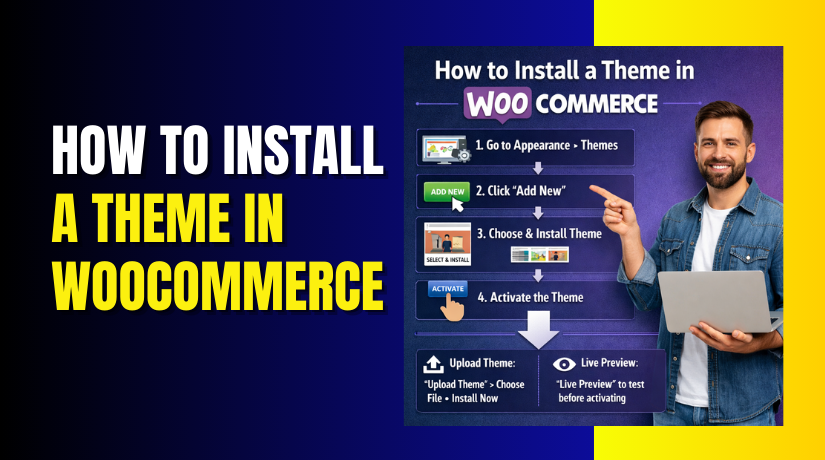
How to Install a Theme in WooCommerce Step by Step?
This section covers the full install workflow from start to finish. These steps apply to most themes from WordPress or premium providers. The button names can vary slightly by theme vendor. The overall WooCommerce theme setup process stays the same.
Step 1: Take a full backup before changing the theme
A theme change can affect layouts and shop templates quickly. A backup helps you restore the site if anything breaks.
WordPress Dashboard → Tools → Export
Hosting Panel → Backups → Create New Backup
- Create a full site backup including files and database.
- Download a copy or confirm your host saved it.
- Note your current theme name for quick rollback.
- Save important theme settings screenshots if needed.
- Confirm backup is completed before you continue.
Step 2: Check WooCommerce core pages and settings first
WooCommerce needs key pages to work with any theme. If these pages are missing, checkout can break after activation.
WordPress Dashboard → WooCommerce → Settings → Advanced → Page Setup
- The Confirm Shop page is assigned correctly in WooCommerce.
- Confirm Cart page and Checkout page are assigned.
- Confirm My Account page is assigned for user logins.
- Save settings if anything was missing or wrong.
- Open these pages once on the front end to verify.
Step 3: Choose a WooCommerce compatible theme for your store
A theme must support WooCommerce templates for clean layouts. Choose a theme that is updated and well reviewed.
WordPress Dashboard → Appearance → Themes → Add New
- Search for WooCommerce compatible themes in the library.
- Check ratings, active installs, and last updated date.
- Preview shop, product, cart, and checkout demo screens.
- Confirm the theme is mobile responsive and fast loading.
- Confirm it supports customization without heavy coding.
Step 4: Install the theme from WordPress directory
This is the easiest way to install WooCommerce themes for beginners. It installs directly from your WordPress dashboard.
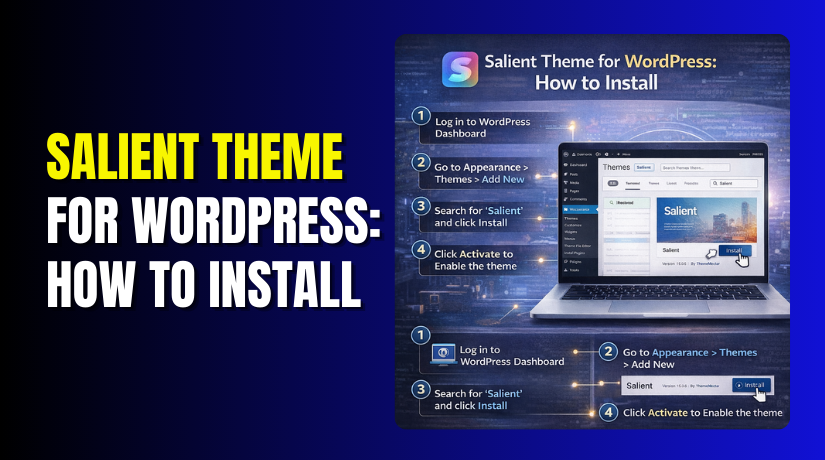
WordPress Dashboard → Appearance → Themes → Add New → Install
- Search the theme name and click the theme card.
- Click Install and wait until installation completes.
- Click Activate WooCommerce theme after install finishes.
- Open your site front end and check layout quickly.
- Clear cache if your site uses a caching plugin.
Step 5: Upload and install a premium theme zip file
Premium themes are uploaded as zip files from vendors. This method is used for ThemeForest and other marketplaces.


WordPress Dashboard → Appearance → Themes → Add New → Upload Theme
- Download the theme zip file from your theme provider.
- Click Upload Theme and select the theme zip file.
- Click Install Now and wait for completion.
- Click Activate once the theme installs successfully.
- Check the theme panel if it asks for a license key.
Step 6: Install required theme plugins and setup tools
Many themes ask you to install required plugins for features. Install only the plugins you truly need for your store.
WordPress Dashboard → Appearance → Install Plugins
WordPress Dashboard → Plugins → Installed Plugins
- Install required plugins listed by the theme setup screen.
- Avoid optional plugins unless you need their features.
- Activate plugins one by one and check site stability.
- Clear cache after plugin activation if caching is enabled.
- Confirm no errors show in admin or front end.
Step 7: Run basic WooCommerce theme setup settings
After activation, set the basic theme layout and WooCommerce options. This makes your store look consistent and ready for customers.
WordPress Dashboard → Appearance → Customize → WooCommerce Options
- Set logo, colors, fonts, and header layout settings.
- Set shop grid columns and product card design style.
- Set product page image gallery and tab layout options.
- Configure sidebar and filter widget placement if needed.
- Save changes and refresh the front end to confirm.
Step 8: Test shop, product, cart, and checkout pages
Testing prevents sales loss from broken layouts or missing buttons. This is the most important step after you add a theme to WooCommerce.
Front End → Shop Page → Product Page → Cart Page → Checkout Page
- Open the shop page and check product grid alignment.
- Open a product page and check add to cart button.
- Add a product to cart and check cart totals layout.
- Go to checkout and check form fields and payment area.
- Test mobile view to confirm checkout is easy to use.
Step 9: Fix common theme issues after activation
Some themes need small adjustments after activation. Most issues are caused by caching, plugins, or page builder templates.
WordPress Dashboard → Plugins → Installed Plugins
WordPress Dashboard → Appearance → Customize → Layout Settings
- Clear cache and regenerate CSS if your theme supports it.
Disable conflicting plugins one by one and recheck pages. - Check if a page builder overrides WooCommerce templates.
- Reassign WooCommerce pages if checkout looks incorrect.
- Update theme and plugins to latest stable versions.
Step 10: Publish the theme change safely on a live store
If your store is live, switch carefully to avoid user confusion. Make the switch during low traffic and test again after publishing.
WordPress Dashboard → Appearance → Themes → Activate New Theme
- Switch themes during low traffic hours for less risk.
- Enable maintenance mode if you need major layout fixes.
- Test checkout again with a test order after switching.
- Confirm emails, cart, and payment gateways still work.
- Monitor orders and customer reports for first few days.
What Are The Top 3 Best Plugins to Install a Theme in WooCommerce?
Most themes can be installed without any plugin. Still, these plugins help during WooCommerce theme setup and activation. They help with demo imports, backups, and safe testing. They also reduce risk when you install WooCommerce themes on live stores. Use only the plugins you truly need for your workflow.
1. One Click Demo Import
One Click Demo Import helps you import theme demo content quickly. Many WooCommerce themes provide demo files for pages and layouts. This plugin makes demo import simple for beginners. It is useful for new stores and fresh websites.
Key Features
- Fast demo page and layout import
It imports demo pages, menus, and widget layouts in a few clicks. This saves time because you do not build every section manually. It is very useful during early WooCommerce theme setup. - Works with many WooCommerce themes
It supports many themes that provide demo import files. If your theme vendor gives XML and widget files, this plugin can usually import them. This makes it a common choice for many theme marketplaces. - Helps recreate the theme demo design quickly
It helps you match the theme demo layout without manual building work. You can get a similar homepage and shop layout fast. This helps beginners understand how the theme is meant to look. - Supports customizer settings in many themes
Many themes include customizer export files for colors and typography. This plugin can import those settings in many setups. This keeps branding and layout settings closer to the demo design. - Saves time during fresh WooCommerce builds
It reduces setup time for new stores and staging websites. You can import demo structure and then replace demo text and images. This is faster than building a store layout from zero.
Pros
- Beginner friendly workflow
The interface is simple and easy for store owners. You do not need coding skills or advanced tools. Most users can finish the import without technical help. - Saves hours of manual page building
It imports ready pages like Home, About, and Contact quickly. It also creates menus and widget areas automatically. This removes a lot of repetitive setup work. - Helps you match demo layout for faster launch
Matching the demo layout makes the store look professional faster. It also helps you avoid design mistakes during early setup. This is useful when you want a fast store launch. - Great for staging and testing
It works very well on staging sites before going live. You can import the demo and test shop, cart, and checkout layouts. This helps reduce risk before you activate changes on live stores. - Useful for layout learning and theme understanding
Demo content shows how sections are placed and styled. This helps you learn theme features and settings quickly. It also helps you decide if the theme fits your store needs.
Cons
- Imports extra pages you may not need
Demo imports often add many pages, posts, and categories. These items can clutter your dashboard and menus. You may need cleanup work after import is completed. - Not recommended for live stores with existing content
On live stores, demo imports can overwrite menus and widgets. It can also create duplicate pages and confusing navigation. This can impact user experience and store trust quickly. - Some demos need extra plugins for perfect matching
Many theme demos depend on page builders and slider plugins. Without those plugins, demo pages may look broken or incomplete. You may need to install extra plugins to match the demo exactly. - Import may fail on weak hosting due to timeouts
Demo imports can be heavy and need more server resources. On low hosting plans, the import may stop midway. This can create partial demo content and missing layouts. - Cleanup is often required after demo import
After import, you usually need to remove unused pages and posts. You also need to replace demo images and text with real content. If you skip cleanup, the site can look unprofessional.
Download Link: One Click Demo Import
2. WP Reset
WP Reset helps you reset your site quickly during testing. It is useful when you test many themes and demos. It helps remove unwanted demo content in minutes. It is best used on staging or development sites.
Key Features
- Quick database reset to a clean state
WP Reset can reset your WordPress database in minutes. This removes posts, pages, comments, and settings created during tests. It is useful when you want a fresh start after theme testing. - Removes demo content after theme and demo testing
Demo imports usually add many pages, menus, and fake products. WP Reset helps remove that clutter fast after you finish testing. This keeps your staging site clean and easier to manage. - Snapshot tools for safer testing in some versions
Some versions support snapshots for easier restore during testing. Snapshots help you return to a previous state after experiments. This is helpful when you test several WooCommerce theme setup options. - Speeds up testing multiple theme setups
If you test many themes, manual cleanup wastes hours. WP Reset helps you reset and test again quickly. This makes WooCommerce theme tutorial practice faster and less frustrating. - Useful for developers and store owners during setup phase
It is useful for developers building client sites and demos. It is also useful for store owners who want trial runs. It supports faster experimentation without repeated WordPress reinstall work.
Pros
- Saves time after heavy demo imports
Demo imports can add too much unwanted content quickly. WP Reset removes that content without manual deletion. This saves hours of cleanup work in the dashboard. - Lets you start fresh without reinstalling WordPress
Reinstalling WordPress takes time and may break settings. WP Reset helps you reset site content without reinstall steps. This keeps your environment ready for the next theme test. - Great for theme testing and learning workflows
It is useful when you practice installing themes and setups. You can test layout changes, then reset and repeat. This helps you learn faster and stay organized during testing. - Keeps staging sites clean and manageable
Staging sites become messy after many experiments. WP Reset helps maintain a clean baseline for tests. A clean site makes troubleshooting and comparisons much easier. - Reduces problems after failed imports and broken demos
Sometimes demo imports fail halfway and create partial content. WP Reset removes that broken setup and helps you retry. This reduces time wasted fixing incomplete demo layouts.
Cons
- Can delete important content if used carelessly
Reset actions can remove valuable data quickly and permanently. If you reset the wrong site, you can lose work. This is why it should be used only when you understand the reset scope. - Not suitable for live stores without full backups
Live WooCommerce stores have orders, customers, and settings. Resetting a live site can cause major business loss. Use it only on staging or development sites unless you have full recovery plans. - You must understand what the reset removes
WP Reset may remove content and settings you expected to keep. Users must read the reset options carefully before running. A wrong selection can cause unexpected missing pages or settings. - Some advanced tools may require paid version
Some snapshot and extra reset tools may be limited in free version. If you need advanced restore control, you may need upgrades. This matters for agencies testing many setups daily. - Requires careful workflow to avoid mistakes
You must confirm you are in staging, not production. You should also take backups before major resets. Without this discipline, resets can cause avoidable data loss.
Download Link: WP Reset
3. UpdraftPlus Backup and Restore
UpdraftPlus is a popular backup plugin for WordPress sites. It helps you take full backups before theme changes. It also helps restore your site if theme activation breaks layouts. This plugin reduces risk during WooCommerce theme setup.
Key Features
- Full backups for files and database with simple steps
UpdraftPlus can back up your WordPress files and database together. This covers themes, plugins, uploads, and WooCommerce tables. It is useful before any major WooCommerce theme setup changes. - Easy restore process inside the WordPress dashboard
You can restore backups without using FTP or database tools. The restore wizard guides you through selecting what to restore. This helps when theme activation breaks layouts or pages. - Scheduled backups for long term store protection
You can set daily or weekly backup schedules based on store activity. This protects your store data even when you forget manual backups. It is helpful for WooCommerce stores with frequent orders. - Cloud storage support for safer backup storage
Many setups support cloud storage options for storing backups offsite. Offsite backups are safer than local backups during server issues. Cloud options vary based on plan and configuration. - Safe theme changes on live WooCommerce stores
It helps you install WooCommerce theme changes with less risk. If something breaks, you can restore quickly and return to normal. This is very useful for live stores with customers and orders.
Pros
- Strong safety tool before theme activation
It gives you confidence before you activate WooCommerce theme changes. If something goes wrong, you have a working restore point. This reduces risk during updates and redesign work. - Restores broken layouts and settings with fewer steps
If a theme update breaks shop or checkout pages, restore helps fast. You can roll back to a previous working version quickly. This helps avoid downtime and lost sales. - Protects critical WooCommerce store data
WooCommerce stores store orders, customers, and settings in the database. Backups protect this data from accidental loss and failures. This is important during theme testing and plugin changes. - Works for both staging and live environments
It is useful for staging tests and live store protection. You can test theme changes on staging and still have backups. You can also protect the production store with scheduled backups. - Reduces stress during updates and troubleshooting
With backups in place, testing becomes easier and safer. You can try changes and know you can revert if needed. This makes WooCommerce theme setup more controlled and reliable.
Cons
- Local backups can use server space quickly
WooCommerce stores often have many images and files. Local backups can fill storage and slow the site. Offsite storage is better, but it needs correct setup. - Restores can take time on large WooCommerce stores
Stores with many products and images take longer to restore. Large database restores also take time depending on hosting speed. During restore, the site may feel slow or limited. - Some cloud options may be easier in paid plans
Some advanced cloud features and automation may need upgrades. Free version still works, but setup can be more manual. This depends on your backup needs and store size. - Scheduled backups need correct configuration
If schedules are not set properly, backups may not run reliably. Hosting limits and cron issues can affect schedules. You should test scheduled backups after configuring them. - Beginners may need time to learn best settings
The plugin has many options and backup choices. New users may need time to understand retention and storage locations. Wrong settings can create large backups and storage problems.
Download Link: UpdraftPlus: WP Backup & Migration Plugin
Final Verdict
Installing a theme in WooCommerce is a foundation step for store success. A good theme improves shop layout, product browsing, and checkout trust. The safest method is to backup first and then install.
You can install WooCommerce themes from the theme directory or zip upload. After you activate WooCommerce theme, test shop, cart, and checkout pages. Then adjust typography, colors, menus, and product layouts for consistency.
If you are building a new store, demo import plugins can save time. One Click Demo Import helps you set up a demo layout fast. WP Reset helps when you want to test multiple themes quickly. UpdraftPlus helps keep your store safe during changes and updates.
Follow the steps in this WooCommerce theme tutorial carefully and slowly. This approach will make WooCommerce theme setup smooth and stable. It will also help you launch a clean store without layout problems.
Have questions before starting with WooCommerce & WordPress? Get support here at WooHelpDesk.