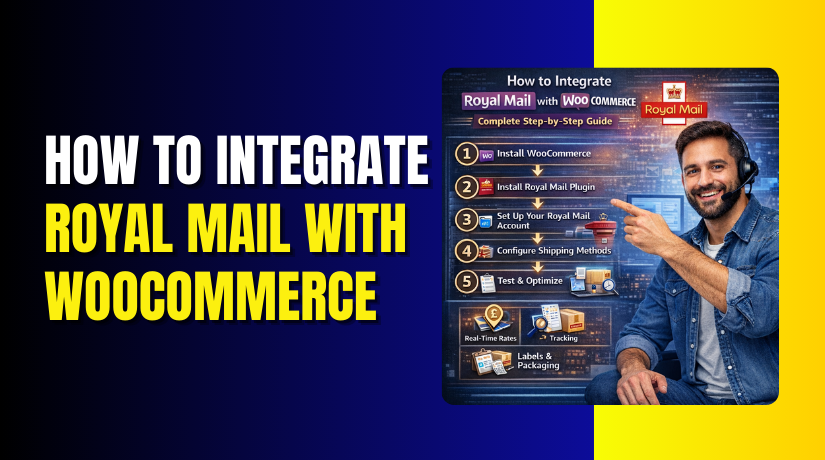
How to Integrate Royal Mail with WooCommerce: Complete Step-by-Step Guide
Table of Contents
- Introduction
- What Is Royal Mail in WooCommerce?
- Why You Should Use Royal Mail Shipping in WooCommerce
- Features of Royal Mail Integration for WooCommerce
- Prep Your Store Before Plugin Setup for Accurate Royal Mail Shipping
- How to Set Up Royal Mail Shipping in WooCommerce (Easiest Way)
- Testing Checklist Before Going Live With Royal Mail Shipping
- Common Problems and Fixes When Royal Mail Shipping Does Not Work
- Conclusion
Introduction
Shipping can feel slow when you do everything by hand. If you ship in the UK, Royal Mail is often the best fit. But WooCommerce does not handle Royal Mail settings by default. That is why Royal Mail WooCommerce integration becomes important for store owners. It helps you show better shipping options at checkout. It also helps you manage orders faster every day. With Royal Mail WooCommerce shipping, you can reduce manual work quickly. You can also avoid small shipping mistakes that cost money. This guide is for UK store owners using WooCommerce daily.
It is also useful for brands shipping worldwide from the UK. You will learn a clean and simple WooCommerce Royal Mail setup. You will set up shipping zones and connect Royal Mail options properly. You will also understand what is needed before plugin setup. By the end, you will know how integration works clearly. You will also know the right method for your store type.
What Is Royal Mail in WooCommerce?
Royal Mail in WooCommerce means adding Royal Mail as a shipping method. It is usually done using a WooCommerce Royal Mail plugin. This plugin connects your store shipping settings with Royal Mail services. It can show Royal Mail options during checkout for customers. It can also help calculate charges using product details. This is the core idea of Royal Mail shipping WooCommerce setups.
When customers enter their address, WooCommerce checks shipping zones. Then the plugin shows Royal Mail services allowed for that zone. Some setups also use Royal Mail API WooCommerce features. That helps fetch service data and rate logic in real time. But many stores use simple rules instead of live API rates. It still works well for most small and medium shops.
Why You Should Use Royal Mail Shipping in WooCommerce
Many UK store owners ship daily and need a fast workflow. Royal Mail is trusted and available across most UK locations. With Royal Mail WooCommerce integration, you can manage shipping without stress. You can reduce manual entry and avoid common order delays. This also improves customer trust during checkout and after dispatch. A proper WooCommerce Royal Mail setup helps your store look professional. It also keeps your shipping process consistent as orders grow.
Show Accurate Shipping Options at Checkout for Every Customer
Customers want to see clear and fair shipping choices quickly. Manual flat rates often feel wrong for different product sizes. With Royal Mail WooCommerce shipping, options can match real order needs. Customers can choose standard or tracked services with confidence. This reduces cart exits caused by confusing delivery costs. It also reduces refund requests linked to shipping misunderstandings.
Save Time With Automatic Shipping Rules and Less Manual Work
Manual shipping setup takes time and causes small pricing mistakes. With a WooCommerce Royal Mail plugin, many rules become easier. You can set options by region, weight, and cart value. You do not need to change settings for every new product. This makes daily order handling faster and less tiring. It also supports growth without creating more admin work.
Reduce Fulfillment Errors With Clean Shipping Zone Control
Shipping zones decide which options customers can use at checkout. When zones are clean, shipping becomes predictable and stable. With Royal Mail shipping WooCommerce settings, you can match zones properly. You can keep UK options separate from international shipping options. You can also prevent wrong methods from showing in the checkout. This avoids orders that require manual changes after purchase.
Improve Customer Trust With Better Tracking and Delivery Updates
Customers want updates once they pay for an online order. When they do not get updates, they contact support quickly. Many plugins support tracking features with the right settings. Some workflows also connect using Royal Mail API WooCommerce functions. This can help generate tracking links for customer visibility. Even basic tracking improves trust and reduces support tickets.
Support UK and International Parcel Handling With Smart Rules
Many WooCommerce stores ship both inside and outside the UK. Royal Mail supports UK delivery and several global shipping services. With Royal Mail WooCommerce integration, you can control international options. You can show services only for countries you actually ship to. You can also block areas that cause repeated delivery issues. This keeps your shipping policy clear and easy to follow.
Features of Royal Mail Integration for WooCommerce
A good integration adds control, speed, and fewer shipping problems. Most stores use a WooCommerce Royal Mail plugin for this. These plugins help manage checkout display and order workflow better. They also help you create shipping rules without complex coding. The features below are the most useful for daily store work.
Checkout Shipping Features That Improve Customer Experience
Checkout is where customers decide if they trust your store. If shipping looks unclear, customers often leave the cart. With Royal Mail WooCommerce shipping, you can show clear delivery choices. You can also control when options appear using smart rules. Key checkout features usually include the following.
- Add Royal Mail services inside WooCommerce shipping zones.
- Show methods by country, region, or postcode group rules.
- Control options using weight, cart total, and shipping classes.
- Rename methods into simple names customers understand quickly.
- Add handling fees or free shipping rules when needed.
Label and Dispatch Features That Speed Up Daily Fulfillment
When orders increase, printing labels becomes a daily challenge. Many plugins support label workflows or connect with dispatch tools. This reduces manual copy and paste work for addresses. It also helps standardize packing and shipping output. Common label and dispatch features include these.
- Generate labels directly from the WooCommerce order screen.
- Print labels in bulk for many orders at once.
- Format addresses properly to reduce delivery return issues.
- Reduce errors caused by manual address retyping.
Tracking and Customer Communication Features That Reduce Tickets
Shipping support tickets waste time for store owners every week. Customers mostly ask one thing, where is my order now. Tracking links reduce these questions and improve trust. Many plugins can add tracking details to orders automatically. Some setups also use Royal Mail API WooCommerce options. Useful tracking features usually include the following.
- Add tracking numbers to orders without extra manual work.
- Show tracking links in customer account order pages.
- Send tracking links in order emails after dispatch.
- Mark orders completed after shipping status changes.
International Shipping Features That Help When You Ship Worldwide
International shipping needs clear rules, clean product data, and good messaging. With Royal Mail shipping WooCommerce settings, you can control global options. You can keep international methods separate from domestic UK methods. You can also manage key details needed for cross-border shipping. International features often include these points.
- Support basic customs details like item value and descriptions.
- Set different services for different countries and zones.
- Control which destinations are allowed for international orders.
- Add clear delivery notes to reduce confusion and complaints.
Prep Your Store Before Plugin Setup for Accurate Royal Mail Shipping
First, confirm every product has the correct weight and size. Incorrect values break Royal Mail WooCommerce shipping rates and rules.
Add Correct Weight and Size for Every Product
- Go to Products → All Products.
- Open a product and click Shipping. Add Weight and Dimensions.
- Save the product. Repeat for your main selling products first. Missing weight is the most common shipping issue..
Confirm Your Store Shipping Address
- Go to WooCommerce → Settings → General.
- Check Store address and Selling location. Use the same address where you dispatch parcels. This helps shipping zones work correctly.
Create Your Shipping Zones
- Go to WooCommerce → Settings → Shipping → Shipping zones. Create these zones in this order.
- United Kingdom (UK only)
- Europe (your selected European countries)
- Rest of World (all other countries you ship to)
Add Shipping Classes If You Need Different Rates
- Go to WooCommerce → Settings → Shipping → Shipping classes. Create classes like these.
- Light Items
- Heavy Items
- Oversized Items
- Now open products and assign the class from the product Shipping tab.
How to Set Up Royal Mail Shipping in WooCommerce (Easiest Way)
A clean setup starts with correct store details and product data. Your Royal Mail WooCommerce integration will fail without basic shipping inputs. Follow these steps in order for a stable WooCommerce Royal Mail setup.
Step 1: Install a WooCommerce Royal Mail plugin
- Go to Plugins → Add New.
- Search and install your WooCommerce Royal Mail plugin. Activate it.
- Now open the plugin settings from WooCommerce → Settings → Shipping or the plugin menu.
Step 2: Enable Royal Mail Methods Inside Each Zone


- Go back to WooCommerce → Settings → Shipping → Shipping zones.
- Open the United Kingdom zone first.
- Click Add shipping method and select the Royal Mail method added by your plugin.
- Save changes. Do the same for Europe and the rest of the World if needed.
Step 3: Select Royal Mail Services You Want to Show
Open the Royal Mail method settings inside each zone. Choose services like Standard and Tracked only. Keep it simple for customers. Rename the labels like this.
- Royal Mail Standard (2–3 Days)
- Royal Mail Tracked (1–2 Days)
Step 4: Add Basic Rules to Avoid Wrong Shipping Options
In the same settings, set these rules if available.
- Minimum and maximum weight limits
- Handling fee (only if needed)
- Allowed countries for international shipping
- This keeps Royal Mail WooCommerce shipping accurate at checkout.
Step 5: Enable Tracking and Labels If Your Plugin Supports It
- In plugin settings, enable Tracking and Labels options.
- Choose label format like A4 or Label printer. Save changes.
- If it asks for Royal Mail API WooCommerce keys, add them carefully. If you do not have keys, skip API features for now.
Step 6: Do a Full Test Order Before Going Live
Add a product to cart and go to checkout. Test these things.
- UK address shows correct Royal Mail options
- International address shows correct options or hides them
- Shipping cost looks correct for product weight
- Order email shows the selected shipping method
This simple flow completes your WooCommerce Royal Mail setup. If you want, I can write Part 4 next with the testing checklist, common problems, and fixes.
Testing Checklist Before Going Live With Royal Mail Shipping
Testing makes sure customers see the right shipping options every time. A small mistake can hide methods or show wrong prices. Use this checklist before you enable live sales with Royal Mail WooCommerce integration. Start by testing products with different weights and sizes in the cart. Make sure each product has weight and dimensions saved correctly. Then test shipping using several UK addresses from different regions. Confirm the correct Royal Mail WooCommerce shipping methods appear for each zone. Test international addresses if you ship outside the UK.
Check that only allowed countries show Royal Mail methods during checkout. Place a test order and select each shipping option one by one. Confirm the shipping method name is clear and customer friendly. Confirm taxes and handling fees calculate correctly for each method. If you added free shipping, confirm it triggers only at the right amount. Test discount coupons to ensure shipping rules still work correctly.
Check the order admin screen and confirm shipping method details show correctly. If your WooCommerce Royal Mail plugin supports labels, test label output once. Confirm addresses print correctly and include postcode formatting properly. If tracking is enabled, confirm tracking appears in emails correctly. Also check the My Account order page for tracking visibility. A stable WooCommerce Royal Mail setup depends on these final checks.
Quick go-live testing checklist you should complete:
- Test rates for light, medium, and heavy cart weight ranges.
- Test UK addresses across different regions and postcodes.
- Test international checkout behavior for allowed destination countries.
- Test each enabled Royal Mail service appears and works.
- Place test orders and confirm method names display correctly.
- Test label printing format and address alignment if available.
- Test tracking links inside emails and customer account pages.
- Confirm handling fees, taxes, and free shipping rules behave correctly.
Common Problems and Fixes When Royal Mail Shipping Does Not Work
Even a good setup can fail due to small missing store details. Most issues come from zones, product data, or plugin conflicts. Fixing them becomes easier with a simple checking process. These fixes work for most Royal Mail shipping WooCommerce setups.
Royal Mail Shipping Methods Not Showing at Checkout
This usually happens when shipping zones are not configured correctly. It also happens when a method is not enabled inside a zone. Open WooCommerce settings and check your Shipping Zones list. Make sure the customer country matches a zone you created. Then open that zone and confirm Royal Mail method is added. Also check if the plugin requires settings enabled inside its panel. If caching is active, clear cache and test in a private browser. A clean Royal Mail WooCommerce integration should show methods instantly.
Rates Look Wrong Due to Missing Weight or Dimensions
Royal Mail rules depend heavily on product weights and sizes. If weights are missing, plugins often show incorrect prices. Edit each product and add weight and dimensions properly. Also check variation products, because they can have empty values. If you use shipping classes, confirm the class rules match your product type. Wrong class mapping can cause higher or lower rates. After fixing values, re-test checkout with the same cart again.
Shipping Zones Overlap or Are Misconfigured
Overlapping zones can cause methods to disappear suddenly. Keep UK in one zone and do not duplicate those countries. Place each country in only one zone to avoid confusion. If you use postcode rules, confirm formatting matches UK postcodes. Also confirm the zone order is correct in WooCommerce settings. WooCommerce uses zone matching logic based on rule priority. Once zones are clean, Royal Mail WooCommerce shipping becomes stable.
Plugin Conflicts With Cache, Theme, or Checkout Plugins
Some checkout plugins change shipping calculation behavior. Some caching plugins cache shipping fragments and show wrong data. Disable cache temporarily and test shipping options again. If it works, exclude cart and checkout pages from cache. Switch to a default theme for a quick conflict check. If shipping works on default theme, your theme needs adjustments. Keep plugins updated to reduce conflicts in future updates.
Label Printing Not Working or Output Looks Incorrect
Label issues often come from printer settings and page size choices. Check whether plugin is set to A4 or label printer format. Confirm your printer settings match that same format exactly. If addresses look cut off, reduce print scaling to actual size. Also confirm your order address fields are complete and correct. Missing state, postcode, or phone can break label layouts. If your plugin connects to a service, reconnect and test again.
Tracking Not Added to Emails or Customer Order Page
Tracking usually needs an extra setting inside the plugin panel. Confirm email tracking is enabled in plugin settings first. Then check WooCommerce email templates are not overridden wrongly. If your theme overrides emails, tracking may not appear. Try switching to default email templates for testing. Also confirm you saved tracking fields on the order properly. If using Royal Mail API WooCommerce tracking, verify keys and permissions. Then send a test email using a test order again.
International Shipping Not Available for Selected Countries
This happens when countries are not added to your shipping zones. It also happens when services are restricted by plugin rules. Open zones and confirm your destination country is included. Then check plugin service mapping for that zone carefully. Some services only support specific destinations or parcel types. Also confirm your product weight and size fits allowed limits. If your store blocks certain countries, update your allowed list.
Conclusion
A correct Royal Mail setup saves time and reduces shipping mistakes. It also gives customers clear choices during checkout every time. With the right WooCommerce Royal Mail plugin, your workflow becomes easier daily. Keep your product weights and dimensions updated for accurate results. Always re-test after plugin updates or Royal Mail price changes. If you want a done-for-you setup, WooHelpDesk can help.
WooHelpDesk can handle Royal Mail WooCommerce integration and full WooCommerce Royal Mail setup. We can also fix shipping zone issues, plugin conflicts, and tracking setup. Contact WooHelpDesk and get your Royal Mail shipping working smoothly.



