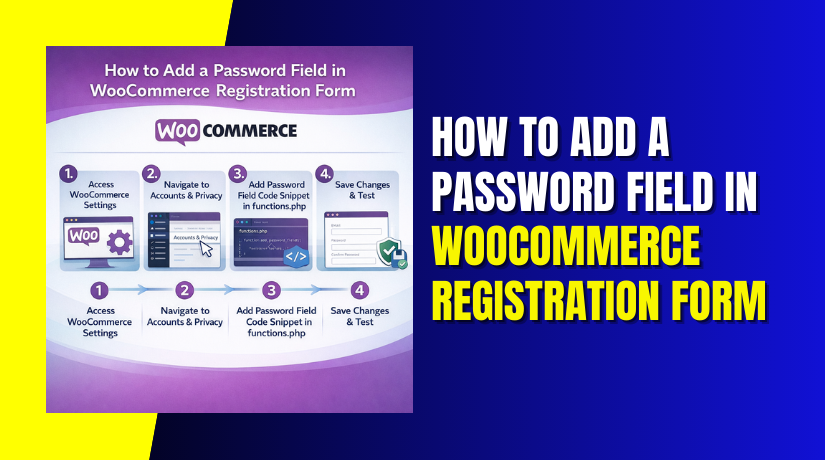
How to Add a Password Field in WooCommerce Registration Form (Step-by-Step Guide)
Table of Contents
- Introduction
- Why Adding a Password Field in WooCommerce Registration Matters?
- Requirements Before Adding a Password Field in WooCommerce
- How to Add a Password Field in the WooCommerce Registration Form
- Customizing the Password Field in WooCommerce Registration Form
- Adding Password Field in WooCommerce Registration: Common Issues & Fixes
- Conclusion
Introduction
WooCommerce is one of the most popular platforms for building online stores. One of the most important elements of any online store is the user registration process. By default, WooCommerce provides a simple registration form, but many store owners want to customize it to meet specific needs, such as adding a password field. Adding a password field to the WooCommerce registration form improves security and enhances the user experience.
When users register for your WooCommerce store, they should be able to create a secure password for their accounts. This ensures that their personal information is protected and provides them with a safe and memorable login process. Adding a password field to your WooCommerce registration form is not only important for security but also helps build trust with your customers. Users are more likely to complete their registration if they know their data will be safe.
Why Adding a Password Field in WooCommerce Registration Matters?
Here are the key reasons why adding a password field to your WooCommerce registration form is essential:
Improves Security
By requiring users to set a password, you protect their personal and financial information. A password ensures that only authorized users can access their accounts, reducing the risk of unauthorized access and potential data breaches.
Builds Trust with Customers
Customers are more likely to trust your website when they can secure their accounts with a password. Offering a password option lets users know that their privacy is important to you, which encourages them to register and make purchases with confidence.
Enhances User Experience
Adding a password field allows users to create and manage their own credentials. This leads to a more personalized experience, as customers can easily log in or reset their passwords without needing to rely on store admins for assistance.
Facilitates Password Recovery
A password field makes it easier for users to reset forgotten passwords, reducing frustration. This ensures a smooth experience, keeping users engaged and making them less likely to abandon their registration process.
Compliance with Best Practices
Strong password protection is a security best practice. By requiring passwords, you ensure that your website complies with security standards and regulations, providing customers with the best possible protection against online threats.
Customizable Password Validation
By adding a password field, you can implement password strength requirements (e.g., a combination of letters, numbers, and special characters). This improves the security of your user accounts and ensures that only strong, secure passwords are used.
Requirements Before Adding a Password Field in WooCommerce
Before diving into adding a password field to your WooCommerce registration form, there are a few prerequisites you need to ensure. These steps are essential to make the process smooth and prevent any issues down the line. Here’s a breakdown of the steps you need to follow:
Ensure WooCommerce is Installed and Activated
The first and most important prerequisite is that you have WooCommerce installed and activated on your WordPress website. Without WooCommerce, the registration form will not function, as it relies on WooCommerce to handle the user accounts, products, and orders. If you haven’t already, you can easily install WooCommerce from the WordPress plugin repository.
Access to WordPress Admin Dashboard
To modify your WooCommerce registration form, you must have access to the WordPress admin dashboard. Ensure you have administrator privileges, as only admins can make the necessary customizations to the registration form and other WooCommerce settings.
Backup Your Website
Customizing your WooCommerce registration form requires editing your theme files or adding custom code. Always take a backup of your website before making any changes. This ensures that if anything goes wrong, you can easily revert to the previous version of your site without losing important data.
Basic Knowledge of HTML, PHP, and WordPress Theme Files
Adding a password field involves making changes to the WooCommerce registration form. Some basic knowledge of HTML, PHP, and WordPress theme files will help you customize the form effectively. If you’re not familiar with coding, consider using a plugin for easier customization or consult with a developer.
Ensure Your Theme Supports Customization
Make sure your WordPress theme supports customizations, especially when adding or editing registration fields. Some themes may override WooCommerce’s default forms, so it’s important to check whether your theme allows modifications. If your theme uses a custom registration form, you may need to adjust your customizations accordingly.
Check for Plugin Conflicts
If you are using any WooCommerce customization plugins or other third-party plugins that interact with the registration form, ensure that there are no conflicts. Deactivate plugins one by one and test the form to make sure the custom fields work as expected.
Familiarity with Code Editing Tools
If you’re planning to edit your WooCommerce registration form code directly, you’ll need a code editor or access to a child theme. WordPress provides options to add custom functions and snippets to the functions.php file. However, using a child theme ensures that your changes are not overwritten when the theme is updated.


By completing these prerequisites, you’ll ensure that your WooCommerce store is ready for the password field addition. Once you’ve confirmed these steps, you’re good to go and can proceed with customizing your WooCommerce registration form.
How to Add a Password Field in the WooCommerce Registration Form
If you’re looking to add a password field to your WooCommerce registration form. Here’s a straightforward guide:
Step 1: Install a WooCommerce Custom Registration Fields Plugin
The easiest way to add a password field is by using a WooCommerce custom registration fields plugin. Here’s how to do it:
- Go to Your WordPress Dashboard: Log in to your WordPress site.
- Navigate to Plugins > Add New: Search for a plugin like “WooCommerce Custom Fields” or “User Registration for WooCommerce.”
- Install and Activate: Choose a plugin that allows you to add custom fields to the WooCommerce registration form and activate it.
Step 2: Configure the Password Field Using the Plugin
Once the plugin is installed, follow these steps to add the password field:
- Go to Plugin Settings: After activation, go to the plugin settings from the WordPress dashboard.
- Locate Registration Form Customization: Most of these plugins will have a section for customizing your WooCommerce registration form.
- Add Password Field: In the settings, find an option to add custom fields and select “Password” as the field type.
- Save Changes: Once you’ve added the password field, save your changes.
Step 3: Customize the Password Field (Optional)
Many plugins offer customization options for the password field. You can:
- Change the Field Label: Customize the label from “Password” to something more fitting, like “Create Password.”
- Set Password Requirements: Some plugins allow you to set rules, like requiring a minimum password length or a mix of letters, numbers, and symbols for added security.
Step 4: Test the Registration Form
After adding the password field:
- Go to your website’s registration page.
- Check if the password field has been added to the form.
- Try registering a new account to see if the password works as expected.
- Make sure the form validates the password and saves it securely.
This method allows you to add a password field to your WooCommerce registration form easily, without needing any coding. By using a plugin, you can ensure your registration form is customized and secure, all while keeping the process simple and user-friendly.
Customizing the Password Field in WooCommerce Registration Form
Once the password field is added, you can customize it to match your store’s branding and security requirements. Here’s how you can make the password field work for your store:
Label and Placeholder Customization
You can change the label of the password field from “Password” to something more user-friendly, like “Create a Password” or “Set Your Password.” This can be done through your plugin’s settings or, if coding, by modifying the label in the registration form.
Adding Password Strength Meter
To improve security, consider adding a password strength meter. This visual indicator helps users choose a stronger password. Many plugins, like “User Registration for WooCommerce,” have built-in password strength meters, or you can use additional security plugins like “WP Password Strength” to enable this feature.
Custom CSS Styling
To make the password field blend seamlessly with your site’s design, you can style it with CSS. If you are using a plugin, many allow you to customize the appearance directly within the plugin settings. For example, you can adjust the font size, background color, or field borders to match your theme’s style.
Password Visibility Toggle
Adding a “show password” toggle (eye icon) helps users see what they’ve typed. This is especially helpful for mobile users who might have trouble entering their passwords correctly. Some plugins automatically include this feature, or you can add it via custom JavaScript.
Adding Password Field in WooCommerce Registration: Common Issues & Fixes
Even though adding a password field is relatively straightforward, you might run into some common issues. Here’s how to troubleshoot:
- Password Not Saving
- Issue: Users report that their passwords aren’t being saved after registration.
- Fix: Ensure that your registration form is using the correct hooks to save the password. If you’re using a plugin, make sure it’s up-to-date and properly configured.
- Password Validation Errors
- Issue: Users are receiving errors about password requirements not being met.
- Fix: Check the validation settings in your plugin or custom code. Make sure you’re not setting overly strict password rules that prevent users from creating passwords they can remember. Ensure the validation matches your site’s security standards.
- Plugin Conflicts
- Issue: After adding the password field, other parts of the form stop working.
- Fix: Deactivate all other plugins and test the registration form. If the issue resolves, reactivate the plugins one by one to find the conflicting plugin. You can also try switching to a default theme temporarily to see if the issue is theme-related.
- Design Issues
- Issue: The password field doesn’t align correctly with other form fields.
- Fix: If you’re using custom CSS, check the styles for consistency. Sometimes, adding padding or margins can fix alignment problems. Ensure that your theme and plugins don’t override the styles.
- Password Field Not Appearing
- Issue: The password field doesn’t show up on the registration form.
- Fix: Ensure the plugin or custom code was properly added. Clear your browser cache and check again. If using a child theme, make sure the changes are reflected in the theme files.
Conclusion
Adding a password field to your WooCommerce registration form is a simple yet crucial step in enhancing your site’s security and improving the user experience. It helps protect customer data, builds trust, and ensures that only authorized users can access their accounts. By customizing the field, adding validation, and addressing common issues, you can ensure that your registration form is both functional and user-friendly.
If you’re looking for more advanced customization or run into difficulties, consider reaching out for professional WooCommerce support. With the right tools and techniques, you can make your WooCommerce store more secure and tailored to your customers’ needs.
For any further WooCommerce customization or support, feel free to explore our resources at WooHelpDesk or contact us directly for assistance.



