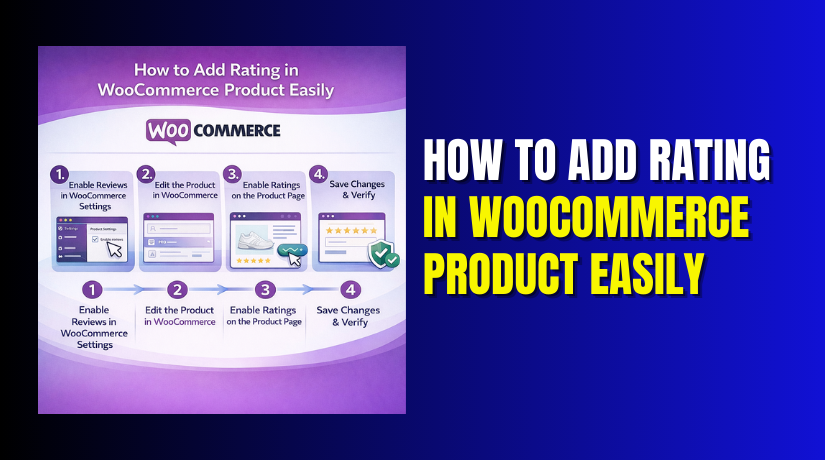
How to Add Rating in WooCommerce Product Easily (Step-by-Step Guide)
Table of Contents
- Introduction
- Understanding WooCommerce Product Ratings and Reviews
- Why Adding Product Ratings in WooCommerce Is Important for SEO
- How to Add Rating in WooCommerce Product (Step By Step)
- Troubleshooting Common Rating Issues in WooCommerce and How to Fix Them
- Conclusion
Introduction
Product ratings in WooCommerce play a significant role in building trust with your customers. When shoppers visit your online store, seeing product reviews and ratings can greatly influence their buying decisions. Good ratings provide social proof and show that others have had positive experiences with the product. This increases the likelihood of customers making a purchase. Product ratings can also improve your store’s overall credibility. In this blog post, we will walk you through how to add product rating in WooCommerce and understand the importance of WooCommerce product reviews and ratings in building a successful online store.
Understanding WooCommerce Product Ratings and Reviews
WooCommerce product rating is a built-in feature that allows customers to rate products they have purchased. These ratings are displayed as WooCommerce star ratings on the product pages, giving potential buyers a quick overview of how well a product is rated. Reviews accompany the ratings and provide more detailed feedback from previous buyers. They help customers make informed decisions based on real experiences.
By default, WooCommerce enables product ratings and reviews. However, you may need to activate or configure them depending on your store’s needs. Enabling WooCommerce product reviews helps customers share their opinions and ratings, which can encourage more sales.
Ratings are typically based on a 5-star scale, with each star representing a different level of satisfaction. Shoppers can also leave written feedback, adding context to the rating. This combination of visual ratings and detailed reviews enhances your store’s transparency, making it more appealing to customers.
Why Adding Product Ratings in WooCommerce Is Important for SEO
Improved Search Engine Visibility
WooCommerce product ratings can significantly boost your store’s visibility in search engine results. Search engines like Google value user-generated content, such as product reviews and ratings, because they reflect the quality and relevance of a product. Having WooCommerce star ratings displayed in search results makes your product listings more appealing, leading to higher click-through rates.
Rich Snippets for Better Search Results
Product ratings, when integrated with structured data, can appear as rich snippets in search results. These snippets display additional information like the product’s average rating and the number of reviews. This helps products stand out and gives potential buyers a quick overview of their quality. WooCommerce product reviews with rich snippets not only enhance your product’s visibility but also improve its chances of being clicked.
Fresh, Relevant Content
Each new review and rating adds fresh, unique content to your product pages. This increased content improves the chances of your products ranking for additional long-tail keywords. The more reviews you accumulate, the more relevant keywords you create, which can positively impact your SEO and lead to better search rankings over time.
Higher Engagement Signals
WooCommerce product rating features encourage customer engagement. The more ratings and reviews you receive, the more active your site appears to search engines. Sites with higher engagement levels are typically rewarded with better rankings. User-generated content, such as reviews, is seen as a sign of trust and relevancy, which search engines favor.
Better Keyword Opportunities
As customers leave reviews, they naturally incorporate keywords related to the product. These reviews help your product pages rank for a wider range of keywords, especially long-tail keywords. Since reviews are often more specific than your original product description, they help you target a broader audience and increase your chances of ranking for various search queries.
SEO Benefits of Structured Data
Implementing structured data for WooCommerce product rating allows search engines to easily crawl and index your ratings and reviews. This structured data helps products appear directly in search results with rich snippets, giving potential buyers a clear idea of what they can expect. This added visibility improves the likelihood of customers visiting your product pages, boosting organic traffic.
How to Add Rating in WooCommerce Product (Step By Step)
Adding product ratings to your WooCommerce store is simple and can greatly enhance your customers’ shopping experience. Here’s a step-by-step guide to help you add product ratings in WooCommerce and ensure that your product pages display WooCommerce product ratings and WooCommerce star ratings.
Step 1: Enable Product Ratings in WooCommerce Settings
First, you need to ensure that product ratings are enabled in your WooCommerce settings. Here’s how:
- Log into your WordPress dashboard.
- Navigate to WooCommerce > Settings.
- Click on the Products tab, then select General.
- Find the Enable product reviews checkbox and ensure it’s checked.
- You will also see options to enable Star ratings and allow only verified owners to leave reviews. Customize these settings based on your preferences.
- Save changes.
By enabling this, you will allow customers to rate products using WooCommerce star ratings and leave written reviews.
Step 2: Customize Rating Options
You can customize how ratings work for your products. For example, you can enable a verified owner option. This ensures that only customers who have purchased the product can leave a rating. This setting helps reduce fake reviews and gives more weight to ratings from actual buyers.
To customize, go to:
- WooCommerce > Settings > Products > General.
- Enable or disable the Verified Owner option under the Product Ratings section.
Step 3: Review Product Rating Settings for Each Product


Now, let’s ensure that product ratings are enabled for individual products. For each product, you can adjust the settings to allow ratings:
- Go to Products in your WordPress dashboard.
- Edit a product or create a new one.
- Under the Product Data section, ensure the Enable Product Ratings option is checked.
- Save the product.
This step ensures that the WooCommerce product review system is enabled for every product.
Step 4: Add or Manage Ratings Manually (Optional)
As a store owner, you may want to manually add ratings to your products or moderate reviews. While WooCommerce automatically handles product reviews, you can also add them manually in some cases. To do this:
- Navigate to Products > All Products.
- Click Quick Edit for the product you want to manage.
- Scroll down to the Product Ratings section and manually set the rating using the star rating system.
Alternatively, you can use plugins like WooCommerce Product Reviews Pro to extend rating capabilities, allowing for more features like rating filters and advanced rating options.
Troubleshooting Common Rating Issues in WooCommerce and How to Fix Them
While adding ratings to your WooCommerce store is straightforward, you might encounter some common issues along the way. Below, we address these problems and provide solutions to ensure that WooCommerce product ratings and WooCommerce star ratings work smoothly on your site.
Product Ratings Not Displaying on the Frontend
If WooCommerce product reviews are enabled, but the ratings aren’t showing up on the product page, it could be due to a few reasons:
- Theme Conflict: Some WordPress themes may not be fully compatible with WooCommerce reviews. To check, switch to a default WordPress theme like Storefront and see if the issue persists.
- Caching Issues: Clear your site’s cache and browser cache. Cached pages may not reflect recent updates or reviews.
Solution: Ensure your theme supports WooCommerce product reviews, or contact the theme developer for assistance. Also, clear any cache to reflect the latest changes.
Ratings Not Being Saved or Displayed Properly
Sometimes, product ratings may not be saved or displayed on the product page as expected. This could be due to:
- Database Issues: Ratings are stored in the database. If there is a database connection issue, the ratings may not be saved correctly.
- Plugin Conflict: Some plugins, especially cache or optimization plugins, might interfere with WooCommerce product ratings.
Solution: Check for any plugin conflicts by disabling plugins one at a time to identify the culprit. Ensure your database is optimized and functioning properly.
Fake or Spam Reviews and Ratings
In some cases, you might encounter spam or fake reviews. This can undermine the trust of your customers and affect the credibility of your ratings.
Solution: Use WooCommerce product review moderation to approve or reject reviews before they are published. Additionally, plugins like WooCommerce Anti-Spam can help prevent fake reviews. You can also enable the Verified Owner setting, so only customers who have actually purchased the product can leave reviews.
Ratings Conflict with Other Plugins
Sometimes, other plugins like SEO plugins, custom product page builders, or review plugins can conflict with WooCommerce’s default rating system, causing issues like missing star ratings or incorrect display.
Solution: Troubleshoot by deactivating other plugins and checking the ratings after each deactivation. This will help identify if there’s a conflict with any other plugin. Once identified, consider switching to a compatible plugin or reach out to the plugin developer for assistance.
Conclusion
In this guide, we’ve covered how to add product rating in WooCommerce, the importance of product ratings for SEO, and how to troubleshoot common rating issues. Product ratings are crucial for building customer trust and improving your store’s visibility in search engines. By following the steps and troubleshooting tips outlined, you can ensure your WooCommerce product ratings work effectively and boost sales.
Need help setting up or troubleshooting your WooCommerce star ratings? Contact WooHelpDesk for expert assistance with WooCommerce issues, customization, and support.



