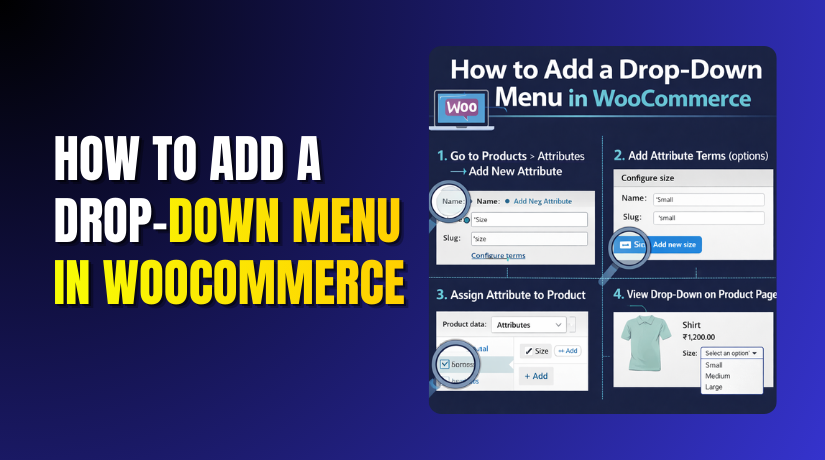
How to Add a Drop-Down Menu in WooCommerce Step by Step?
Table of Contents
- Introduction
- What is a Drop Down Menu?
- What are the Key Features of Drop Down Menu in WooCommerce?
- What are the Benefits of Adding a Drop Down Menu in WooCommerce?
- What are the Reasons to Add a Drop Down Menu in WooCommerce?
- How To Add a Drop Down Menu in WooCommerce Step by Step?
- What are the Top 3 Best Plugins to Add a Drop Down Menu in WooCommerce?
- Final Verdict
Introduction
Adding a drop-down menu to your WooCommerce store is an essential step in improving user experience and site navigation. Whether you want to organize product categories, provide different product variations, or give your customers easy access to other parts of your store, a well-designed drop-down menu can significantly enhance the usability and appearance of your online store.
A drop-down menu helps you organize and display multiple options under a single menu heading, reducing clutter and improving the aesthetic appeal of your store. This feature makes it much easier for customers to find what they are looking for, which ultimately leads to higher engagement and better conversions. When used properly, a drop-down menu can help customers navigate through your site with ease and complete their purchases faster.
In this guide, we’ll walk you through the process of adding a drop-down menu in WooCommerce, including the key features of a drop-down menu, the benefits it offers, and why it’s essential for your store. We’ll also explore the step-by-step process of adding and customizing a WooCommerce drop-down menu, ensuring you can fully take advantage of this functionality.
What is a Drop Down Menu?
A drop-down menu is a UI element that allows you to display a list of items or options under a single clickable menu. When users hover over or click on a menu heading, a list of options “drops down,” giving them easy access to a variety of choices.
In WooCommerce, drop-down menus can be used to display:
- Product categories: Organize your products under relevant categories such as clothing, electronics, accessories, etc.
- Product variations: Display product options such as size, color, or style for customers to select.
- Filter options: Allow customers to filter products by different criteria, such as price range, rating, or brand.
The primary goal of a drop-down menu in WooCommerce is to simplify navigation and provide customers with easy access to various product categories and options, streamlining their shopping experience.
Drop-down menus help avoid clutter in the navigation bar by grouping similar options together, making your website appear cleaner and more organized. This feature can significantly enhance the user experience by reducing confusion and enabling users to find products or categories faster.
What are the Key Features of Drop Down Menu in WooCommerce?
To create an effective and user-friendly drop-down menu, WooCommerce offers several key features that ensure ease of use and functionality. Below are some of the most essential features that you can implement when adding a drop-down menu to your store:
- Customization Options: WooCommerce allows you to easily customize the drop-down menu. You can adjust things like the menu structure, item placement, and style to match your store’s branding.
- Multiple Product Variations: Drop-down menus are perfect for showing product variations. Whether it’s for size, color, or style, you can let customers easily select what they want without leaving the product page.
- Category Organization: You can group related products under categories within the drop-down. For example, you could have a Clothing drop-down with subcategories like Men’s Clothing, Women’s Clothing, and Kids’ Clothing, allowing users to quickly access what they’re looking for.
- Mobile Responsiveness: Many drop-down menus in WooCommerce are mobile-friendly, automatically adjusting for touch devices. This ensures your customers can browse and select products with ease, whether they are on desktop or mobile.
- Hover and Click Actions: Drop-down menus can be triggered by either hovering over or clicking on a menu item, depending on your preferred layout and style. This flexibility makes it easy to create an interactive and intuitive navigation experience for your customers.
- Visual Elements: You can also include icons, text, and even images within the drop-down menu to make it more engaging and informative. These visual elements improve user experience and add clarity to the menu items.
What are the Benefits of Adding a Drop Down Menu in WooCommerce?
Adding a drop-down menu in your WooCommerce store offers several significant benefits that can enhance the user experience, streamline product discovery, and boost sales. Let’s explore the key advantages of using drop-down menus in your online store:
1. Enhanced Navigation
- Easy Access to Products: Drop-down menus provide quick access to different product categories or product options, reducing the number of clicks needed to find what customers are looking for.
- Organized Structure: By categorizing your products or services, you can make it easier for users to find what they need without feeling overwhelmed by a cluttered page.
- Improved Usability: Customers can browse through a clean and organized menu, which ultimately leads to a better shopping experience.
2. Saves Space
- Minimized Clutter: A drop-down menu allows you to show multiple product categories or variations under a single clickable menu.
- Cleaner Design: Instead of listing all options on the homepage or category page, a drop-down consolidates them into a single area.
3. Better User Experience
- Faster Product Discovery: With a drop-down menu, customers can quickly find products, categories, or options they are looking for. This reduces friction in the shopping process and enhances overall customer satisfaction.
- Easy Filtering: A drop-down allows customers to filter products easily, helping them narrow down their choices without feeling overwhelmed. This leads to better engagement and higher chances of conversion.
- Mobile-Friendly: Drop-down menus work well on mobile devices, where space is limited. Customers can tap the menu to access product categories or variations with just a few clicks.
4. Increased Sales and Conversion
- Highlight Popular Products: You can use drop-down menus to showcase bestsellers or promotions.
- Cross-Sell and Upsell: Add related products or variations in the drop-down to suggest additional items that customers might be interested in.
- Encourage Product Exploration: Well-placed drop-down menus can guide users to explore other categories and increase product visibility.
5. Customization and Branding
- Tailored Menu Design: WooCommerce offers the flexibility to customize the look and feel of the drop-down menu. You can match the menu style to your store’s branding by adjusting colors, fonts, and even adding icons to improve the visual experience.
- Match Your Store’s Aesthetic: Customization options ensure that the drop-down menu seamlessly fits into your store’s theme, ensuring consistency and a professional look.
6. SEO Benefits
- Improve Site Structure: Search engines like Google favor a well-structured website with clear navigation. By organizing your products into categories and using drop-down menus to display them.
- Better User Engagement: Search engines also consider user engagement when ranking pages. A well-organized site that helps visitors find products quickly leads to longer visits and lower bounce rates.
What are the Reasons to Add a Drop Down Menu in WooCommerce?
There are several compelling reasons why adding a drop-down menu in WooCommerce is essential for your online store. This feature not only improves site navigation, but also enhances customer experience, conversion rates, and overall store functionality. Let’s explore the main reasons why you should consider adding a drop-down menu to your WooCommerce store:
1. Simplifies Product Organization
- Group Similar Products: Drop-down menus help you group related products under specific categories. Making it easier for customers to browse items within a particular category.
- More Organized Store: Drop-down menus enable you to organize products into logical sections. It saves customers overwhelming with an endless list of products on the homepage.
- Facilitates Quick Product Discovery: Makes it easier for customers to find products that meet their needs, improving the shopping experience.
2. Increases User Engagement
- Better User Navigation: A well-designed drop-down menu allows users to navigate your website quickly and efficiently.
- Quick Access to Popular Categories: Drop-downs can highlight popular categories or best-selling items, guiding users directly to the most relevant products.
- Improves Browsing Experience: Users are more likely to stay on your site if they can easily browse product options via drop-down menus.
3. Boosts Conversion Rates
- Quicker Decision Making: Drop-down menus help customers make decisions faster by offering a clear and concise way to filter products.
- Cross-Sell and Upsell Opportunities: Drop-down menus give you an opportunity to upsell items by displaying them as options under each product category.
- More Efficient Checkout: Drop-down menus that organize product options,make it easier for customers to select what they need.
4. Enhances Mobile Experience
- Mobile-Friendly: Drop-down menus automatically adjust to mobile screens, ensuring that customers can easily navigate your store from smartphones or tablets.
- Optimized for Touchscreen: On mobile, users can tap to open drop-down menus, making the experience seamless. This helps mobile shoppers quickly browse through products.
- Compact and Easy-to-Navigate: With limited screen space, drop-down menus allow you to display more options without cluttering the screen. This makes the site mobile-responsive and user-friendly.
5. Improves Site Aesthetics
- Clean and Modern Design: A drop-down menu adds a polished look to your store, making it appear more professional. It eliminates unnecessary clutter, presenting only what the customer needs.
- Customizable Menu Styles: WooCommerce give you the flexibility to customize the drop-down menu’s design according to your brand’s theme.
- Consistency: By having a clean, organized menu structure, your store feels more cohesive and intuitive, giving a consistent look and feel to all pages and improving brand perception.
6. Improves SEO
- Better Site Structure: Having a well-structured menu with categorized products makes your site more search engine-friendly. Search engines favor websites that have clear navigation, which can lead to improved search rankings.
- Boost Product Visibility: By grouping products in relevant categories under a drop-down menu, you help search engines understand the content structure. This can lead to better visibility in search results.
- Keyword Optimization: Drop-down menus allow you to optimize the keywords used for product categories and filter options.
7. Flexibility and Customization
- Easily Adaptable: You can quickly add or remove categories, update links, and customize how the drop-down behaves.
- Support for Multiple Menu Items: Drop-downs allow you to organize multiple items without overwhelming the space. Whether it’s for product categories, services, or brands, drop-down menus can handle a large volume of items.
- User Control: You have full control over the design, placement, and organization of your drop-down menu.
8. Support for Better Customer Retention
- Quick Product Search: Customers are more likely to return to a store with easy-to-use navigation and quick product search. Drop-down menus help them find what they need quickly, improving their overall shopping experience.
- Easy Access to Related Products: By grouping related products together in the drop-down, you can increase the chances of repeat purchases. Providing quick access to items customers are likely to purchase enhances the shopping experience and boosts customer retention.
- Personalized Shopping: You can further enhance the experience by personalizing drop-down options based on customer preferences or past behavior.
How To Add a Drop Down Menu in WooCommerce Step by Step?
Adding a drop-down menu in WooCommerce allows you to better organize your products, categories, and options for customers, improving site navigation and user experience.
This step-by-step guide will show you exactly how to add and customize a drop-down menu in WooCommerce. Whether you’re adding product variations or organizing product categories, these steps will help you achieve your desired outcome.
Step 1: Access Your WordPress Dashboard
- Login to WordPress: First, log into your WordPress dashboard by navigating to your store’s admin page.
- Go to Menus: From the WordPress dashboard, navigate to Appearance → Menus. This is where you can manage and customize your site’s menus, including creating and editing drop-down menus.
- Create a New Menu: If you don’t already have a menu, click on Create a new menu, name it (e.g., “Main Menu”), and click Create Menu.
WordPress Dashboard → Appearance → Menus → Create New Menu.
Step 2: Add Menu Items
- Select Menu Items: On the left-hand side, you’ll see a list of pages, posts, custom links, and categories that you can add to your menu. For creating a drop-down menu, you’ll typically want to add product categories or pages (e.g., Home, About, Shop, etc.).
- Select Categories: To add product categories, click on Categories on the left, then select the categories you want to add to your menu.
- Add Products (Optional): If you want to create a product-specific drop-down, select Products and add them to the menu.
Menus Page → Add Items → Select Categories/Products → Add to Menu.
Step 3: Organize Your Menu and Create Submenus (Drop-Down)
- Create a Drop-Down: After adding the menu items, drag and drop the sub-items (categories or products) slightly to the right under the main menu item. This will create a drop-down effect. For example, under “Clothing”, you can add sub-categories like “Men’s Wear” and “Women’s Wear”.
- Nested Submenus: You can create multiple levels of submenus by dragging items further right, allowing for nested drop-downs.
Menus Page → Drag Items Right → Create Submenu.
Step 4: Configure Menu Settings
- Menu Location: Choose where you want your drop-down menu to appear. In most WooCommerce themes, you’ll find options like Primary Menu, Footer Menu, or Header Menu. Select Primary Menu or the desired location for the drop-down menu.
- Menu Settings: Check the Auto Add Pages option if you want WordPress to automatically add new pages to the menu when you create them.
- Save Menu: Once your menu structure is set up, click Save Menu.
Menus Page → Select Menu Location → Save Menu.
Step 5: Customize Your Drop-Down Menu Styling (Optional)
- Customize Appearance: Depending on your theme, you may have different options to customize the look and feel of your drop-down menu. You can change colors, font sizes, and hover effects to align with your store’s branding.
- Use Custom CSS (If Needed): If you want more advanced styling, you can use custom CSS to tweak the drop-down menu’s appearance. For example, you can change the background color or adjust the spacing of the items in the drop-down.
Appearance → Customize → Additional CSS → Enter Custom Code.
Step 6: Test the Drop-Down Menu
- Preview the Menu: Go to the front-end of your site and hover over or click on the menu items to ensure the drop-down functions as expected. Make sure all the submenus are appearing properly.
- Check Mobile Responsiveness: Ensure that the drop-down works well on mobile devices. If necessary, adjust the mobile version of the menu to make it touch-friendly.
Website Frontend → Hover/Click on Menu Items → Check Drop-Down Functionality.
Step 7: Monitor User Interaction (Optional)
- Track Engagement: Use Google Analytics or other tracking tools to see how customers interact with your drop-down menu. This can help you understand which products or categories are most clicked.
- Adjust Based on User Behavior: If certain menu items are rarely clicked, consider rearranging or removing them. Focus on making the most important items more visible.
Google Analytics → Behavior → Menu Click Tracking.
What are the Top 3 Best Plugins to Add a Drop Down Menu in WooCommerce?
While WooCommerce offers basic functionality for creating menus, third-party plugins can significantly enhance the customization, usability, and flexibility of your drop-down menus.
Below are the top 3 plugins that can help you create a more dynamic, user-friendly, and interactive drop-down menu for your WooCommerce store:
1. WP Mega Menu
WP Mega Menu is one of the most popular menu plugins for WordPress that integrates seamlessly with WooCommerce. It offers advanced drop-down menu customization features, enabling you to add images, icons, videos, and other interactive elements to your menus.
This plugin is designed to help you create visually appealing and user-friendly menus with multiple levels, improving site navigation and enhancing the overall shopping experience.


Key Features:
- Drag-and-Drop Menu Builder: Create complex mega menus easily with the drag-and-drop builder.
- Multiple Drop-Downs: Support for multiple levels of submenus, perfect for large WooCommerce stores.
- Content Integration: Add images, videos, and other content to your menu items.
- Fully Customizable: Customize the look and feel of the menu to match your site’s branding.
- Mobile Friendly: Ensures menus work seamlessly across desktop and mobile devices.
Pros:
- Easy-to-use interface with drag-and-drop functionality.
- Highly customizable, with support for visual content like images and videos.
- Mobile-optimized, ensuring good performance on all devices.
Cons:
- Advanced features require the premium version.
- Slight learning curve for beginners when using advanced styling options.
Download Link: WP Mega Menu
2. Max Mega Menu
Max Mega Menu is another highly recommended plugin for creating drop-down menus with WooCommerce. It provides an intuitive interface to build mega menus, including custom widgets for added functionality.
The plugin makes it easy to integrate product categories, tags, and custom links in your menu, making it the perfect choice for large WooCommerce stores with multiple product variations and categories.
Key Features:
- Drag-and-Drop Builder: Build multi-level drop-down menus without coding.
- Product Category Display: Easily add product categories or specific product links to the menu.
- Custom Widgets: Incorporate custom widgets, contact forms, or special promotions into the menu.
- Mobile Compatibility: Mobile-optimized design ensures smooth performance across all devices.
- Built-in Icons: Use icons for better menu visualization.
Pros:
- Flexible and powerful, ideal for complex stores with large catalogs.
- No coding required with the drag-and-drop builder.
- Highly customizable for menu design and content.
Cons:
- Some advanced features are locked behind the pro version.
- Overloading menus with content can sometimes affect site speed.
Download Link: Max Mega Menu
3. WooCommerce Menu Extension
WooCommerce Menu Extension is a lightweight and simple plugin for adding drop-down menus to your WooCommerce store.
This plugin is designed to improve navigation by allowing you to easily add product categories, pages, and custom links into the menu. It’s a straightforward plugin for store owners who want a simple and clean drop-down menu without the complexity of advanced features.
Key Features:
- Simple Drop-Down Menus: Add product categories or pages into drop-down menus.
- Easy Setup: Very simple configuration for beginners.
- Fast Performance: Lightweight plugin that doesn’t slow down your store.
- WooCommerce Integration: Seamlessly integrates with WooCommerce for easy category management.
- Mobile Responsive: Optimized for mobile use, ensuring a smooth shopping experience.
Pros:
- User-friendly and simple to use.
- Lightweight and fast, doesn’t affect site performance.
- Basic features for store owners who don’t need advanced customization.
Cons:
- Limited customization options compared to premium plugins.
- Doesn’t support advanced features like mega menus or multi-level submenus.
Download Link: WooCommerce Menu Extension
Final Verdict
Adding a drop-down menu in WooCommerce can greatly improve your site’s navigation, user experience, and sales potential. With the right plugin, you can create organized, user-friendly menus that guide customers to the products they’re looking for quickly and efficiently. The top 3 plugins mentioned—WP Mega Menu, Max Mega Menu, and WooCommerce Menu Extension—each offer unique features and functionalities tailored to different needs.
If you’re looking for a robust solution that supports complex menus with multiple submenus, images, and custom widgets, WP Mega Menu and Max Mega Menu are excellent choices. They provide flexibility and extensive customization options for larger WooCommerce stores. On the other hand, if you prefer a simpler, more lightweight plugin for basic drop-down menus, WooCommerce Menu Extension is a great option that gets the job done without any complexity.
Choosing the right plugin depends on your store’s needs—whether you need advanced functionality for a large product catalog or just a simple drop-down menu to organize your items. Regardless of your choice, adding a drop-down menu to your WooCommerce store will enhance site usability, increase conversion rates, and improve customer experience.
Have questions before starting with WooCommerce & WordPress? Get support here at WooHelpDesk.



