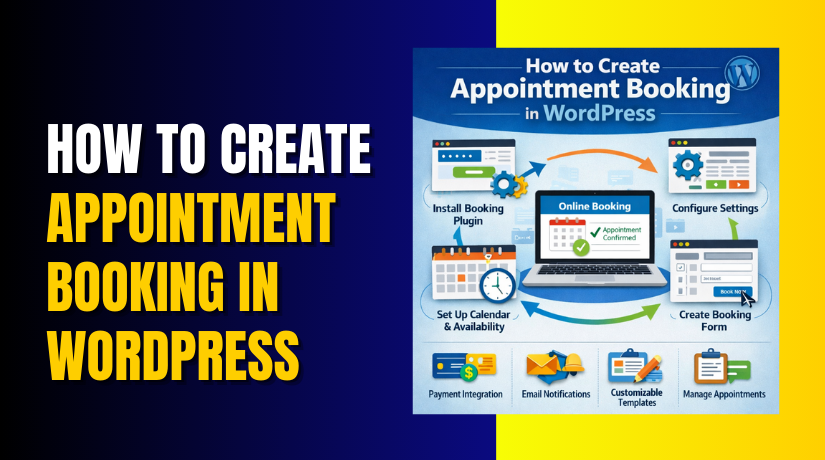
How to Create Appointment Booking in WordPress (Step-by-Step Guide)
Table of Contents
- Introduction
- Understanding the Need for an Appointment Booking System
- Choosing the Right Appointment Booking Plugin for WordPress
- Step-by-Step Guide to Creating an Appointment Booking System in WordPress
- Common Problems and Fixes While Creating Appointment Booking System
- Conclusion
Introduction
An appointment booking system is essential for many businesses, especially those offering services like consulting, healthcare, and beauty treatments. With the rise of online services, having an appointment booking system WordPress plugin allows businesses to manage appointments smoothly and efficiently. In this blog, we’ll guide you through setting up an appointment booking system in WordPress. A well-integrated WordPress booking system can streamline your booking process, reduce manual work, and improve customer satisfaction.
Understanding the Need for an Appointment Booking System
If you run a business that requires appointments, whether it’s a salon, doctor’s office, or personal coaching, an online appointment booking WordPress plugin can help you save time and improve customer experience. Without an appointment system, clients often call to schedule, leading to missed calls, double-booking, and confusion. A WordPress appointment booking system ensures that clients can book services at their convenience. It helps avoid scheduling conflicts, ensuring that appointments are well-managed.
Additionally, clients can book appointments 24/7, even outside of business hours. This convenience not only enhances customer satisfaction but also boosts your business’s efficiency. You no longer need to manually track appointments or send reminders. Everything is automated with the appointment booking system WordPress, reducing the chances of errors and missed appointments.
Moreover, an appointment booking system WordPress offers flexibility. You can set specific time slots, create different service categories, and even offer customized booking forms. This allows clients to choose a time that works best for them, while you control your schedule. An easy-to-use system gives both you and your clients peace of mind.
In summary, the need for an appointment booking in WordPress is clear. It simplifies the booking process, provides flexibility, reduces administrative tasks, and enhances the customer experience. Whether you’re a small business or a large organization, an online booking system is a smart investment to improve your service management and help your business grow.
Choosing the Right Appointment Booking Plugin for WordPress
When it comes to setting up an appointment booking system in WordPress, the first step is choosing the right plugin. With a wide variety of WordPress booking system plugins available, it’s important to select one that meets your business needs. A well-chosen plugin can make scheduling appointments seamless and efficient. Below, we’ll highlight some key features to consider when selecting the right appointment booking WordPress plugin.
Customization Options for Your Booking System
Every business has its unique requirements when it comes to appointment booking. Choose a plugin that offers robust customization options, so you can tailor the booking system to fit your brand and services. Look for plugins that allow you to customize the booking form, set specific time slots, and manage working hours. Customization ensures the appointment booking in WordPress aligns with your business model.
Payment Integration for a Smooth Transaction Process
If you need to accept payments at the time of booking, ensure the WordPress appointment booking plugin supports popular payment gateways like PayPal, Stripe, or credit cards. This integration allows clients to pay upfront for services, ensuring your business gets paid for each appointment. A payment-enabled plugin also helps streamline your financial transactions, making it easier for you to track payments.
Email and SMS Notifications for Effective Communication
A good appointment booking system WordPress plugin should include automated email and SMS notifications. These notifications help remind both you and your clients about upcoming appointments, confirmations, or cancellations. Set up confirmation emails, reminders, and even follow-up emails to keep your clients informed. This feature enhances communication and reduces no-shows, which can significantly impact your business.
User Interface and Ease of Use
The plugin should be easy to use for both you and your clients. A WordPress booking system that’s user-friendly will ensure that clients can book appointments without confusion. Look for plugins that offer simple, intuitive interfaces with clear instructions. Additionally, a responsive design is essential for ensuring the booking system works well on mobile devices, as many clients will access your website through smartphones.
Support and Regular Updates
Choose a plugin that provides reliable support and regular updates. As your business evolves, your plugin should evolve with it. Regular updates ensure compatibility with the latest WordPress versions and any new features or security patches. Moreover, good customer support will help you quickly resolve any issues that arise during the installation or operation of the appointment booking WordPress system.
Mobile Responsiveness for Accessibility Anywhere
In today’s mobile-first world, your WordPress booking system must be mobile-responsive. Clients should be able to book their appointments easily from their smartphones or tablets, regardless of where they are. A plugin with mobile optimization ensures a seamless experience for users on all devices, leading to higher conversion rates and fewer abandoned bookings.


Choosing the right appointment booking system WordPress plugin depends on your specific needs, business type, and the features you value most. Customization, payment integration, notifications, and ease of use are all important factors to consider when selecting the ideal plugin for your website. By focusing on these key features, you can select a plugin that helps streamline your booking process and improve your business operations.
Step-by-Step Guide to Creating an Appointment Booking System in WordPress
Step 1: Install and Activate the Appointment Booking Plugin
- Log into your WordPress dashboard.
- Go to Plugins > Add New.
- Search for the desired booking plugin (e.g., Bookly, Amelia).
- Click Install Now and then Activate.
- After activation, the plugin’s settings menu will appear in your WordPress dashboard.
Step 2: Configure General Settings for Your Booking System
- Go to the plugin’s settings page in your dashboard.
- Set your business working hours.
- Define your available time slots for appointments.
- Specify any holidays or breaks when appointments cannot be booked.
- Optionally, set buffer times between appointments to avoid back-to-back bookings.
Step 3: Add and Customize Services
- Navigate to the Services section in the plugin.
- Click Add New Service.
- Fill in the service name, description, and duration.
- Set a price for each service.
- Organize services into categories (e.g., Haircuts, Consultations) for easy navigation.
Step 4: Customize the Booking Form
- Go to the Forms section of the plugin.
- Customize the booking form to include fields such as name, email, and phone number.
- Add any optional fields like special requests or specific service preferences.
- Ensure the form is easy to use and matches the design of your website.
Step 5: Set Up Payment Gateways for Online Payments
- Go to the Payments section of the plugin settings.
- Choose your preferred payment methods (e.g., PayPal, Stripe).
- Follow the plugin instructions to set up each payment gateway.
- Enable payment at the time of booking to secure appointments.
Step 6: Enable Email and SMS Notifications
- Go to the Notifications section in the plugin.
- Set up confirmation emails for bookings.
- Configure reminder notifications (e.g., 24 hours before the appointment).
- Enable SMS notifications for faster communication, if supported.
Step 7: Customize the Appearance of Your Booking System
- Go to the Design or Appearance section of the plugin.
- Customize colors, fonts, and layout to match your site’s design.
- Ensure the booking form is user-friendly and visually appealing.
- Adjust any elements like buttons or icons to align with your branding.
Testing the Appointment Booking System
- Test the Booking Process: After configuring your appointment booking system WordPress, it’s crucial to test the entire booking flow. Make a test booking as if you were a client. This will help you verify that the system is working correctly and that all notifications (email/SMS) are sent as expected.
- Check Payment Functionality: If you’ve integrated a payment gateway, ensure the payment process works smoothly by completing a test transaction. Verify that the payment gateway accepts payments, and the system updates the appointment status after payment.
- Verify Notifications: Confirm that both client and admin receive booking confirmations, reminders, and cancellations. Check the content and timing of email/SMS notifications to ensure they’re correct and prompt.
- Ensure Mobile Responsiveness: Test the booking system on mobile devices to ensure it’s fully responsive. Clients should be able to book appointments easily from smartphones or tablets.
Common Problems and Fixes While Creating Appointment Booking System
Time Slot Conflicts
- Issue: Double-booking or overlapping appointments can occur if time slots aren’t set properly.
- Fix: Ensure you’ve set buffer times between appointments. Double-check the time slot settings to ensure there’s enough space between each booking. Some plugins also offer features to limit the number of bookings per time slot.
Payment Issues
- Issue: Payments might not be processed correctly, or clients may face issues during checkout.
- Fix: Revisit the payment gateway settings and ensure all API keys and credentials are correctly entered. Try completing a test payment to verify that the system is working. If the issue persists, check with your payment provider for support.
Not Receiving Email/SMS Notifications
- Issue: Either clients or admins may not receive notifications for bookings, reminders, or cancellations.
- Fix: Check the email settings in the plugin to ensure the correct email addresses are used. Ensure that your WordPress site is set up to send emails. For SMS notifications, verify that the integration with the SMS provider is working correctly.
Mobile Responsiveness
- Issue: The booking system might not display correctly on mobile devices, leading to a poor user experience.
- Fix: Ensure the booking form and calendar are optimized for mobile devices. Many plugins offer mobile-responsive layouts by default, but you may need to adjust settings or styling for better compatibility.
Plugin Compatibility
- Issue: Conflicts with other WordPress plugins or themes can prevent the booking system from functioning properly.
- Fix: Deactivate other plugins one at a time to identify the conflict. If the issue persists, consider contacting the plugin’s support team for compatibility advice or using a plugin specifically designed for booking systems.
Conclusion
Now that you’ve set up, tested, and troubleshooted your appointment booking system WordPress, your booking process should be running smoothly. A functional booking system enhances your client experience, boosts efficiency, and helps reduce administrative workload. If you run into any issues, don’t hesitate to reach out to plugin support or consult more resources for guidance.
If you need further assistance with setting up your WordPress appointment booking system, visit WooHelpDesk or call us at +1 888 602 0119 (US & Canada) for support. We’re here to help you optimize your WordPress site.



