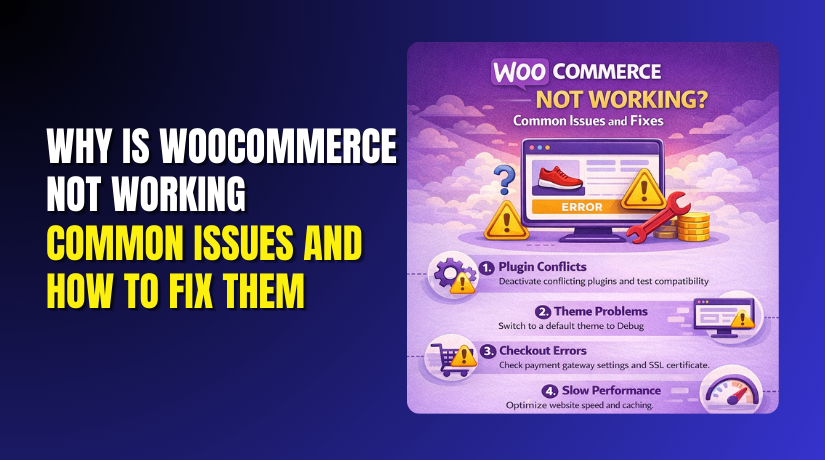
Why Is WooCommerce Not Working: Common Issues and How to Fix Them
Introduction
When WooCommerce is not working, your store can lose orders quickly. Visitors may see errors, blank pages, or slow loading screens. Many store owners notice this issue during busy sales hours. Some users report WooCommerce not loading on product or checkout pages. Others face WooCommerce pages not working on the Shop or Cart page. The good news is most problems have clear causes. You just need to test them in the right order. This guide helps you start troubleshooting safely and fast. It also works if WooCommerce is not working after an update happened recently.
What “WooCommerce Not Working” Usually Means?
The phrase WooCommerce not working can mean many different problems. Your store may load, but key actions fail silently. Your visitors may add products, but carts stay empty. In other cases, checkout loads but the payment never completes. Many owners first notice WooCommerce cart not working during add to cart actions. Some see WooCommerce checkout not working when placing an order. You may also see broken layouts or missing buttons.
Sometimes the Shop page loads, but products show incorrectly. Another common sign is slow or stuck loading on WooCommerce pages. If WooCommerce not loading happens only sometimes, caching may be involved. If it started after updates, it may be version conflict. That is why we begin with simple checks first. These checks help you avoid wrong changes on live stores.
Quick Checks Before You Start Deep Troubleshooting
Start with these quick checks to find the problem faster. Each step reduces guesswork and saves time later.
- Confirm your website is loading for all visitors now. Check from mobile and desktop devices. If the full site is down, hosting is likely involved.
- Check if only WooCommerce pages are broken today. Visit Shop, Cart, and Checkout pages in order. This helps confirm WooCommerce pages are not working clearly.
- Open your store in an incognito window for testing. This avoids saved cache and old sessions issues. It can fix WooCommerce not loading on your device.
- Clear browser cache and try again with fresh reload. Old files can break scripts after updates. This is common in WooCommerce not working after update cases.
- Test add to cart from a single simple product page. If it fails, it may be that WooCommerce cart is not working. If cart updates fail, checkout can also fail.
- Go to Checkout and try placing a test order carefully. If the page errors, it is WooCommerce checkout not working. Note the exact step where it fails.
- Check if the issue happens only for logged-in users. Also test as a guest user for a clean view. Some plugins behave differently for each user type.
- Look for visible error messages on the page screen. Take notes of any error text and page URL. This helps later when you check logs.
- If the issue started after updates, confirm what changed. Note the plugin, theme, or WooCommerce version update date. This is key for WooCommerce not working after update troubleshooting.
These steps do not change your store settings or code. They only help you narrow down what is failing. Once you confirm the exact broken area, you can move safely.
How to Identify Where the WooCommerce Problem Is Coming From Quickly
When WooCommerce is not working, you must find the exact failure point. Guessing can waste hours and break more things. A simple test path helps you isolate the real cause. This works for WooCommerce not working after update and random issues too. You will check pages, logs, and server signals step by step. You will also test safely without harming live sales. By the end, you will know what area needs fixing.
Step 1: Confirm Exactly What Is Broken in WooCommerce
Start by listing what users cannot do right now. Check the Shop page and open a product page. If pages show blank, WooCommerce not loading may be happening. If only store pages break, WooCommerce pages not working is likely. Test add to cart with one simple product first. If nothing adds, you may have a WooCommerce cart not working. Next, open the Cart page and change the quantity. If totals do not update, scripts may be blocked. Then open Checkout and try placing a test order. If the order fails, you may have WooCommerce checkout not working. Note the exact step where it stops, like loading, billing, or payment. Also check if the problem is for guests only. Check if it happens only for logged-in users. These small details narrow the root cause fast.
Step 2: Check WooCommerce Status and Logs for Clear Clues
WooCommerce keeps useful logs that many owners ignore. Go to your WordPress dashboard and open WooCommerce settings. Find the Status section and check for warnings first. Look for outdated templates, missing pages, or server limits. Check the database update notice if it appears. A pending database update can break store behavior sometimes. Next, open the WooCommerce logs section carefully. Look for errors linked to checkout, payments, or API calls. If you see failed webhooks, payments may be blocked. If you see fatal errors, a plugin conflict is likely. Copy the error text and save it for your fix steps. This is very helpful when WooCommerce not working after update begins suddenly. Logs often show which plugin or file caused the crash. If the logs mention checkout, it confirms WooCommerce checkout not working. If logs show cart fragments failing, it confirms WooCommerce cart not working. Use these clues to avoid blind troubleshooting.
Step 3: Check Server Errors Fast Using Your Hosting Panel
Many WooCommerce issues are server related, not plugin related. Open your hosting panel and check the error log. If you use cPanel, look for the Errors section. Search for recent PHP errors and timeouts. PHP errors often break pages and cause WooCommerce not loading. Timeouts can happen during checkout and large cart updates. Check your PHP version and confirm it matches WooCommerce needs. Also check your PHP memory limit if pages crash often. Low memory can cause WooCommerce pages not working on heavy pages. Check CPU and resource usage if hosting provides this view. High usage can create slow cart and checkout actions. If you use a firewall or security system, check blocked requests. Blocked requests can break cart fragments and checkout scripts. If you see 403 or 503 errors, note them carefully. These are strong signs the server is blocking WooCommerce actions.
Step 4: Use a Safe “Staging Mindset” to Avoid Live Store Damage
When WooCommerce not working, avoid heavy testing on live checkout. Live changes can stop sales and create customer complaints. Use a staging site if your host provides one. If staging is not available, test during low traffic hours. Always take a backup before disabling plugins or switching themes. Never edit code directly without a rollback option. If you must test on live, keep changes small and reversible. Disable one plugin at a time and test again. This prevents confusion and helps you find the real conflict. If WooCommerce not working after update, roll back only one item first. For example, roll back one plugin update, not everything. Also keep notes for each test you do. Write what you changed and what improved after it. This makes your troubleshooting clean and professional. Once you know the cause, you can apply the right fix. In Part 3, we will cover the most common reasons clearly.
Most Common Reasons WooCommerce Stops Working
When WooCommerce is not working, the cause is often predictable. Many issues start after updates, new plugins, or theme changes. Some problems look random but have a simple pattern. You should match the symptom with the most likely cause. This saves time and avoids risky trial and error. Below are the most common reasons stores face failures. These reasons often trigger WooCommerce not loading or broken checkout flow. They can also cause WooCommerce pages not working on key pages.
Plugin Conflict With WooCommerce Can Break Store Features
A plugin conflict is one of the top reasons for failures. Two plugins may load the same script and cause errors. Some plugins change checkout fields and break validation. Others block cart fragments and create cart update failures. This can look like WooCommerce cart not working suddenly. It can also cause buttons to stop responding on product pages. Conflicts often start after installing a new plugin. They also appear after enabling new plugin settings. If the issue began yesterday, check what was added. If WooCommerce does not work after update, conflicts are even more likely. A plugin update can change code and create new conflicts.
Theme Conflict or Outdated Templates Can Break WooCommerce Pages
Themes often override WooCommerce templates for custom design. If templates are outdated, pages may behave incorrectly. You may see missing buttons, wrong prices, or broken layouts. This can cause WooCommerce pages not working on Shop or Product pages. Some themes also add heavy scripts that slow loading. That can feel like WooCommerce not loading for some visitors. Theme conflicts often appear after switching themes or updates. They can also show up when WooCommerce updates template structure. If the theme is not updated, it may fail silently. This is a common reason stores break without clear errors.
WooCommerce or WordPress Updates Can Create Version Mismatch
Updates improve security, but they can also expose old issues. A new WooCommerce version may require newer PHP support. A new WordPress version may change how scripts load. This mismatch can cause checkout scripts to fail. Many owners report WooCommerce not working after the update for this reason. You may also notice slow admin screens or missing settings. Sometimes the database update step gets skipped after updates. That can break store pages until it completes. Version mismatch can also break payment and shipping plugins. If payments fail after updates, check compatibility first.
Caching and Minification Can Break Cart and Checkout Scripts
Caching is great for speed, but it needs correct rules. If caching hits Cart and Checkout, sessions can break. This can cause WooCommerce checkout not working for many users. Minification tools may combine scripts in the wrong order. That can stop adding to cart and cart updates. Then it looks like WooCommerce carts are not working for everyone. Some cache plugins also delay JavaScript loading incorrectly. That can cause buttons to do nothing on click. If the issue appears only on front-end pages, suspect caching. If it works for admins but not guests, suspect caching more.
Payment Gateway Failure or Wrong Settings Can Block Orders
Payments can fail even when pages load normally. The gateway may be disabled or in test mode by mistake. API keys may be wrong or expired after changes. Webhooks may not be set, so orders fail to confirm. This often appears as WooCommerce checkout not working at payment step. Customers may see a spinning loader or a failed payment message. Sometimes orders stay pending with no payment capture. If payments stopped after gateway updates, check keys first. If payments stopped after site migration, check webhook URLs. Gateway issues are common when SSL is missing too.
SSL, Mixed Content, or Security Tools Can Block WooCommerce Actions
Checkout needs HTTPS to protect customer data and payments. If SSL is broken, browsers may block scripts silently. Mixed content warnings can stop payment fields from loading. This can feel like WooCommerce not loading only on checkout pages. Security plugins can also block REST requests used by WooCommerce. Firewalls may block cart fragments and AJAX calls. That can lead to WooCommerce pages not working during cart updates. If you see 403 errors, security rules may be the cause. If you see blocked scripts, SSL issues may be the cause.
REST API Blocked or Permalinks Broken Can Stop Core Features
WooCommerce uses the REST API for many actions now. If wp-json is blocked, store features can fail. This can break cart fragments and some checkout processes. It can also stop shipping and tax calculations. Broken permalinks can cause product links to fail too. Then users report WooCommerce pages not working for products and categories. This issue often happens after server changes or migrations. Some security setups block wp-json without warnings. If checkout loads but fails on submit, suspect this.
Hosting Limits Can Cause Timeouts and Slow Page Failures
WooCommerce needs more resources than a simple blog site. Low PHP memory can crash heavy pages without clear messages. Low CPU can make cart and checkout very slow. Low execution time can stop payment requests from finishing. Then it looks like WooCommerce checkout is not working randomly. Shared hosting can struggle during traffic spikes and sales. If problems appear only during peak traffic, hosting is likely. If WooCommerce not loading happens only at busy times, check server usage. Upgrading hosting can solve many repeat issues.
Database Issues or Corruption Can Break Store Pages


WooCommerce stores orders, sessions, and product data in tables. If the database is slow, pages can time out. If tables are corrupted, errors may appear on checkout. You may also see wrong stock or missing order details. Database issues can cause random failures across pages. It can show as WooCommerce not working with no clear pattern. This often happens after migrations or failed updates. Large stores also face slow queries without optimization. If the admin is slow too, the database may be the cause.
Malware, Firewall Rules, or Blocked Requests Can Disrupt Checkout
Malware can inject scripts and break store functions. It can also redirect users and block payments. Firewalls may detect false positives and block customers. This can break checkout submissions and login actions. Then you get reports of WooCommerce checkout not working. Some hosting security systems block repeated requests. That can break cart fragments and make WooCommerce cart not working. If you see strange popups, suspect malware quickly. If Google flags the site, act fast and scan.
Email Sending Problems Can Make Orders Look Like They Failed
Sometimes orders are placed but emails never arrive. Customers think checkout failed and leave the store. Store owners think WooCommerce not working, but it is email delivery. Order status may update, but no email is sent. This often happens when SMTP is not set correctly. Hosting mail limits can also block order emails. This problem is common after moving to a new host. It can also happen after installing security mail settings.
How to Fix WooCommerce Not Working (Step by Step)
When WooCommerce is not working, you need a clean fixing process. Random changes can create bigger problems and downtime. Use these steps in the same order for best results. Each step helps confirm the real cause quickly. This also works when WooCommerce is not working after an update happens suddenly. You will fix loading, cart, and checkout issues safely. You will also reduce the risk of repeat problems later.
Step 1: Take a Full Backup Before You Change Anything
Start by creating a full site backup first. Backup files and the full database together for safety. Use your hosting backup tool or a trusted backup plugin. This protects you if a fix breaks something else. A backup is critical when checkout is involved. It also helps if you need to roll back updates. Never skip this step during live store troubleshooting.
Step 2: Update WooCommerce Safely in the Right Order
Outdated versions can create compatibility problems quickly. Update WordPress core first if it is safe. Then update WooCommerce to the latest stable version. After that, update your active theme if updates exist. Next, update other plugins one by one with care. If WooCommerce is not working after the update, note which update caused it. Avoid bulk updates without testing your store pages. After each update, test Shop, Cart, and Checkout pages again. This helps you catch the exact update creating the issue.
Step 3: Clear All Caches That Can Affect WooCommerce Pages
Caching can make WooCommerce not loading look worse than it is. Clear the cache in your caching plugin first. Clear server cache from your hosting panel if available. If you use a CDN, purge the CDN cache too. Clear browser cache and test again in an incognito window. Also clear any optimization cache like minify or combine cache. If WooCommerce pages are not working only for some users, caching is likely. After purging, retest, add to cart and checkout actions.
Step 4: Find Plugin Conflicts Using a Clean Testing Method
Plugin conflicts can cause WooCommerce carts not working instantly. Disable all plugins except WooCommerce for a quick test. Then test products add to cart and cart update actions. If the issue is gone, it is a plugin conflict. Enable plugins one by one and test after each step. When the problem returns, you found the conflict plugin. Check that plugin settings and recent update notes. Replace it or contact the plugin support team. This method is safer than guessing and switching randomly.
Step 5: Test Your Theme by Switching to a Default Theme
Themes can break WooCommerce templates and scripts silently. Switch to a default WordPress theme for testing. Use a standard theme like Twenty Twenty-Four temporarily. Test Shop, product pages, Cart, and Checkout again. If the issue disappears, your theme is the cause. Update the theme or fix outdated WooCommerce templates. Many stores see WooCommerce pages not working due to theme overrides. Revert to your main theme only after confirming a fix.
Step 6: Fix Cart and Checkout Script Problems From Optimization Tools
Optimization tools can block key WooCommerce scripts. Temporarily disable minification and JavaScript combining features. Then test add to cart and cart update again. If WooCommerce carts are not working, this often fixes it fast. Exclude Cart and Checkout pages from caching always. Also exclude WooCommerce scripts from delayed loading features. Retest checkout form validation and payment loading steps. If WooCommerce checkout is not working, script order is a common reason. Keep performance settings but use safe exclusions for WooCommerce.
Step 7: Fix Payment and Checkout Settings That Block Orders
If pages load but payments fail, check gateway settings. Confirm the gateway is enabled and not in test mode. Recheck API keys, secret keys, and webhook settings. Confirm your store currency matches the gateway supported currency. Confirm the store address and timezone settings are correct. Some gateways fail if SSL is missing on checkout. If WooCommerce checkout is not working at payment step, check error logs. Run a test transaction using a small product price. Confirm order status updates after payment confirmation. Fix webhooks if orders stay pending after payment.
Step 8: Fix Permalinks and REST API Issues That Stop WooCommerce
WooCommerce needs clean permalinks for many actions. Go to Permalinks settings and save without changes. This refreshes rewrite rules and fixes many link issues. If product links fail, this can fix WooCommerce pages not working. Check if your security plugin blocks wp-json endpoints. If blocked, WooCommerce features may fail silently. Allow wp-json and admin-ajax for WooCommerce to work. If WooCommerce is not loading in parts, REST blocks can be the reason. Test checkout again after allowing these endpoints.
Step 9: Increase Hosting Resources if Your Store Hits Limits
Hosting limits can cause random failures and slow loading. Increase PHP memory limit if pages crash often. Increase max execution time if checkout requests time out. Confirm your PHP version is compatible with WooCommerce. If traffic spikes cause downtime, upgrade the hosting plan. Weak shared hosting can cause WooCommerce not working during busy hours. If pages load slowly, check server CPU and RAM usage. Consider managed WooCommerce hosting for stable performance. Hosting upgrades often fix repeat checkout and cart failures.
Step 10: Confirm the Fix Using Logs and Real Store Testing
After changes, confirm the problem is fully gone. Test product pages, add to cart, cart updates, and checkout. Place a test order with your live gateway if possible. Review WooCommerce logs for new errors after testing. Check server error logs for fresh warnings or fatal errors. If WooCommerce does not load returns, check caching again. If errors are gone, keep notes of what fixed it. This helps if the problem returns after future updates.
Step 11: Know When to Escalate to Save Time and Money
Some issues need expert help for fast recovery. Escalate if you see fatal errors you cannot fix. Escalate if payments fail with unclear gateway errors. Escalate if malware is suspected or Google flags your site. Escalate if checkout fails during high traffic sales campaigns. A quick fix by experts can prevent lost revenue. It also reduces downtime and customer complaints.
How to Prevent WooCommerce Issues in the Future
Prevention keeps your store stable and reduces emergency fixes. These steps help avoid WooCommerce not working issues again. Use the points below and follow them as a routine.
- Always test updates on a staging site first. A staging site is a copy of your live store. You can update WooCommerce, themes, and plugins safely. Test Shop, Cart, and Checkout before pushing changes live. This prevents WooCommerce from working after update surprises on customers.
- Update in small batches, not everything at once. Do not update all plugins and themes together. Update WooCommerce first, then test store pages carefully. Next update one plugin and test again after each update. This makes it easy to find the exact update causing issues.
- Keep daily backups with a fast restore option. Backups protect you when something breaks suddenly. Use hosting backups or a trusted backup plugin. Make sure both files and database are included in backups. A fast restore reduces downtime when WooCommerce pages not working.
- Set correct cache rules for Cart and Checkout pages. Never cache Cart, Checkout, or My Account pages. Cached sessions can break totals, coupons, and shipping rates. This is a major reason for WooCommerce cart not working issues. Exclude these pages in your cache plugin and CDN settings.
- Use optimization settings carefully for WooCommerce scripts. Minifying and delaying JavaScript can break WooCommerce actions. Exclude WooCommerce scripts from delay and combine options. Keep testing, add to cart and checkout after changes. This reduces WooCommerce checkout not working issues caused by scripts.
- Avoid too many plugins that do the same job. Multiple plugins can fight for the same features and create conflicts. Keep only one plugin for caching, one for security, and one for checkout fields. Fewer plugins means fewer conflicts and less risk of WooCommerce not loading.
- Choose a WooCommerce-ready theme and keep it updated. Themes with old WooCommerce templates can break store pages. Use a theme that supports WooCommerce and updates regularly. Check WooCommerce template warnings inside WooCommerce status. This helps prevent WooCommerce pages not working after updates.
- Monitor error logs and fix warnings early. WooCommerce logs often show small issues before big failures. Check logs weekly, especially after updates or new plugins. Fix warnings related to checkout, payment, and webhooks quickly. Early fixes reduce the chance of store downtime later.
- Use reliable hosting that can handle store traffic. WooCommerce needs more resources than normal websites. Weak hosting can cause timeouts and slow pages during busy hours. Choose hosting with good PHP limits and stable performance. Better hosting prevents random WooCommerce not working moments.
- Test your full checkout flow every week. Place a small test order and confirm it completes. Check email delivery and order status updates after payment. This catches issues before customers report them. It also helps detect WooCommerce checkouts not working early.
Conclusion
When WooCommerce not working, follow the steps in order. Start with backups, then isolate conflicts and clear caches. Fix scripts, gateway settings, and server limits methodically. This approach solves WooCommerce not loading and breaking pages faster. It also fixes WooCommerce cart not working and checkout failures reliably. If you want expert help, WooHelpDesk can troubleshoot it quickly. Visit Woohelpdesk and contact the support team today.



